Why Doesn’t My VPN Switch to Those Local TV Stations?
Learn why a VPN may not change your local TV lineup and how to troubleshoot location, app, and streaming restrictions.
A VPN usually cannot switch your TV service to a different local station lineup on its own. It changes the internet address that some websites and apps use to estimate your location, but streaming services may also rely on your device’s location, account details, home-market settings, or network information. If those signals do not match, or the service blocks VPN traffic, you may keep seeing the same local channels, see different programming, or get an error.

Editor's pick: NordVPN — fast, secure VPN — Strong encryption, a no-logs policy and apps for every device. 30-day money-back guarantee. Get NordVPN →
How local TV services may identify your location
| Location signal | What it can reveal | How it may affect channels | What to check |
|---|---|---|---|
| IP address | Approximate network location | May determine the local market | Whether the VPN is connected |
| Account home area | Registered viewing region | May keep channels tied to home | Account location settings |
| Device location | Current device position | May override VPN location | Location permissions |
| GPS data | Precise location on supported devices | May identify your actual area | GPS access for the app |
| Wi-Fi network | Network-related location clues | May conflict with VPN location | Whether Wi-Fi is enabled |
| Billing details | Home or billing region | May shape service eligibility | Account billing address |
| App settings | Saved market or location | May preserve previous channels | Location or market preferences |
Compiled November 2026; check the provider's site for current details.
| VPN | Obfuscation | From / month | Plan | Free plan | Refund | Alipay | UnionPay | Crypto | Website opens in China | Trustpilot | |
|---|---|---|---|---|---|---|---|---|---|---|---|
 ZoogVPN | Turn on manually Shadow | $2.49/mo | 27 months: $59.99 | Yes | 7 days | ✓ | ✓ | ✓ | ✓ | Official site blocked; our special link opens (4.4 s) | 4.2/5 (195 reviews) |
 NordVPN | Turn on manually Obfuscated Servers / NordWhisper | $3.49/mo | 27 months: $94.23 | No | 30 days | ? | ✗ | ✓ | ✓ | ✗ Blocked | 4.2/5 (51,628 reviews) |
 ExpressVPN | ✓ On by default all servers | $3.00/mo | 28 months: $84 | No | 30 days | ✗ | ✗ | ✓ | ✗ | ✗ Blocked | 4.4/5 (29,706 reviews) |
 Surfshark | ✓ On by default Camouflage, with OpenVPN | See site | See site | No | 30 days | ✗ | ✗ | ✗ | ✓ | ✗ Blocked | 4.3/5 (31,823 reviews) |
 Proton VPN | Turn on manually Stealth, free plan too | $2.99/mo | 12 months: $35.88 | Yes | 30 days | ✗ | ✗ | ✗ | ✓ | ✗ Blocked | 2.1/5 (1,040 reviews) |
 Astrill VPN | Turn on manually StealthVPN / OpenWeb | $12.50/mo | 24 months: $300 | No | See site | ✗ | ✗ | ✗ | ✓ | ✗ Blocked | 1.3/5 (110 reviews) |
 Private Internet Access | Turn on manually Shadowsocks, OpenVPN only | $2.03/mo | 40 months: $81.2 | No | 30 days | ✗ | ✗ | ✗ | ✗ | ✗ Blocked | 4.2/5 (11,033 reviews) |
 CyberGhost | Turn on manually selected servers | $2.19/mo | 28 months: $61.32 | No | 45 days | ✗ | ✗ | ✗ | ✓ | ✗ Blocked | 4.0/5 (24,178 reviews) |
 PureVPN | Turn on manually switch to OpenVPN | $1.69/mo | 60 months: $101.55 | No | 31 days | ? | ? | ✗ | ✓ | ✗ Blocked | 4.4/5 (17,994 reviews) |
 AdGuard VPN | ✓ On by default TrustTunnel | $2.99/mo | 24 months: $71.76 | Yes | 30 days | ✓ | ✗ | ✓ | ✓ | Official site blocked; our special link opens (3.7 s) | 4.3/5 (290 reviews) |
 Mullvad | Turn on manually QUIC / Shadowsocks / LWO | $5.61/mo | €5/mo | No | 14 days | ✗ | ✗ | ✗ | ✓ | ✗ Blocked | 3.2/5 (192 reviews) |
 Windscribe | Turn on manually Stealth / WStunnel | $5.75/mo | 12 months: $69 | Yes | See site | ✗ | ✗ | ✗ | ✓ | ✗ Blocked | 4.7/5 (13,355 reviews) |
 StrongVPN | Turn on manually Scramble, OpenVPN TCP | See site | See site | No | 30 days | ✓ | ✗ | ✗ | ✗ | ✗ Blocked | 4.4/5 (2,695 reviews) |
 LightXtreme 闪连 | Not listed | $7.08/mo | 12 months: $84.99 | Yes | 30 days | ✓ | ✓ | ✓ | ✓ | ✓ Yes (3.5 s) | No page |
Prices checked 2026-11-10 on each vendor's pricing page (cheapest long plan, USD). Check the vendor's checkout for the final price.
Obfuscation checked 2026-11-14 on each vendor's site and help center: "on by default" = nothing to set; "turn on manually" = switch protocol or mode in settings; "not listed" = the vendor describes no obfuscation.
Payment methods checked 2026-11-10 on each vendor's payment pages: all 14 take cards and PayPal; ✗ = not listed, ? = the vendor's own pages disagree.
China access: whether the official website opens from mainland China networks (tests the website only, not the VPN connection). Last checked 2026-11-18 01:02 Beijing time.
Trustpilot score and review count checked 2026-11-10.
Why your local stations may stay the same
Local TV access is often based on more than your IP address. A streaming provider may assign local stations according to the area associated with your account, your registered home network, or the market where your device is physically located.
For example, a service may use your IP address to identify a city but use GPS to confirm where a phone or tablet is. A smart TV may not have GPS, yet the app could still follow the account’s home location or a location setting configured when you first signed in.
There are also licensing rules to consider. Local stations have defined broadcast markets, and streaming services may be required to show channels according to those markets. A VPN does not change your subscription or automatically move your account to another market.
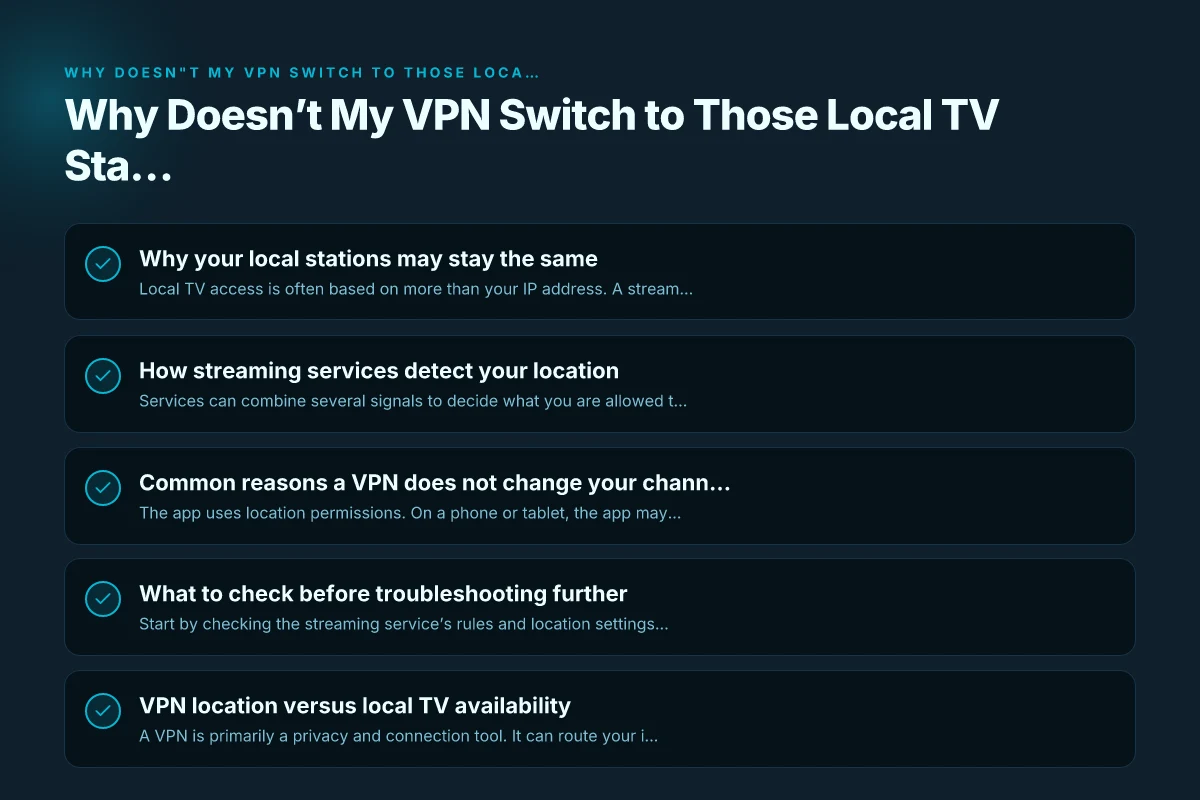
How streaming services detect your location
Services can combine several signals to decide what you are allowed to watch. The exact method varies by provider, device, and subscription. Free VPN for PC: How to Choose a Safe Option
| Location signal | What it can affect |
|---|---|
| IP address | The approximate area associated with your internet connection |
| Device location | A phone or tablet’s location, if the app has permission to access it |
| Account or home location | The market or household linked to your subscription |
| Network information | Whether the connection appears to come from a VPN or proxy |
| App or device settings | A saved location, region, or home-network configuration |
When these signals disagree, the service may favor one over the others, ask you to verify your location, or restrict playback. Some services also recognize IP addresses commonly used by VPN providers and block them.
Common reasons a VPN does not change your local channels
| Possible reason | What you may notice | What to check | Next step |
|---|---|---|---|
| Account home area controls channels | Same home-market stations | Account location settings | Review the service’s market rules |
| Device location is enabled | Channels match your current area | Location permissions | Check the app’s location access |
| GPS is available to the app | VPN appears not to affect location | GPS permissions | Review device privacy settings |
| VPN server is in the wrong area | Channels do not match the intended market | Selected server location | Choose the desired supported location |
| Service blocks VPN traffic | Playback or access problems | Service error messages | Check the service’s VPN policy |
| App retained old location data | Channel lineup seems unchanged | App and device settings | Refresh or reopen the app |
| Local channels depend on eligibility | Some stations remain unavailable | Service availability rules | Confirm which markets are supported |
Compiled November 2026; check the provider's site for current details.
Common reasons a VPN does not change your channels
The app uses location permissions. On a phone or tablet, the app may use GPS or another device-location service rather than relying only on your VPN’s IP address. IPsec Port: Which Ports and Protocols Does IPsec Use?
Your account is tied to a home market. Some subscriptions associate local channels with a registered home location. Changing VPN servers may not update that setting.
The VPN server is not in the market you need. A server listed for a city may be located elsewhere, or its IP address may be identified as coming from a different region. Even a server in the right state may not be inside the station’s broadcast market.
The streaming service blocks VPN connections. If the provider detects a VPN, it may show an error, limit the content available, or use another location signal to determine your lineup.
Your app has cached old information. An app may continue displaying a previously selected market or saved location until you sign out, refresh the app, or update the relevant settings. VPN Country Changer Free: How to Change Your Virtual Location Safely
The channel lineup is not available with your plan. A VPN cannot add a station that is excluded from your subscription or unavailable through that provider.
What to check before troubleshooting further
Start by checking the streaming service’s rules and location settings. Look for its help page on local channels, home networks, travel, and VPN use. Some services allow location updates through an account portal. Others require verification from a home network or do not support changing the market on demand.
Then check these basics:
- Confirm that the VPN is connected to the intended server.
- Check whether your device’s location permission is enabled for the streaming app.
- Review the account’s home location or market, if the service offers that setting.
- Sign out and back in, then restart the app or device.
- Check whether the same issue appears on another device or network.
- Contact the provider to ask how it determines your local TV market.
Do not assume that repeatedly switching VPN servers will solve the problem. It may produce the same lineup, trigger a location check, or lead to a temporary playback restriction. If the service requires a location update, follow its official process rather than trying to bypass its rules. Free VPN for PC to Change Location: What Works and What to Check
VPN location versus local TV availability
| Factor | VPN may change it | Service may still use it | What to verify |
|---|---|---|---|
| Public IP location | Yes | Yes | VPN server region |
| Account home market | No | Yes | Registered home area |
| Device location permission | No | Yes | App permissions |
| GPS location | No | Yes | GPS access |
| Wi-Fi location clues | No | Possibly | Network and device settings |
| Channel availability | No | Yes | Service market coverage |
| VPN acceptance | No | Yes | Service VPN restrictions |
| Billing region | No | Possibly | Account details |
Compiled November 2026; check the provider's site for current details.
VPN location versus local TV availability
A VPN is primarily a privacy and connection tool. It can route your internet traffic through a server in another location, but it does not guarantee access to local broadcast channels from that area. Whether you can watch a particular station depends on the streaming provider, your subscription, the device you use, and the applicable regional rights.
If you want local news or programming while traveling, check whether your service offers a supported travel option or an official way to verify your current location. You can also look for the station’s own website or app, an authorized live stream, or an antenna if you are within the station’s broadcast area. Availability varies, so confirm that the option is legitimate and works where you are. Free VPN That Allows You to Change Location: What to Choose
Recommendation
If you are asking, “why doesn’t my vpn switch to those local tv stations,” the most likely explanation is that the service uses more than your VPN’s IP address, or does not permit VPN-based market changes. Check your account’s location settings, device permissions, and the provider’s support guidance first. For reliable access to a specific local station, use a viewing method the station or streaming service officially supports.