
TunnelBear Extension Edge: What It Does and How to Use It
Learn whether TunnelBear works as an Edge extension, how to install it, and when to use the Windows VPN app instead.


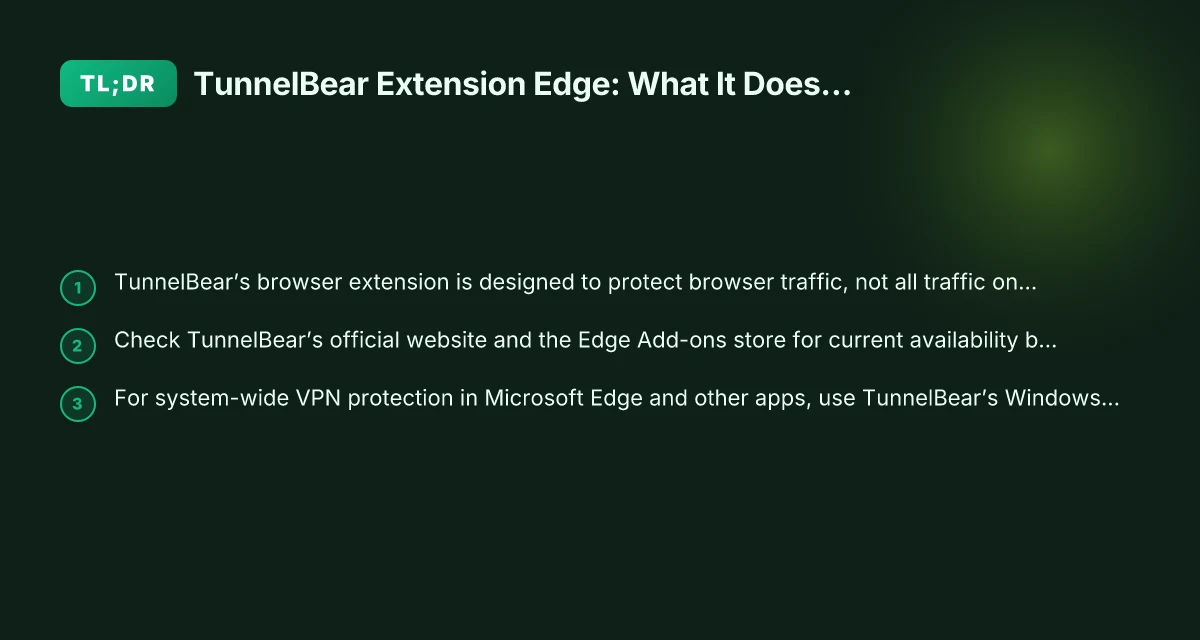
If you’re looking for a TunnelBear extension for Edge, first check the official Microsoft Edge Add-ons store and TunnelBear’s website to confirm whether an Edge-compatible extension is currently offered. Availability can change, and an extension listed for another browser may not work in Edge. If you need a VPN for all apps on your Windows device, install TunnelBear’s Windows app instead: a browser extension, where available, generally covers only browser traffic.

Editor's pick: NordVPN — fast, secure VPN — Strong encryption, a no-logs policy and apps for every device. 30-day money-back guarantee. Get NordVPN →
Comparing the TunnelBear Edge extension with the Windows app
| Feature | Edge extension | Windows app | Best fit |
|---|---|---|---|
| Where it runs | In Microsoft Edge | On Windows | Depends on scope |
| Traffic covered | Browser traffic | Device traffic | App for broader coverage |
| Setup | Install from Edge Add-ons | Install the Windows app | Choose your preferred setup |
| Browser-only use | Supported | Supported | Extension is browser-focused |
| Other apps | Not covered | Covered by the app | App for non-browser apps |
| Switching protection | From the browser | From the app | Both offer app-specific controls |
Compiled November 2026; check the provider's site for current details.
What the TunnelBear Edge extension does
A VPN extension connects supported browser traffic to a VPN server. This can help protect that traffic on public Wi-Fi and make websites see the VPN server’s IP address instead of your usual one. The exact features depend on the extension and its settings.
A browser extension is not the same as a full VPN app. It may not route traffic from email clients, games, or other desktop programs through the VPN. It also does not make you anonymous: websites may still recognize you through sign-ins, cookies, browser fingerprinting, or other information.
Before installing anything, verify that the listing is genuinely from TunnelBear. Avoid third-party download sites and lookalike extensions, which may request broad permissions or contain unwanted software.

How to find and install it in Edge
Start with TunnelBear’s official site or the Microsoft Edge Add-ons store. Search for “TunnelBear” and check the publisher, description, reviews, and update history. If you cannot find an official Edge listing, do not assume that a Chrome extension is automatically supported. Cisco AnyConnect VPN: How to Install, Connect, and Use It
If TunnelBear confirms that its Chrome extension is compatible with Edge, you may be able to install it through Edge’s Chrome Web Store compatibility setting:
- Open Microsoft Edge and go to Settings.
- Open Extensions.
- If available, enable the option to allow extensions from other stores.
- Visit the Chrome Web Store and locate the official TunnelBear extension.
- Confirm the publisher and permissions, then select Add to Edge.
- Open the extension, sign in or create an account, and connect to a server.
The setting and menu labels may vary between Edge versions. Only use this route if TunnelBear’s current support information says the extension works in Edge. If it does not, use the Windows app or another option recommended by TunnelBear.
Choosing an installation route
| Route | Where to look | What to do | Useful when |
|---|---|---|---|
| Edge Add-ons | Microsoft Edge Add-ons | Search for TunnelBear | Installing in Edge |
| TunnelBear website | TunnelBear’s official site | Follow its Edge extension link | Confirming the official listing |
| Edge browser | Edge Add-ons listing | Check the extension name and publisher | Avoiding lookalikes |
| Windows app | TunnelBear’s official site | Download the Windows app | Protecting traffic beyond Edge |
| After installation | Edge toolbar | Open the extension and sign in | Getting started |
Compiled November 2026; check the provider's site for current details. Tuxler VPN Extension: How It Works, Setup, and What to Know
Extension or Windows app?
Choose the option based on what you want to protect. A browser extension can be convenient for browser-only use, while a desktop VPN app is the better fit when you want broader device coverage.
| Feature | Browser extension, if officially supported | TunnelBear Windows app |
|---|---|---|
| Traffic covered | Usually supported browser traffic | Device traffic routed through the VPN |
| Works with other apps | Generally no | Generally yes |
| Setup | Added to the browser | Installed on Windows |
| Best for | Browser-focused use | Broader protection across the device |
| Availability | Confirm current Edge support | Check TunnelBear’s official download page |
VPN routing can vary by app, operating system, and settings. Review TunnelBear’s documentation for details about features such as connection protection, server locations, and account limits.
How to use TunnelBear safely
Once installed, choose a server location and connect before using the browser or apps you want protected. If you are using the desktop app, confirm that it shows an active connection. If you are using an extension, check its connection status and make sure it is enabled for the sites you intend to visit.
Keep the software updated, and review its permissions. An extension may need access to browser traffic to provide its features, but you should understand what it can access before approving installation. Where Is My VPN Located? How to Check Your VPN Server Location
A few practical checks can help:
- Confirm the extension or app comes from TunnelBear.
- Test your public IP using a reputable IP-checking site after connecting.
- Avoid entering sensitive information if the VPN connection drops unexpectedly.
- Remember that a VPN does not replace strong passwords, multifactor authentication, or safe browsing habits.
- Check TunnelBear’s privacy policy and terms to understand how the service handles account and connection data.
Troubleshooting common problems
If the extension does not appear in the Edge Add-ons store, TunnelBear may not currently offer a native Edge version. Check the official support pages for updated compatibility details rather than installing an unofficial copy.
If an extension installs but will not connect, try updating Edge and the extension, signing out and back in, or restarting the browser. Temporarily disable conflicting VPN or proxy extensions and test again. If you use the Windows app, avoid running multiple VPNs at once, as they can interfere with one another.
When a website still shows your usual location, check that the VPN is connected and that the relevant traffic is going through it. Location can also be inferred from account details, cookies, or browser settings, so an IP change alone does not guarantee that a site will treat you as being somewhere else. IPsec VPN: How It Works, Benefits, and When to Use It
Troubleshooting the Edge extension
| Problem | Check first | Try next | If it continues |
|---|---|---|---|
| Extension missing | Edge Add-ons installation | Reopen the Add-ons page | Check Edge’s extension settings |
| Extension will not connect | Internet connection | Reopen the extension | Restart Edge |
| Site does not load | TunnelBear connection | Disconnect and reconnect | Try the Windows app |
| Extension icon is hidden | Edge toolbar | Open the Extensions menu | Pin the extension |
| Sign-in trouble | Account details | Sign out and sign in again | Check TunnelBear support |
Compiled November 2026; check the provider's site for current details.
Recommendation
For a “TunnelBear extension Edge” search, verify current Edge support in TunnelBear’s official documentation and the Microsoft Edge Add-ons store before installing. If an official, compatible extension is available, use it for browser-focused protection. If you want VPN coverage for Microsoft Edge and other Windows apps, choose the TunnelBear Windows app instead.