SSL VPN POSCO E&C: Secure Remote Access Guide
Learn what SSL VPN POSCO E&C refers to, how to access it safely, and what to do if you cannot connect.
Searching for “ssl vpn poscoenc” usually means looking for POSCO E&C’s secure remote-access service or help signing in. An SSL VPN creates an encrypted connection between an approved device and an organization’s internal network. Because login pages, software requirements, and access policies can change, use the link and instructions provided directly by POSCO E&C rather than relying on an unverified search result.

Editor's pick: NordVPN — fast, secure VPN — Strong encryption, a no-logs policy and apps for every device. 30-day money-back guarantee. Get NordVPN →
Compare common remote-access routes
| Route | Best for | How to verify it | Access method | Main caution |
|---|---|---|---|---|
| Official company portal | Employees | Confirm through POSCO E&C’s official channels | Follow the published sign-in route | Avoid lookalike sites |
| Company-provided VPN client | Managed devices | Check company instructions or IT guidance | Use the approved client and settings | Do not install unapproved software |
| Company intranet link | Users with existing access | Confirm the link with an official source | Open the designated intranet entry point | Internal links may require VPN first |
| IT help desk | Uncertain or blocked access | Use a known company contact channel | Request the current approved route | Do not share passwords |
| Search-engine result | Initial discovery only | Validate against official company sources | Do not sign in until verified | Results may be outdated or fraudulent |
| Email or chat link | Only after verification | Confirm sender and destination independently | Use only if company-approved | Watch for phishing |
Compiled November 2026; check the provider's site for current details.
| VPN | Obfuscation | From / month | Plan | Free plan | Refund | Alipay | UnionPay | Crypto | Website opens in China | Trustpilot | |
|---|---|---|---|---|---|---|---|---|---|---|---|
 ZoogVPN | Turn on manually Shadow | $2.49/mo | 27 months: $59.99 | Yes | 7 days | ✓ | ✓ | ✓ | ✓ | Official site blocked; our special link opens (4.4 s) | 4.2/5 (195 reviews) |
 NordVPN | Turn on manually Obfuscated Servers / NordWhisper | $3.49/mo | 27 months: $94.23 | No | 30 days | ? | ✗ | ✓ | ✓ | ✗ Blocked | 4.2/5 (51,628 reviews) |
 ExpressVPN | ✓ On by default all servers | $3.00/mo | 28 months: $84 | No | 30 days | ✗ | ✗ | ✓ | ✗ | ✗ Blocked | 4.4/5 (29,706 reviews) |
 Surfshark | ✓ On by default Camouflage, with OpenVPN | See site | See site | No | 30 days | ✗ | ✗ | ✗ | ✓ | ✗ Blocked | 4.3/5 (31,823 reviews) |
 Proton VPN | Turn on manually Stealth, free plan too | $2.99/mo | 12 months: $35.88 | Yes | 30 days | ✗ | ✗ | ✗ | ✓ | ✗ Blocked | 2.1/5 (1,040 reviews) |
 Astrill VPN | Turn on manually StealthVPN / OpenWeb | $12.50/mo | 24 months: $300 | No | See site | ✗ | ✗ | ✗ | ✓ | ✗ Blocked | 1.3/5 (110 reviews) |
 Private Internet Access | Turn on manually Shadowsocks, OpenVPN only | $2.03/mo | 40 months: $81.2 | No | 30 days | ✗ | ✗ | ✗ | ✗ | ✗ Blocked | 4.2/5 (11,033 reviews) |
 CyberGhost | Turn on manually selected servers | $2.19/mo | 28 months: $61.32 | No | 45 days | ✗ | ✗ | ✗ | ✓ | ✗ Blocked | 4.0/5 (24,178 reviews) |
 PureVPN | Turn on manually switch to OpenVPN | $1.69/mo | 60 months: $101.55 | No | 31 days | ? | ? | ✗ | ✓ | ✗ Blocked | 4.4/5 (17,994 reviews) |
 AdGuard VPN | ✓ On by default TrustTunnel | $2.99/mo | 24 months: $71.76 | Yes | 30 days | ✓ | ✗ | ✓ | ✓ | Official site blocked; our special link opens (3.7 s) | 4.3/5 (290 reviews) |
 Mullvad | Turn on manually QUIC / Shadowsocks / LWO | $5.61/mo | €5/mo | No | 14 days | ✗ | ✗ | ✗ | ✓ | ✗ Blocked | 3.2/5 (192 reviews) |
 Windscribe | Turn on manually Stealth / WStunnel | $5.75/mo | 12 months: $69 | Yes | See site | ✗ | ✗ | ✗ | ✓ | ✗ Blocked | 4.7/5 (13,355 reviews) |
 StrongVPN | Turn on manually Scramble, OpenVPN TCP | See site | See site | No | 30 days | ✓ | ✗ | ✗ | ✗ | ✗ Blocked | 4.4/5 (2,695 reviews) |
 LightXtreme 闪连 | Not listed | $7.08/mo | 12 months: $84.99 | Yes | 30 days | ✓ | ✓ | ✓ | ✓ | ✓ Yes (3.5 s) | No page |
Prices checked 2026-11-10 on each vendor's pricing page (cheapest long plan, USD). Check the vendor's checkout for the final price.
Obfuscation checked 2026-11-14 on each vendor's site and help center: "on by default" = nothing to set; "turn on manually" = switch protocol or mode in settings; "not listed" = the vendor describes no obfuscation.
Payment methods checked 2026-11-10 on each vendor's payment pages: all 14 take cards and PayPal; ✗ = not listed, ? = the vendor's own pages disagree.
China access: whether the official website opens from mainland China networks (tests the website only, not the VPN connection). Last checked 2026-11-18 01:02 Beijing time.
Trustpilot score and review count checked 2026-11-10.
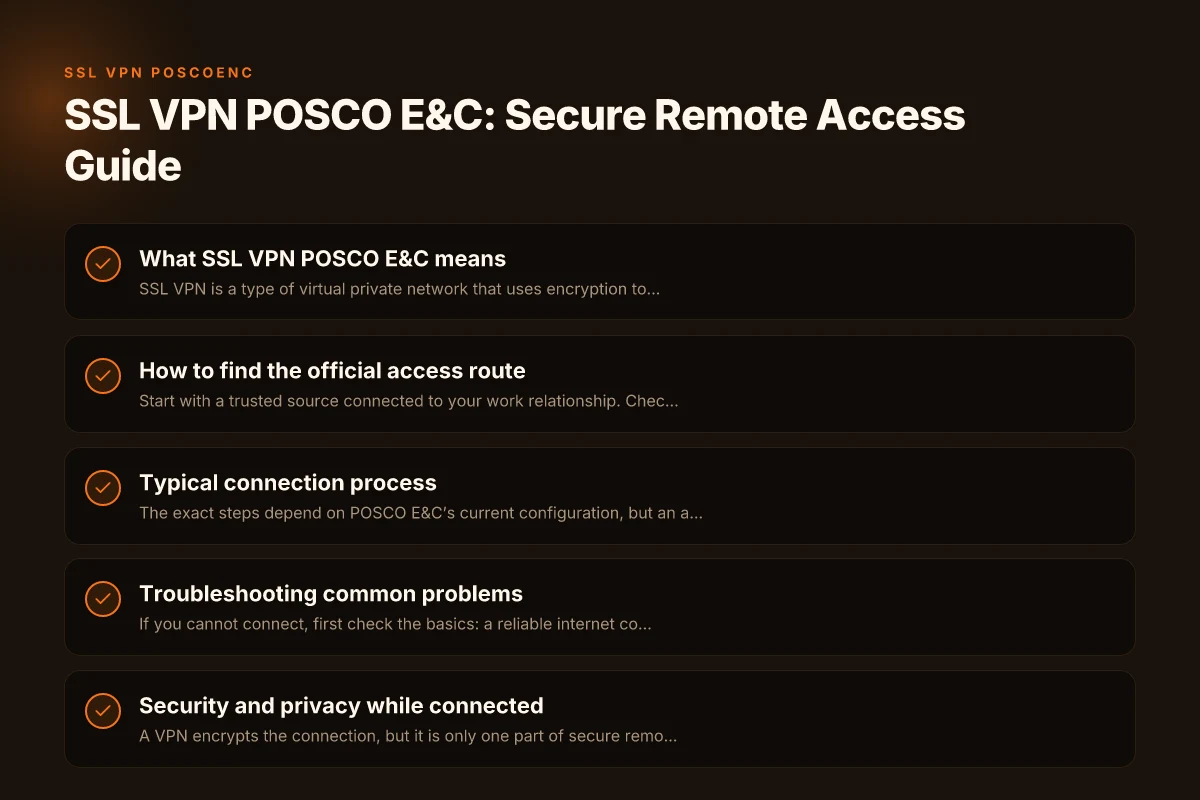
What SSL VPN POSCO E&C means
SSL VPN is a type of virtual private network that uses encryption to protect traffic between a user’s device and a company network. Organizations may use it to let authorized employees, partners, or contractors reach selected internal resources while away from the workplace.
The phrase “SSL VPN POSCO E&C” is a search term, not enough by itself to confirm that a particular website or application is official. POSCO E&C’s remote-access setup may require a company-issued account, approved device, multifactor authentication, or specific client software. Requirements can differ by user group and may be updated over time.
A VPN connection does not automatically grant access to every company system. Your account and permissions determine which resources are available.
How to find the official access route
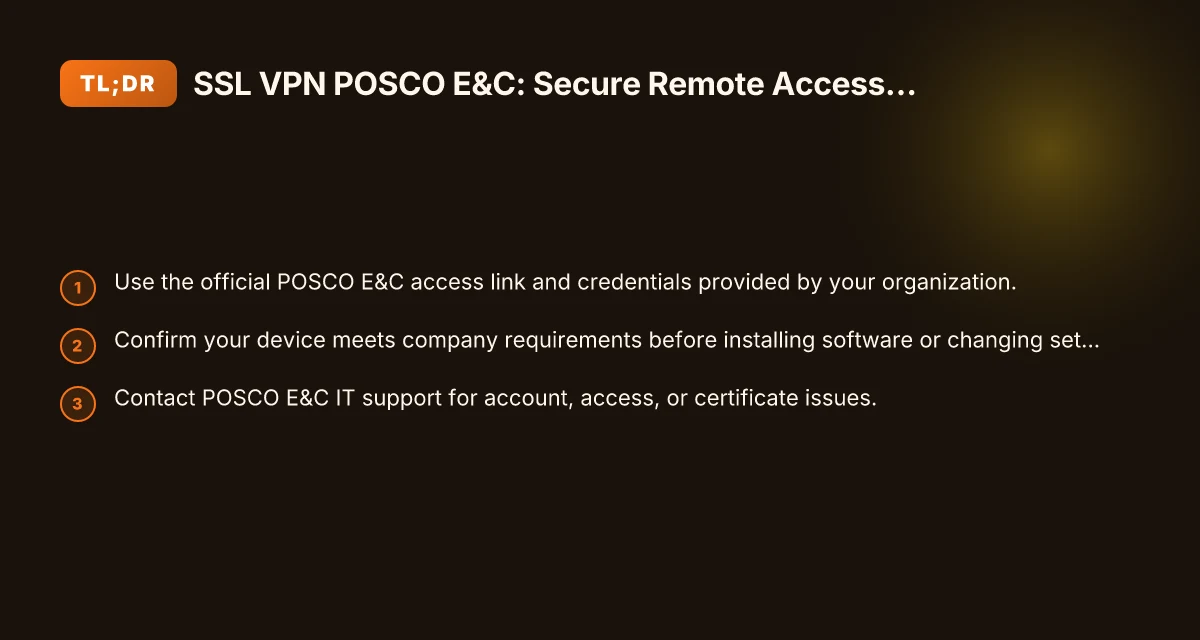
Start with a trusted source connected to your work relationship. Check your company onboarding materials, an internal portal, a message from your manager or IT team, or a verified POSCO E&C communication. If you work for a contractor or partner, ask your POSCO E&C contact which access instructions apply to your account. How Do U Deactivate Norton VPN to Help Fix Connection Issues?
Before entering your username or password, verify that:
- The address came from an official company source.
- The page uses HTTPS and shows no browser security warning.
- The login page and any software download match the instructions from IT.
- You are not being asked to disclose your password through email, chat, or an unfamiliar form.
A padlock icon and HTTPS connection are useful indicators, but they do not alone prove that a site belongs to POSCO E&C. Avoid links from unsolicited messages, lookalike domains, and third-party download sites. When uncertain, confirm the URL with IT before signing in.
Typical connection process
The exact steps depend on POSCO E&C’s current configuration, but an authorized user will generally follow a process like this:
- Confirm eligibility. Make sure remote access has been approved for your account and that you know which device you may use.
- Follow official setup instructions. Install a VPN client only if the company requires one, and obtain it through the designated company channel.
- Connect using the approved address. Open the link supplied by POSCO E&C or your organization. Do not guess the address based on the keyword.
- Sign in securely. Enter your assigned credentials and complete any required multifactor authentication.
- Open permitted resources. Use only the systems and files your role is authorized to access.
- Disconnect when finished. Sign out of internal services and end the VPN session, especially on a shared or managed device.
| Access method | What it generally involves | What to verify |
|---|---|---|
| Browser-based VPN | Sign-in and access through a web browser | Official URL, browser compatibility, and permitted services |
| VPN client | Approved application installed on a device | Authorized download source, operating-system support, and configuration |
| Managed-device access | Company-administered settings and security controls | Device enrollment, updates, and any endpoint checks |
This table describes common VPN arrangements, not a confirmation of which method POSCO E&C currently uses. Follow the instructions issued for your account. VPN Xbox Browser: How to Use a VPN with Xbox
Typical connection process options
| Step | User action | Expected result | If it fails | Security check |
|---|---|---|---|---|
| Find route | Open an official company source | Approved access instructions appear | Ask company IT | Verify the domain |
| Prepare device | Use a company-approved device and network | Device is ready for sign-in | Check company requirements | Install updates |
| Start connection | Launch the approved VPN method | Sign-in prompt appears | Confirm client and route | Avoid third-party tools |
| Authenticate | Enter authorized credentials | Access is granted or a prompt appears | Use official account recovery | Never share credentials |
| Complete verification | Follow any required company checks | Connection completes | Contact IT if checks repeat | Approve only expected prompts |
| Confirm access | Open the required work resource | Resource loads as permitted | Check connection status | Use only authorized resources |
| Disconnect | End the VPN session when finished | Remote session closes | Follow company guidance | Do not leave shared devices signed in |
Compiled November 2026; check the provider's site for current details.
Troubleshooting common problems
If you cannot connect, first check the basics: a reliable internet connection, the correct sign-in address, and the most recent setup instructions. A failed login can also result from an expired password, an account that has not been enabled for remote access, or a missing authentication step.
Try these safe checks: Dodgy Dave Stick and VPN: What to Know Before You Buy
- Restart the browser or approved VPN client.
- Confirm your device’s date and time are correct.
- Install operating-system or VPN-client updates only through approved channels.
- Check whether your organization requires multifactor authentication or a managed device.
- Note the exact error message and when it occurred.
If your account is locked, your password has expired, or a certificate or authentication code is rejected, contact the appropriate IT help desk. Do not repeatedly guess passwords, disable security software, or change network settings based on advice from an unofficial forum. Those actions may trigger account protections or create security risks.
When contacting support, provide your user ID through an approved support channel, your device type and operating system, the VPN client or browser you used, and the error text. Never send your password, one-time code, or recovery code.
Security and privacy while connected
A VPN encrypts the connection, but it is only one part of secure remote work. Keep your device updated, protect it with a screen lock, and use the organization’s required endpoint protection. Avoid connecting from public or shared computers, and do not save company credentials in a browser on a device that others can access.
While connected: NordVPN IKEv2 Certificate: What It Is and How to Set It Up
- Use the VPN only for approved work purposes.
- Do not share your account or authentication device.
- Handle confidential documents according to company policy.
- Disconnect when work is complete.
- Report unexpected login prompts or suspicious messages to IT.
Also remember that a VPN does not make unsafe websites trustworthy or guarantee anonymity. Continue to follow POSCO E&C’s information-security and data-handling rules.
Troubleshooting and security decisions
| Situation | First check | Safer next step | Avoid | Escalate when |
|---|---|---|---|---|
| Sign-in page looks unusual | Compare with the official route | Stop and verify through IT | Entering credentials | The destination cannot be confirmed |
| Credentials are rejected | Check account and approved sign-in steps | Use official recovery or contact IT | Repeated guessing | Access remains blocked |
| VPN client will not connect | Confirm approved client and settings | Restart and follow company instructions | Unapproved downloads | The issue persists |
| Verification prompt repeats | Confirm the prompt is expected | Contact IT through a known channel | Approving unknown requests | Prompts continue unexpectedly |
| Work resource is unavailable | Check whether VPN shows connected | Confirm resource access with IT | Sharing access details publicly | Other approved resources also fail |
| Device is personal or shared | Check company device rules | Use an approved device if required | Saving credentials on shared devices | Policy is unclear |
| Public network is in use | Confirm company guidance for that network | Prefer a trusted connection | Sensitive work on an untrusted network | A secure connection cannot be established |
| Session is no longer needed | Disconnect from the VPN | Close work resources and sign out | Leaving an active session unattended | Disconnect controls fail |
Compiled November 2026; check the provider's site for current details.
Recommendation
For “ssl vpn poscoenc,” the safest next step is to request the current access link and setup guide from a verified POSCO E&C or employer contact. Use only approved software and devices, and ask IT support to resolve login or connection errors rather than relying on unverified links or workarounds. FortiClient VPN 7.2 Download for Windows 11: Official Guide