Sites Blocked When Using VPN? Causes and Fixes
Learn why sites block VPN connections and how to troubleshoot access safely without compromising your privacy.
If sites are blocked when using a VPN, the most common reason is that the website has identified your connection as coming from a VPN server. It may reject the server’s IP address, require extra verification, or limit access based on your apparent location. To troubleshoot, check whether the site works without the VPN, try a different server, and review the site’s rules and any network restrictions.
VPN blocks are usually deliberate security or access measures, not proof that your device is infected. However, repeated attempts to get around a restriction can trigger additional checks or violate a site’s terms. Start with simple, permitted fixes before changing your VPN settings.
| VPN | Obfuscation | From / month | Plan | Free plan | Refund | Alipay | UnionPay | Crypto | Website opens in China | Trustpilot | |
|---|---|---|---|---|---|---|---|---|---|---|---|
 ZoogVPN | Turn on manually Shadow | $2.49/mo | 27 months: $59.99 | Yes | 7 days | ✓ | ✓ | ✓ | ✓ | Official site blocked; our special link opens (4.4 s) | 4.2/5 (195 reviews) |
 NordVPN | Turn on manually Obfuscated Servers / NordWhisper | $3.49/mo | 27 months: $94.23 | No | 30 days | ? | ✗ | ✓ | ✓ | ✗ Blocked | 4.2/5 (51,628 reviews) |
 ExpressVPN | ✓ On by default all servers | $3.00/mo | 28 months: $84 | No | 30 days | ✗ | ✗ | ✓ | ✗ | ✗ Blocked | 4.4/5 (29,706 reviews) |
 Surfshark | ✓ On by default Camouflage, with OpenVPN | See site | See site | No | 30 days | ✗ | ✗ | ✗ | ✓ | ✗ Blocked | 4.3/5 (31,823 reviews) |
 Proton VPN | Turn on manually Stealth, free plan too | $2.99/mo | 12 months: $35.88 | Yes | 30 days | ✗ | ✗ | ✗ | ✓ | ✗ Blocked | 2.1/5 (1,040 reviews) |
 Astrill VPN | Turn on manually StealthVPN / OpenWeb | $12.50/mo | 24 months: $300 | No | See site | ✗ | ✗ | ✗ | ✓ | ✗ Blocked | 1.3/5 (110 reviews) |
 Private Internet Access | Turn on manually Shadowsocks, OpenVPN only | $2.03/mo | 40 months: $81.2 | No | 30 days | ✗ | ✗ | ✗ | ✗ | ✗ Blocked | 4.2/5 (11,033 reviews) |
 CyberGhost | Turn on manually selected servers | $2.19/mo | 28 months: $61.32 | No | 45 days | ✗ | ✗ | ✗ | ✓ | ✗ Blocked | 4.0/5 (24,178 reviews) |
 PureVPN | Turn on manually switch to OpenVPN | $1.69/mo | 60 months: $101.55 | No | 31 days | ? | ? | ✗ | ✓ | ✗ Blocked | 4.4/5 (17,994 reviews) |
 AdGuard VPN | ✓ On by default TrustTunnel | $2.99/mo | 24 months: $71.76 | Yes | 30 days | ✓ | ✗ | ✓ | ✓ | Official site blocked; our special link opens (3.7 s) | 4.3/5 (290 reviews) |
 Mullvad | Turn on manually QUIC / Shadowsocks / LWO | $5.61/mo | €5/mo | No | 14 days | ✗ | ✗ | ✗ | ✓ | ✗ Blocked | 3.2/5 (192 reviews) |
 Windscribe | Turn on manually Stealth / WStunnel | $5.75/mo | 12 months: $69 | Yes | See site | ✗ | ✗ | ✗ | ✓ | ✗ Blocked | 4.7/5 (13,355 reviews) |
 StrongVPN | Turn on manually Scramble, OpenVPN TCP | See site | See site | No | 30 days | ✓ | ✗ | ✗ | ✗ | ✗ Blocked | 4.4/5 (2,695 reviews) |
 LightXtreme 闪连 | Not listed | $7.08/mo | 12 months: $84.99 | Yes | 30 days | ✓ | ✓ | ✓ | ✓ | ✓ Yes (3.5 s) | No page |
Prices checked 2026-11-10 on each vendor's pricing page (cheapest long plan, USD). Check the vendor's checkout for the final price.
Obfuscation checked 2026-11-14 on each vendor's site and help center: "on by default" = nothing to set; "turn on manually" = switch protocol or mode in settings; "not listed" = the vendor describes no obfuscation.
Payment methods checked 2026-11-10 on each vendor's payment pages: all 14 take cards and PayPal; ✗ = not listed, ? = the vendor's own pages disagree.
China access: whether the official website opens from mainland China networks (tests the website only, not the VPN connection). Last checked 2026-11-18 01:02 Beijing time.
Trustpilot score and review count checked 2026-11-10.

Editor's pick: NordVPN — fast, secure VPN — Strong encryption, a no-logs policy and apps for every device. 30-day money-back guarantee. Get NordVPN →
Common reasons websites block VPN connections
| Cause | What the site detects | Likely effect | What to try |
|---|---|---|---|
| Shared VPN IP | Many visitors using one address | CAPTCHA or access denied | Try another VPN server |
| IP reputation | Address linked to suspicious activity | Block or extra checks | Switch to a different server |
| Location mismatch | IP location differs from account or activity | Login challenge or block | Choose a server near your usual location |
| Streaming restrictions | VPN or proxy connection | Content unavailable | Check the service’s VPN rules |
| Fraud prevention | Unusual location or sign-in pattern | Temporary account check | Verify your account |
| Network policy | VPN use restricted by workplace or school | Site or network unavailable | Check the network’s rules |
Compiled November 2026; check the provider's site for current details.
Why websites block VPN connections
A VPN routes your traffic through a server, so a website sees the server’s IP address rather than your usual public IP address. That IP may be shared by many VPN users. If it has been associated with suspicious activity, automated traffic, or account abuse, a site may block it or ask you to prove you are human.
Websites may also restrict VPN traffic for these reasons:
- Fraud prevention: Banks, payment services, and online stores may flag a connection that appears to come from an unexpected location.
- Location rules: Streaming platforms and other services may limit content by country or region.
- Security controls: A site may block IP addresses linked to data centers, proxies, or known abuse.
- Account protection: A sudden change in apparent location can prompt a login challenge or temporary lock.
- Network policies: Schools, employers, public Wi-Fi providers, or local authorities may restrict VPN use or particular websites.
Sometimes the VPN is not the cause. A site may be temporarily down, your browser may have stale cookies, or a security service may be experiencing problems.
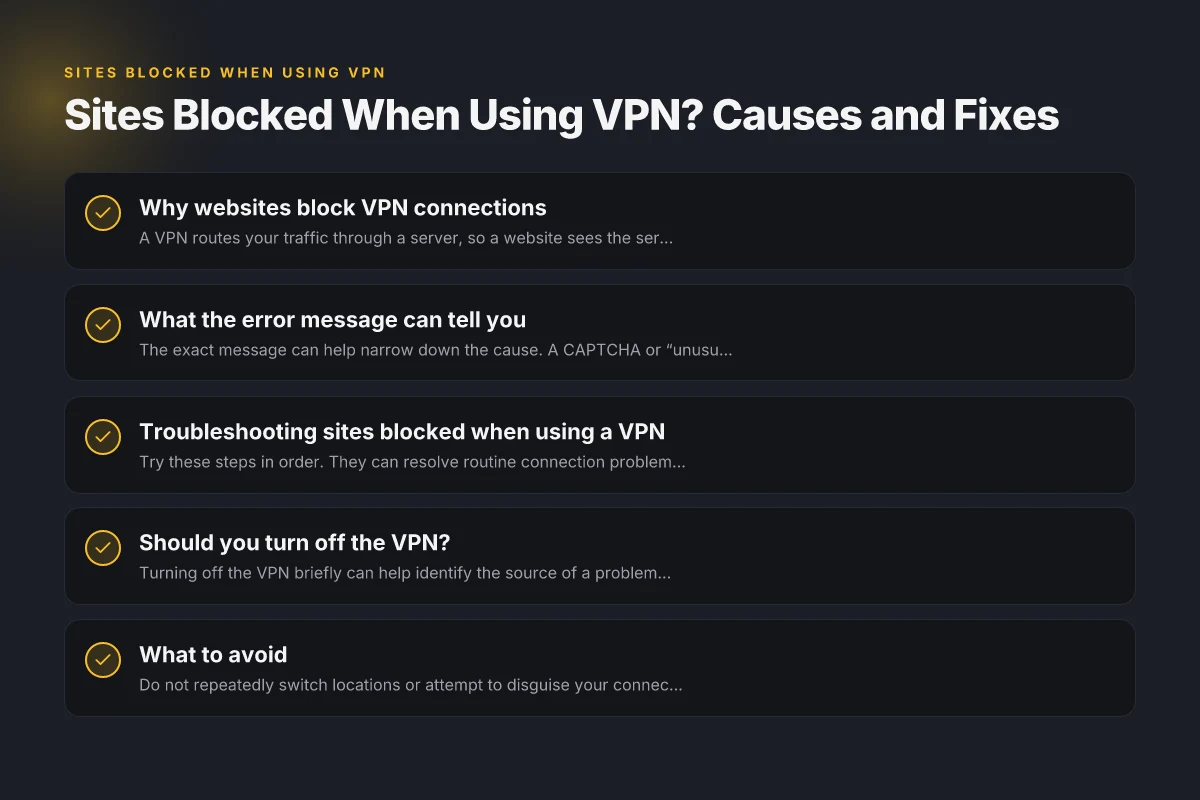
What the error message can tell you
The exact message can help narrow down the cause. A CAPTCHA or “unusual traffic” warning often points to an IP address shared by many users. A location or availability notice may indicate regional restrictions. A connection timeout, by contrast, could be caused by your VPN server, DNS settings, or the website itself. Axgate VPN Download: How to Find and Install the Official Client
| What you see | Possible cause | First step |
|---|---|---|
| CAPTCHA or “unusual traffic” | The VPN IP has a poor or busy reputation | Try another server or wait before retrying |
| “Access denied” or a blocked-IP notice | The site blocks that server’s address | Check the site’s support guidance |
| Location or content unavailable | Regional availability rules | Review the service’s terms and location requirements |
| Login alert or verification request | A change in sign-in location | Complete the official security check |
| Page fails to load | VPN, browser, DNS, or site connection issue | Test another site and check the VPN connection |
Never provide your password, payment details, or verification codes through a page reached from an unexpected pop-up or message. Open the service’s official website or app directly to confirm that a security prompt is genuine.
Troubleshooting sites blocked when using a VPN
Try these steps in order. They can resolve routine connection problems without weakening your security.
- Check whether the site is down. Try another trusted website, or check the service’s official status page. If only one site fails, its own controls are more likely to be involved.
- Reconnect to the VPN. Disconnect and reconnect, or restart the VPN app. A temporary server issue may clear.
- Choose another server. A different server may have a less restricted IP address. If you need a particular country for a legitimate reason, choose an available server in that region.
- Update the VPN app and browser. Updates can fix connection and compatibility problems.
- Clear the site’s cookies and cache. Stored session data may conflict with your current connection. Be aware that this may sign you out.
- Check your device’s date and time. Incorrect settings can interfere with secure connections and login checks.
- Try a different browser or private window. This can help identify whether an extension, cookie, or browser setting is responsible.
- Restart your device or network equipment. This may resolve a temporary network or DNS issue.
If the site still blocks access, contact its support team and explain the error. Your VPN provider may also be able to confirm whether a server is experiencing a known problem. Share only the information support needs. Do not send passwords or one-time codes.
Troubleshooting sites blocked when using a VPN Free VPNs That Change Location: The Best Options and Their Limits
| Option | When to try it | Possible benefit | Trade-off |
|---|---|---|---|
| Reload the page | A temporary loading error appears | May clear a brief glitch | May not help with an IP block |
| Try another server | The current VPN IP is blocked | Provides a different IP address | The new IP may also be blocked |
| Choose a nearby location | The site flags an unusual location | Makes location more consistent | May not suit location-specific access |
| Clear site cookies | The site keeps showing an old error | Removes saved site data | You may need to sign in again |
| Try a different browser | The issue may be browser-specific | Helps isolate the cause | Does not change the VPN IP |
| Contact the site | The block persists across options | Can clarify access requirements | Resolution depends on the site |
Compiled November 2026; check the provider's site for current details.
Should you turn off the VPN?
Turning off the VPN briefly can help identify the source of a problem. If the site loads without the VPN, the VPN server or the site’s VPN policy is likely involved. But testing without the VPN changes how your traffic is routed and may expose your normal IP address to the site and network you are using.
Before disconnecting, consider what you are doing:
- On a trusted home network, a brief test may be reasonable if you are comfortable revealing your public IP to that site.
- On public Wi-Fi, a workplace network, or another network you do not trust, keep the VPN on unless you understand the privacy and security implications.
- For banking or sensitive accounts, use the institution’s official app or contact its support team rather than repeatedly changing locations.
- If your employer or school requires a particular connection method, follow its IT guidance.
A VPN does not make every connection anonymous, and it does not override a website’s policies. It also cannot guarantee access to every service or location-specific page. How to Open an OVPN File on Windows, Mac, Android, and iPhone
What to avoid
Do not repeatedly switch locations or attempt to disguise your connection just to defeat a block. That can trigger stronger fraud checks, lock an account, or violate a service’s terms. Avoid unknown “free unblocker” sites, browser extensions, and proxy tools that request broad permissions or ask you to install unfamiliar software. They may collect browsing data or introduce security risks.
Do not ignore a warning from your bank, employer, school, or the service itself. If the restriction appears to be an account or compliance issue, resolve it through the official support channel rather than trying to work around it.
Decide whether to turn off your VPN
| Situation | Turn it off? | Safer next step | Key consideration |
|---|---|---|---|
| You are on public Wi-Fi | Usually no | Try another VPN server | VPN helps protect the connection |
| The site blocks the VPN IP | Not as the first step | Switch servers or contact the site | The site may still block access |
| You are on a trusted home network | Your choice | Test access with and without VPN | Your IP address will be exposed without it |
| The site requires your usual location | Maybe | Use a nearby VPN server first | Avoid misrepresenting your location |
| Work or school rules restrict VPNs | Follow the network rules | Ask the network administrator | Restrictions may be intentional |
| You need to access a sensitive account | Usually no | Verify through the site’s official process | Location changes can trigger checks |
Compiled November 2026; check the provider's site for current details. Best Free Edge VPN Extension for UK Users: Safe, Practical Picks
Recommendation
When sites are blocked while using a VPN, first identify whether the problem affects one site or your whole connection. Then try another VPN server, refresh the app and browser, and follow the website’s official troubleshooting instructions. If the site still refuses access, contact its support team or use an approved connection method. Keep the VPN enabled when privacy or network security matters, and do not bypass restrictions that apply to your account, organization, or location.