NordVPN Windows VPN: Setup, Features, and How to Choose
Learn how to install and use NordVPN on Windows, compare connection options, and troubleshoot common VPN issues.


NordVPN for Windows is a VPN app that routes your internet traffic through a VPN server, helping protect your connection and mask your IP address from websites. To get started, download the app from NordVPN’s official website or the Microsoft Store, sign in, and connect to a server. The best settings depend on whether your priority is convenience, speed, or access to a particular country.

Editor's pick: NordVPN — fast, secure VPN — Strong encryption, a no-logs policy and apps for every device. 30-day money-back guarantee. Get NordVPN →
NordVPN Windows connection options at a glance
| Option | Best for | What it does | Setup effort | Keep in mind |
|---|---|---|---|---|
| Quick Connect | Getting online quickly | Connects to a recommended server | Low | You have less control over server choice |
| Country selection | Choosing a location | Connects through a selected country | Low | Available locations depend on the app |
| Specific server | Choosing a particular server | Connects through a selected server | Medium | Useful when you need a specific location |
| Specialty server | A particular connection type | Offers a specialized server option | Medium | Availability depends on the feature |
| Auto-connect | Connecting automatically | Starts a VPN connection based on settings | Low | Review when it activates |
| Protocol selection | Adjusting how the VPN connects | Changes the VPN connection protocol | Medium | Options can vary by app version |
| Split tunneling | Managing app traffic | Lets you choose which apps use the VPN | Medium | Check which apps are included |
| Kill switch | Preventing unprotected traffic | Blocks internet access if the VPN disconnects | Low | Confirm its settings before relying on it |
Compiled November 2026; check the provider's site for current details.
| VPN | Obfuscation | From / month | Plan | Free plan | Refund | Alipay | UnionPay | Crypto | Website opens in China | Trustpilot | |
|---|---|---|---|---|---|---|---|---|---|---|---|
 NordVPN | Turn on manually Obfuscated Servers / NordWhisper | $3.49/mo | 27 months: $94.23 | No | 30 days | ? | ✗ | ✓ | ✓ | ✗ Blocked | 4.2/5 (51,628 reviews) |
 ZoogVPN | Turn on manually Shadow | $2.49/mo | 27 months: $59.99 | Yes | 7 days | ✓ | ✓ | ✓ | ✓ | Official site blocked; our special link opens (4.4 s) | 4.2/5 (195 reviews) |
 ExpressVPN | ✓ On by default all servers | $3.00/mo | 28 months: $84 | No | 30 days | ✗ | ✗ | ✓ | ✗ | ✗ Blocked | 4.4/5 (29,706 reviews) |
 Surfshark | ✓ On by default Camouflage, with OpenVPN | See site | See site | No | 30 days | ✗ | ✗ | ✗ | ✓ | ✗ Blocked | 4.3/5 (31,823 reviews) |
 Proton VPN | Turn on manually Stealth, free plan too | $2.99/mo | 12 months: $35.88 | Yes | 30 days | ✗ | ✗ | ✗ | ✓ | ✗ Blocked | 2.1/5 (1,040 reviews) |
 Astrill VPN | Turn on manually StealthVPN / OpenWeb | $12.50/mo | 24 months: $300 | No | See site | ✗ | ✗ | ✗ | ✓ | ✗ Blocked | 1.3/5 (110 reviews) |
 Private Internet Access | Turn on manually Shadowsocks, OpenVPN only | $2.03/mo | 40 months: $81.2 | No | 30 days | ✗ | ✗ | ✗ | ✗ | ✗ Blocked | 4.2/5 (11,033 reviews) |
 CyberGhost | Turn on manually selected servers | $2.19/mo | 28 months: $61.32 | No | 45 days | ✗ | ✗ | ✗ | ✓ | ✗ Blocked | 4.0/5 (24,178 reviews) |
 PureVPN | Turn on manually switch to OpenVPN | $1.69/mo | 60 months: $101.55 | No | 31 days | ? | ? | ✗ | ✓ | ✗ Blocked | 4.4/5 (17,994 reviews) |
 AdGuard VPN | ✓ On by default TrustTunnel | $2.99/mo | 24 months: $71.76 | Yes | 30 days | ✓ | ✗ | ✓ | ✓ | Official site blocked; our special link opens (3.7 s) | 4.3/5 (290 reviews) |
 Mullvad | Turn on manually QUIC / Shadowsocks / LWO | $5.61/mo | €5/mo | No | 14 days | ✗ | ✗ | ✗ | ✓ | ✗ Blocked | 3.2/5 (192 reviews) |
 Windscribe | Turn on manually Stealth / WStunnel | $5.75/mo | 12 months: $69 | Yes | See site | ✗ | ✗ | ✗ | ✓ | ✗ Blocked | 4.7/5 (13,355 reviews) |
 StrongVPN | Turn on manually Scramble, OpenVPN TCP | See site | See site | No | 30 days | ✓ | ✗ | ✗ | ✗ | ✗ Blocked | 4.4/5 (2,695 reviews) |
 LightXtreme 闪连 | Not listed | $7.08/mo | 12 months: $84.99 | Yes | 30 days | ✓ | ✓ | ✓ | ✓ | ✓ Yes (3.5 s) | No page |
Prices checked 2026-11-10 on each vendor's pricing page (cheapest long plan, USD). Check the vendor's checkout for the final price.
Obfuscation checked 2026-11-14 on each vendor's site and help center: "on by default" = nothing to set; "turn on manually" = switch protocol or mode in settings; "not listed" = the vendor describes no obfuscation.
Payment methods checked 2026-11-10 on each vendor's payment pages: all 14 take cards and PayPal; ✗ = not listed, ? = the vendor's own pages disagree.
China access: whether the official website opens from mainland China networks (tests the website only, not the VPN connection). Last checked 2026-11-18 01:02 Beijing time.
Trustpilot score and review count checked 2026-11-10.
What NordVPN does on Windows
A VPN creates an encrypted tunnel between your device and a VPN server. When connected, websites generally see the server’s IP address rather than your home connection’s address. This can be useful on public Wi-Fi, while traveling, or when you want an additional layer of privacy from your local network.
NordVPN’s Windows app provides a graphical interface for connecting to servers and adjusting available settings. Depending on your plan, app version, and region, it may also offer features such as specialized servers, a kill switch, and threat-protection tools. Check the app itself for the current feature list.
A VPN does not make you anonymous. NordVPN can help protect traffic between your Windows device and its VPN server, but websites can still identify you through account sign-ins, cookies, browser fingerprints, and other information. It also does not prevent every form of malware or phishing.
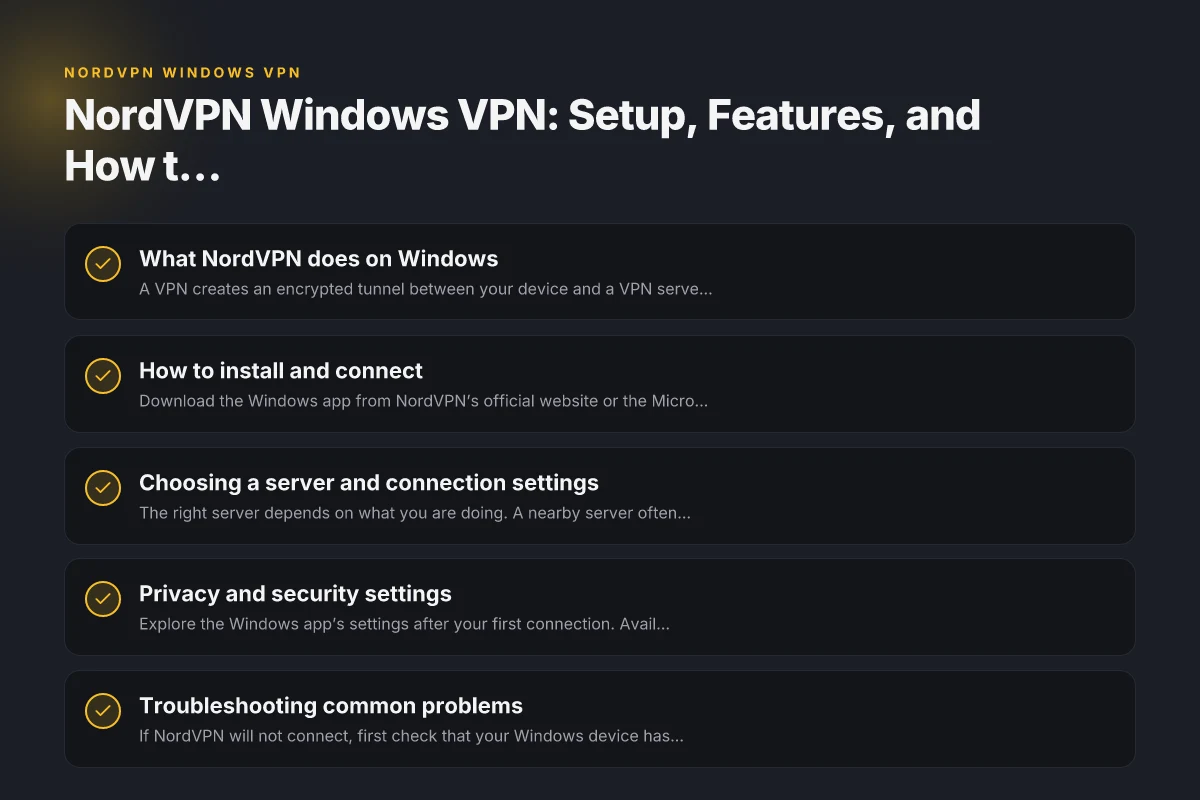
How to install and connect
- Download the Windows app from NordVPN’s official website or the Microsoft Store.
- Open the installer and follow the on-screen instructions.
- Launch the app and sign in to your NordVPN account.
- Choose a country or server, or use the quick-connect option.
- Confirm that the app shows a connected status before browsing.
If you only need a general VPN connection, quick connect is a simple starting point. To use a specific country, select it in the app and connect. Server names, availability, and interface details can change, so follow the current instructions shown in your version of the app. How to Check My VPN Location and Fix It if It’s Wrong
You may need administrator permission to install the application or change certain network settings. If you use another VPN or security program, its network filtering features may conflict with NordVPN. Avoid running multiple VPN connections at the same time.
NordVPN Windows setup and troubleshooting checklist
| Situation | What to check | Suggested action | If it still fails |
|---|---|---|---|
| Installing the app | Download source | Get the Windows app from NordVPN | Confirm the installer is from the official source |
| App will not install | Windows compatibility | Check system requirements and available updates | Restart Windows and try again |
| Cannot sign in | Account details | Check credentials and account access | Reset the password if needed |
| VPN will not connect | Internet access | Confirm the internet works without the VPN | Try another server |
| Connection is slow | Server choice | Try a nearby server | Test a different protocol |
| Websites will not load | VPN settings | Check split tunneling and DNS-related settings | Reconnect or switch servers |
| VPN disconnects | Connection settings | Review auto-connect and kill switch behavior | Try another network or server |
| App behaves unexpectedly | App version | Check for updates | Restart the app or reinstall it |
Compiled November 2026; check the provider's site for current details.
Choosing a server and connection settings
The right server depends on what you are doing. A nearby server often provides a faster, more responsive connection. If you need an IP address associated with a particular country, choose a server there, while keeping in mind that websites may use other methods to determine your location. VPN Free for Edge: Safe Extensions and Browser Options
| Your goal | A practical option | What to keep in mind |
|---|---|---|
| Everyday browsing | Quick connect or a nearby server | A nearby location often reduces delay |
| Video calls or gaming | A nearby server with a stable connection | A VPN may increase latency or reduce speed |
| Connecting through a country | Select a server in that country | Service access and availability can vary |
| Public Wi-Fi privacy | Connect before using sensitive services | Keep your device and apps updated |
VPN protocols determine how your device communicates with the VPN server. NordVPN may provide protocol choices in its Windows settings, but the names and availability can vary by app version. If the default connection works well, you usually do not need to change it. If it does not, try another option offered in the app and test your connection again.
For best performance, try a server closer to your physical location, pause large downloads, and check whether your internet connection works normally with the VPN disconnected. Do not assume a particular server is always the fastest. Network conditions change.
Privacy and security settings
Explore the Windows app’s settings after your first connection. Available options may include an internet kill switch, which can block internet access if the VPN connection drops. This can help prevent traffic from continuing over your regular connection, but it may also interrupt internet access until the VPN reconnects or the setting is disabled.
Other settings may offer protection against certain online threats or help manage how the app starts. Read each setting’s description before enabling it, and review the current NordVPN documentation for details about how a feature works. VPN IPsec: How It Works, Benefits, and When to Use It
For a more privacy-conscious setup:
- Keep Windows, your browser, and the NordVPN app updated.
- Use a unique password and enable available account security measures.
- Check that the app shows an active VPN connection when you expect it to.
- Review browser permissions, cookies, and location access separately.
- Treat email links, downloads, and unexpected login requests cautiously.
A VPN and antivirus software address different risks. A VPN protects the connection to its server. Antivirus and built-in Windows security tools help detect or block certain threats on the device.
Troubleshooting common problems
If NordVPN will not connect, first check that your Windows device has internet access without the VPN. Then restart the app and try a different server. A temporary server issue or unstable Wi-Fi connection may be the cause.
If the connection is slow, test a nearby server and compare your speed with the VPN turned off. Your speed can depend on your internet provider, Wi-Fi signal, server load, distance, and selected protocol. A VPN is not guaranteed to increase your connection speed. TunnelBear Extension: How It Works and Whether You Need It
If websites or apps do not work while connected:
- Connect to a different server.
- Restart the affected app or browser.
- Check whether a kill switch is blocking traffic after a dropped connection.
- Review firewall or security software settings for conflicts.
- Restart Windows if the problem continues.
Some streaming, banking, and work services restrict VPN traffic or require additional verification. A VPN connection cannot guarantee access to a particular service. Follow the service’s terms and use only content and networks you are authorized to access.
Choosing NordVPN Windows settings by priority
| Priority | Setting or choice | Suitable when | Trade-off | Decision |
|---|---|---|---|---|
| Convenience | Quick Connect | You want a simple connection | Less control over location | Use the recommended server |
| Location | Country or server selection | You need a particular location | May take more time to choose | Select the location you need |
| Privacy | Kill switch | You want protection if the VPN disconnects | Internet access may stop during a dropout | Enable and review its behavior |
| App control | Split tunneling | Some apps should use a different route | Requires careful app selection | Configure only when needed |
| Reliability | Auto-connect | You want the VPN to start automatically | Connection behavior depends on settings | Choose when it should activate |
| Connection tuning | Protocol selection | You need to troubleshoot or adjust a connection | Results can vary by network | Test available options |
| Simplicity | Default settings | You do not need custom behavior | Fewer preferences are tailored | Start with defaults |
| Troubleshooting | Alternate server | A selected server is not working well | Requires reconnecting | Try another server before changing multiple settings |
Compiled November 2026; check the provider's site for current details. Clash for iPad: How to Play and What to Expect
Recommendation
NordVPN is a practical Windows VPN option if you want an app-based way to connect through VPN servers and manage connection settings. Download it from an official source, start with quick connect or a nearby server, and enable extra settings only when you understand what they do. For the best experience, keep the app updated and remember that a VPN complements, but does not replace, good security habits.