FortiGate VPN PFS: What It Is and How to Configure It
Learn how FortiGate VPN Perfect Forward Secrecy works, which settings must match, and how to troubleshoot Phase 2 mismatches.


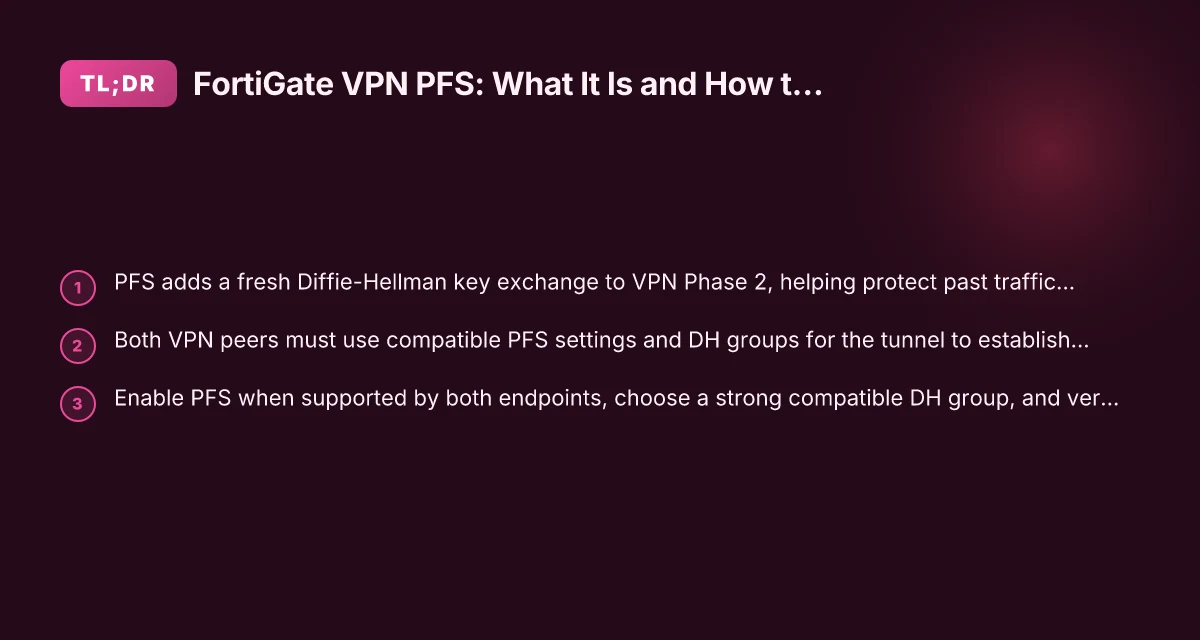
FortiGate VPN PFS means Perfect Forward Secrecy for a VPN’s Phase 2 security association. When PFS is enabled, the two VPN peers perform an additional Diffie-Hellman key exchange to derive fresh encryption keys for Phase 2, rather than relying only on key material from Phase 1. For a site-to-site IPsec VPN, PFS must be configured compatibly on both peers. A mismatch can prevent the Phase 2 tunnel from coming up or cause it to renegotiate unsuccessfully.

Editor's pick: NordVPN — fast, secure VPN — Strong encryption, a no-logs policy and apps for every device. 30-day money-back guarantee. Get NordVPN →
Compare FortiGate VPN PFS settings and their effects
| Setting or choice | PFS enabled | PFS disabled | What to check |
|---|---|---|---|
| New key material | Fresh DH exchange | No fresh DH exchange | Phase 2 settings |
| Key compromise impact | Limits exposure of past keys | Past keys may be exposed | Security requirements |
| DH group | Must be selected | Not used for PFS | Peer compatibility |
| Peer agreement | Required | Both peers must disable PFS | Matching configuration |
| Rekey behavior | Performs a fresh exchange | Reuses the Phase 1 keying material | Rekey settings |
| Processing overhead | Additional computation | Lower computation | Device capacity |
| Interoperability | Depends on peer support | May suit peers without PFS support | VPN peer capabilities |
Compiled November 2026; check the provider's site for current details.
| VPN | Obfuscation | From / month | Plan | Free plan | Refund | Alipay | UnionPay | Crypto | Website opens in China | Trustpilot | |
|---|---|---|---|---|---|---|---|---|---|---|---|
 ZoogVPN | Turn on manually Shadow | $2.49/mo | 27 months: $59.99 | Yes | 7 days | ✓ | ✓ | ✓ | ✓ | Official site blocked; our special link opens (4.4 s) | 4.2/5 (195 reviews) |
 NordVPN | Turn on manually Obfuscated Servers / NordWhisper | $3.49/mo | 27 months: $94.23 | No | 30 days | ? | ✗ | ✓ | ✓ | ✗ Blocked | 4.2/5 (51,628 reviews) |
 ExpressVPN | ✓ On by default all servers | $3.00/mo | 28 months: $84 | No | 30 days | ✗ | ✗ | ✓ | ✗ | ✗ Blocked | 4.4/5 (29,706 reviews) |
 Surfshark | ✓ On by default Camouflage, with OpenVPN | See site | See site | No | 30 days | ✗ | ✗ | ✗ | ✓ | ✗ Blocked | 4.3/5 (31,823 reviews) |
 Proton VPN | Turn on manually Stealth, free plan too | $2.99/mo | 12 months: $35.88 | Yes | 30 days | ✗ | ✗ | ✗ | ✓ | ✗ Blocked | 2.1/5 (1,040 reviews) |
 Astrill VPN | Turn on manually StealthVPN / OpenWeb | $12.50/mo | 24 months: $300 | No | See site | ✗ | ✗ | ✗ | ✓ | ✗ Blocked | 1.3/5 (110 reviews) |
 Private Internet Access | Turn on manually Shadowsocks, OpenVPN only | $2.03/mo | 40 months: $81.2 | No | 30 days | ✗ | ✗ | ✗ | ✗ | ✗ Blocked | 4.2/5 (11,033 reviews) |
 CyberGhost | Turn on manually selected servers | $2.19/mo | 28 months: $61.32 | No | 45 days | ✗ | ✗ | ✗ | ✓ | ✗ Blocked | 4.0/5 (24,178 reviews) |
 PureVPN | Turn on manually switch to OpenVPN | $1.69/mo | 60 months: $101.55 | No | 31 days | ? | ? | ✗ | ✓ | ✗ Blocked | 4.4/5 (17,994 reviews) |
 AdGuard VPN | ✓ On by default TrustTunnel | $2.99/mo | 24 months: $71.76 | Yes | 30 days | ✓ | ✗ | ✓ | ✓ | Official site blocked; our special link opens (3.7 s) | 4.3/5 (290 reviews) |
 Mullvad | Turn on manually QUIC / Shadowsocks / LWO | $5.61/mo | €5/mo | No | 14 days | ✗ | ✗ | ✗ | ✓ | ✗ Blocked | 3.2/5 (192 reviews) |
 Windscribe | Turn on manually Stealth / WStunnel | $5.75/mo | 12 months: $69 | Yes | See site | ✗ | ✗ | ✗ | ✓ | ✗ Blocked | 4.7/5 (13,355 reviews) |
 StrongVPN | Turn on manually Scramble, OpenVPN TCP | See site | See site | No | 30 days | ✓ | ✗ | ✗ | ✗ | ✗ Blocked | 4.4/5 (2,695 reviews) |
 LightXtreme 闪连 | Not listed | $7.08/mo | 12 months: $84.99 | Yes | 30 days | ✓ | ✓ | ✓ | ✓ | ✓ Yes (3.5 s) | No page |
Prices checked 2026-11-10 on each vendor's pricing page (cheapest long plan, USD). Check the vendor's checkout for the final price.
Obfuscation checked 2026-11-14 on each vendor's site and help center: "on by default" = nothing to set; "turn on manually" = switch protocol or mode in settings; "not listed" = the vendor describes no obfuscation.
Payment methods checked 2026-11-10 on each vendor's payment pages: all 14 take cards and PayPal; ✗ = not listed, ? = the vendor's own pages disagree.
China access: whether the official website opens from mainland China networks (tests the website only, not the VPN connection). Last checked 2026-11-18 01:02 Beijing time.
Trustpilot score and review count checked 2026-11-10.
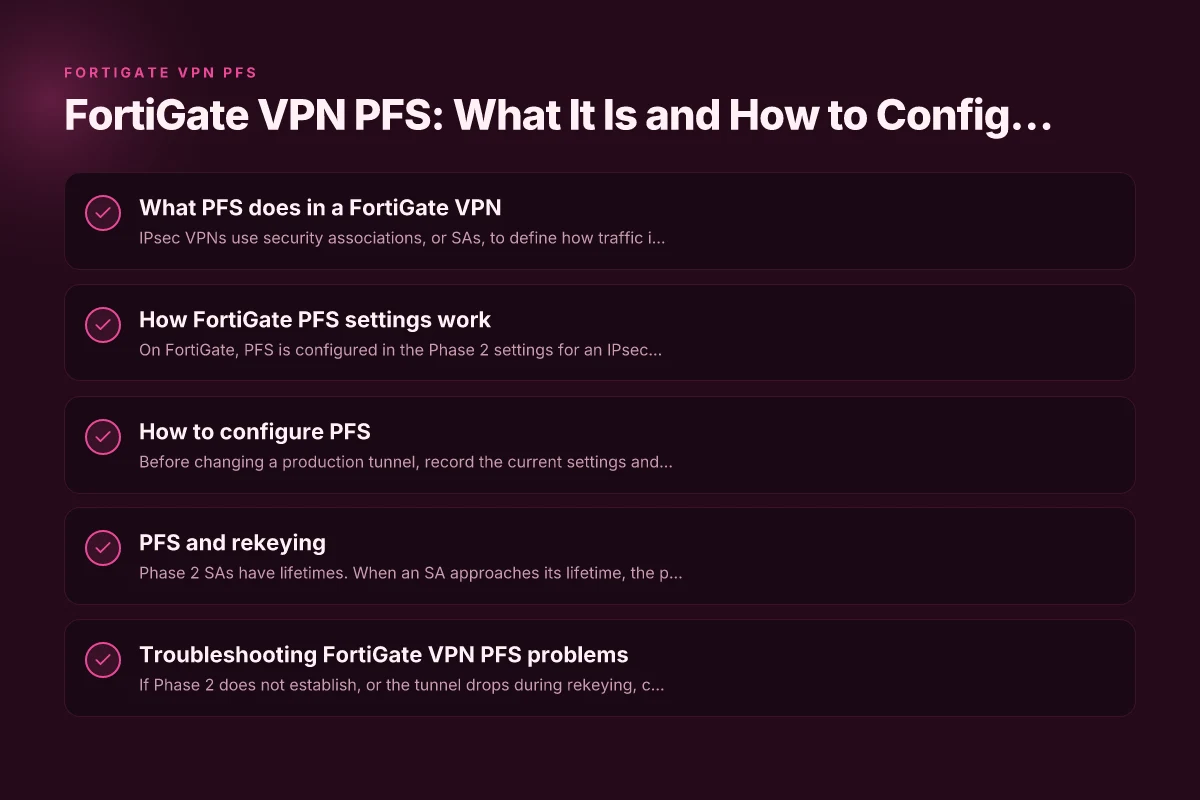
What PFS does in a FortiGate VPN
IPsec VPNs use security associations, or SAs, to define how traffic is protected. In a typical FortiGate IPsec tunnel, Phase 1 establishes the IKE relationship between peers. Phase 2 then creates the IPsec SAs that protect data passing through the tunnel.
PFS adds a fresh key exchange when Phase 2 SAs are created or rekeyed. This helps limit the impact of a future key compromise: an attacker who obtains one session’s key should not automatically be able to use it to decrypt other sessions, assuming the underlying cryptographic choices and implementation remain secure.
PFS does not replace encryption or authentication. It is an additional key-establishment property, used alongside the Phase 2 proposal’s encryption and authentication settings.
How FortiGate PFS settings work
On FortiGate, PFS is configured in the Phase 2 settings for an IPsec tunnel. The setting typically includes an enable or disable option and a Diffie-Hellman group. Exact menu labels and available options can vary by FortiOS version and tunnel type. FortiClient VPN 7.2 Download: Safe Sources and Installation Guide
The DH group determines the key-exchange parameters. Both VPN peers need compatible PFS behavior and a shared group. If one side requires PFS while the other disables it, or if they have no compatible group, negotiation can fail.
Common group choices include elliptic-curve groups, such as ECP groups, and traditional MODP groups. The strongest option is not always the best operational choice: both devices must support it, and the chosen group must be allowed by their software and security policy. Check the FortiGate documentation for your FortiOS release and the documentation for the remote VPN device.
| Phase 2 setting | What it controls | What must match |
|---|---|---|
| PFS enabled or disabled | Whether Phase 2 performs a fresh DH exchange | Both peers must agree on whether PFS is used |
| DH group | The parameters used for the fresh key exchange | At least one compatible group must be configured |
| Encryption and authentication proposals | How IPsec traffic is protected | Both peers need a compatible proposal |
| Lifetimes | When Phase 2 SAs are rekeyed or expire | Values should be compatible; follow vendor guidance |
Choose a PFS configuration approach
| Approach | FortiGate action | Peer action | Best fit | Main consideration |
|---|---|---|---|---|
| Enable PFS | Enable PFS in Phase 2 | Enable matching PFS | Stronger key separation | Agree on a DH group |
| Disable PFS | Disable PFS in Phase 2 | Disable PFS | Peer lacks PFS support | Less key separation |
| Match DH groups | Select a supported group | Select the same group | Compatible PFS peers | Verify both sides |
| Review Phase 1 | Check Phase 1 parameters | Check peer parameters | Negotiation failures | Phase 1 and Phase 2 differ |
| Review proposals | Check Phase 2 proposals | Match proposals | SA negotiation issues | Both peers must agree |
| Check rekey timing | Review lifetime and rekey settings | Align rekey behavior | Rekey interruptions | Settings should be compatible |
Compiled November 2026; check the provider's site for current details. CatVPN Explained: Features, Safety, and What to Check
How to configure PFS
Before changing a production tunnel, record the current settings and plan a maintenance window if interruption would affect users. Confirm the remote device’s supported DH groups and whether its configuration requires PFS.
In the FortiGate GUI, open the IPsec tunnel’s Phase 2 configuration. Locate the PFS option, enable it if required by your security policy, and select a DH group supported by both endpoints. Save the change, then verify the remote peer uses the same PFS mode and a compatible group.
FortiGate administrators may also configure IPsec settings through the CLI. The precise commands and available values depend on the FortiOS version, so use the command reference for the device before applying changes. A typical workflow is to inspect the Phase 2 configuration, update the PFS setting and DH group, and then confirm the configuration is saved.
After making changes, monitor the tunnel and test traffic that should pass through it. A tunnel can show Phase 1 as established while Phase 2 is still down, so check both states rather than relying on the overall tunnel label alone. Extension VPN Free Edge: What to Know Before You Install One
PFS and rekeying
Phase 2 SAs have lifetimes. When an SA approaches its lifetime, the peers negotiate a replacement. With PFS enabled, the replacement uses a new DH exchange to derive fresh key material.
This rekey process is why PFS mismatches may appear after a tunnel initially works. For example, a peer might have an established SA created under an older configuration, but fail when it later attempts to negotiate a new one. Check the settings on both devices and review logs around the time of rekeying.
PFS adds computational work during negotiation, especially with more demanding DH groups. That work generally occurs when SAs are established or rekeyed, not for every packet sent through the tunnel. Still, consider device capacity and the number of tunnels when selecting settings for a large deployment.
Troubleshoot FortiGate VPN PFS problems Free VPN Extension for Microsoft Edge Browser: What to Know Before You Install
| Symptom | Likely issue | FortiGate check | Peer check | Next step |
|---|---|---|---|---|
| Phase 2 does not establish | PFS mismatch | Phase 2 PFS setting | PFS enabled or disabled | Make settings match |
| DH negotiation fails | Group mismatch or unsupported group | Configured DH group | Supported DH groups | Select a shared group |
| VPN drops during rekey | Rekey settings do not align | Phase 2 lifetime and logs | Lifetime and rekey timing | Align settings |
| Tunnel works without PFS | Peer does not support PFS | Phase 2 configuration | Peer PFS capability | Agree on a supported setup |
| Intermittent negotiation failures | Proposal mismatch | Phase 2 proposals | Encryption and authentication proposals | Match proposals |
| Changes have no effect | Wrong phase or tunnel | Correct Phase 2 entry | Corresponding peer tunnel | Verify the active configuration |
Compiled November 2026; check the provider's site for current details.
Troubleshooting FortiGate VPN PFS problems
If Phase 2 does not establish, or the tunnel drops during rekeying, check the following:
- Confirm PFS is either enabled on both peers or disabled on both, according to the intended design.
- Compare the configured DH groups. Make sure the endpoints share at least one supported group.
- Check that Phase 2 encryption and authentication proposals are compatible.
- Review the peer’s logs as well as FortiGate logs. Each side may report a different part of the negotiation failure.
- Check whether a configuration change was applied to only one endpoint.
- Verify the FortiOS version and remote-device firmware support the selected group.
- Look for failures that occur specifically during rekeying, which can reveal a mismatch hidden by an existing SA.
Avoid weakening the configuration simply to make negotiation succeed. First identify the exact incompatibility, then choose the strongest option supported by both peers and permitted by your organization’s policy.
Recommendation
For a FortiGate site-to-site IPsec VPN, enable PFS when both endpoints support it and your security policy calls for it. Select a strong DH group supported by both devices, keep the Phase 2 settings aligned, and verify negotiation during both initial setup and rekeying. VPN 360 for Windows 11: What to Know Before You Install It