FortiGate IPsec Debug: A Practical Troubleshooting Guide
Learn how to diagnose FortiGate IPsec VPN issues with IKE debug commands, packet captures, and clear troubleshooting steps.
FortiGate IPsec debug starts with the IKE diagnostic commands in the CLI. Identify the affected tunnel, filter debug output to its peer, then reproduce the connection attempt and look for the point where negotiation fails. Begin with diagnose vpn ike log-filter, enable IKE application debugging with diagnose debug application ike -1, and start output with diagnose debug enable. When you finish, always run diagnose debug disable and clear the filter if needed.

Editor's pick: NordVPN — fast, secure VPN — Strong encryption, a no-logs policy and apps for every device. 30-day money-back guarantee. Get NordVPN →
FortiGate commands for a focused IKE debug
| Need | Command | What it does | When to use |
|---|---|---|---|
| Clear old debug filters | `diagnose vpn ike log-filter clear` | Removes existing IKE log filters | Before setting a new filter |
| Filter by peer | `diagnose vpn ike log-filter dst-addr4 <peer-ip>` | Limits output to a peer address | When several tunnels are active |
| Filter by name | `diagnose vpn ike log-filter name <tunnel-name>` | Limits output to a tunnel name | When troubleshooting a named tunnel |
| Enable IKE debug | `diagnose debug application ike -1` | Displays detailed IKE messages | During a controlled test |
| Enable debug output | `diagnose debug enable` | Starts displaying debug output | After applying filters |
| Stop debug output | `diagnose debug disable` | Stops debug output | As soon as the test ends |
| Clear debug state | `diagnose debug reset` | Resets debug settings | After troubleshooting |
Compiled November 2026; check the provider's site for current details.
Start a focused IKE debug
Connect to the FortiGate CLI through SSH or the console. Check your FortiOS version and available filter options with CLI help, since syntax can vary between releases. A commonly used workflow is:
diagnose vpn ike log-filter clear
diagnose vpn ike log-filter name <tunnel_name>
diagnose debug reset
diagnose debug application ike -1
diagnose debug enable
Replace <tunnel_name> with the Phase 1 interface name shown in the FortiGate configuration. If filtering by tunnel name is unavailable or does not produce useful output, filter by the remote peer address instead. For example:
diagnose vpn ike log-filter rem-addr4 <peer_ipv4>
Generate a fresh negotiation attempt while the debug is running. For a site-to-site VPN, this may mean bringing up the tunnel or sending traffic that matches its Phase 2 selectors. For a dial-up VPN, ask the user or client to reconnect.
Stop the debug promptly after capturing the relevant exchange: V2Ray Free: What It Is, Where to Find It, and How to Use It Safely
diagnose debug disable
diagnose debug reset
diagnose vpn ike log-filter clear
IKE debug can be verbose, especially on a busy gateway. Filtering and short capture windows make the output easier to read and reduce unnecessary load.
Read the negotiation in order
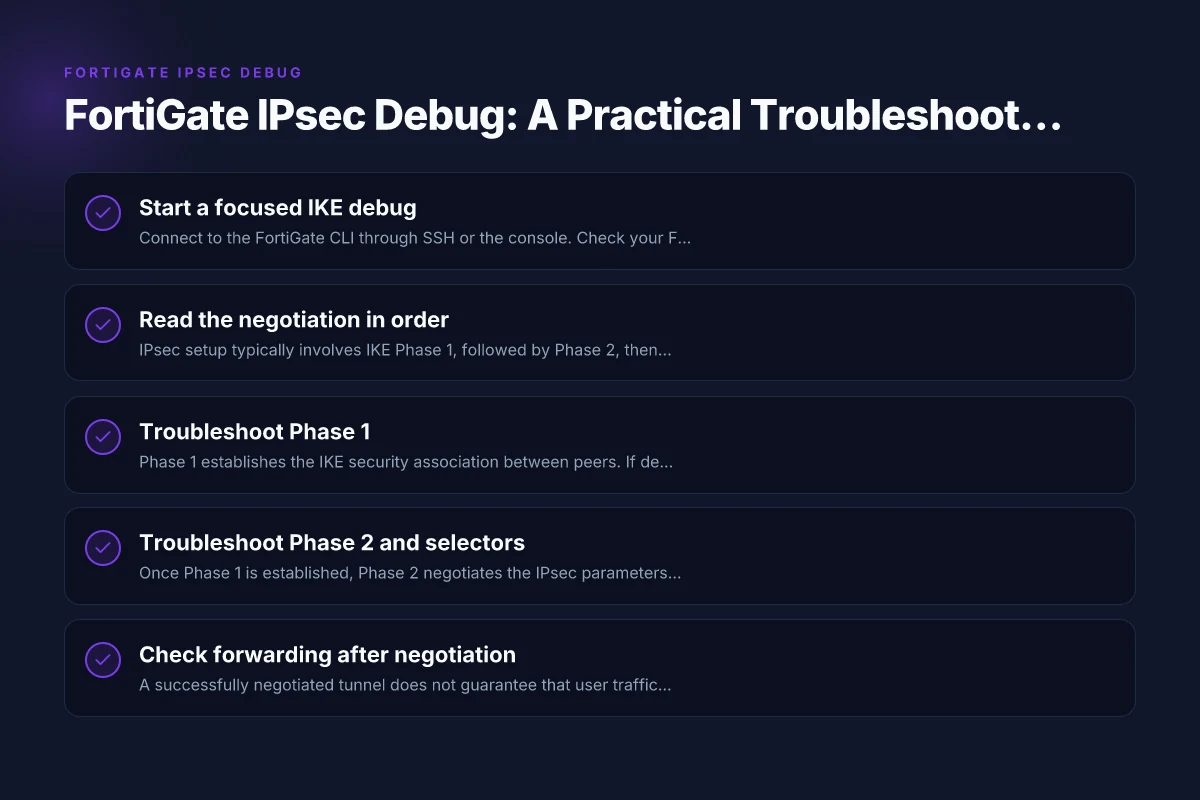
IPsec setup typically involves IKE Phase 1, followed by Phase 2, then traffic forwarding. Find the last successful step in the output rather than treating every warning as the root cause.
| What you see | Likely area to investigate |
|---|---|
| No IKE packets or negotiation messages | Peer reachability, routing, upstream filtering, or whether negotiation was triggered |
| Proposal or transform mismatch | Phase 1 encryption, authentication, DH group, or IKE version |
| Authentication failure | Pre-shared key, certificates, identity, or peer ID |
| Phase 1 succeeds but Phase 2 fails | Phase 2 proposals, selectors, PFS, or lifetime |
| Tunnel appears up but traffic fails | Routes, policies, NAT, selectors, or remote-side forwarding |
Exact message text varies by FortiOS version and configuration. Confirm the relevant settings on both peers. Many IPsec parameters must agree.
Use the negotiation stage to choose what to check Cisco Secure Client AnyConnect VPN: What It Is and How to Use It
| Stage or symptom | Likely area | Compare or verify | Next check |
|---|---|---|---|
| No IKE messages | Debug scope or traffic | Peer filter and test traffic | Confirm the peer and trigger negotiation |
| IKE_SA_INIT failure | Phase 1 proposals | Encryption, integrity, DH group | Compare both peers’ proposals |
| Peer identity rejected | Phase 1 identity | Local and remote IDs | Check configured peer IDs |
| IKE_AUTH failure | Phase 1 authentication | Credentials, certificates, authentication method | Match settings at both ends |
| IKE SA established | Phase 1 is up | Phase 2 negotiation status | Look for child-SA messages |
| No matching Phase 2 proposal | Phase 2 proposals | Encryption, integrity, PFS settings | Compare Phase 2 proposals |
| Traffic selectors mismatch | Phase 2 selectors | Local and remote subnets | Align selectors on both peers |
| SA established, traffic fails | Forwarding path | Routes, policies, NAT, counters | Test traffic and inspect policy matches |
Compiled November 2026; check the provider's site for current details.
Troubleshoot Phase 1
Phase 1 establishes the IKE security association between peers. If debug output shows repeated negotiation attempts without a completed IKE SA, compare these settings on both devices:
- IKE version: Confirm both peers use a compatible version, such as IKEv1 or IKEv2.
- Proposals: Match the encryption and authentication algorithms.
- Diffie-Hellman group: Ensure at least one group is common to both peers.
- Authentication: Check the pre-shared key or certificate configuration.
- Peer identity: Verify local and remote IDs, particularly when a peer connects from a changing address.
- Network path: Confirm that UDP 500 and UDP 4500 can pass between peers. NAT traversal commonly uses UDP 4500.
A timeout does not automatically mean the VPN settings are wrong. First determine whether IKE packets reach the FortiGate and whether replies leave it. If the peer is behind NAT, check NAT traversal and any upstream firewall or router rules.
Use the status command to complement the debug: FortiClient VPN: What It Is, How to Set It Up, and When to Use It
diagnose vpn ike gateway list
It can help confirm whether a gateway is established and show peer information. Command output and available fields may differ by release.
Troubleshoot Phase 2 and selectors
Once Phase 1 is established, Phase 2 negotiates the IPsec parameters that protect traffic. Check that both peers agree on:
- Encryption and authentication proposals.
- Perfect Forward Secrecy (PFS) settings and DH group, if enabled.
- Key lifetime.
- Local and remote address ranges, also called traffic selectors or encryption domains.
Selectors are a frequent source of failures. For example, one side may define a whole subnet while the other specifies only a host address. The definitions must describe compatible traffic in opposite directions.
If Phase 2 is established but the tunnel does not carry traffic, inspect the IPsec counters and interface state: Nord VPN China Doesn’t Work? Causes and Fixes to Try
diagnose vpn tunnel list
Look for increasing encapsulation and decapsulation counters while testing. Outbound packets without inbound replies often point to a remote-side route, policy, selector, or host issue. No outbound encapsulation may indicate that traffic is not matching the selectors or is not being routed toward the tunnel.
Checks after negotiation completes
| Check | What to compare | Expected indication | If it does not match |
|---|---|---|---|
| Phase 1 status | Tunnel and peer status | IKE SA is established | Revisit Phase 1 negotiation |
| Phase 2 status | Child SA status | IPsec SA is established | Check proposals and selectors |
| Local selector | Configured local subnet | Matches the intended local network | Correct the selector |
| Remote selector | Configured remote subnet | Matches the intended remote network | Correct the selector |
| Route | Destination network | Uses the IPsec tunnel | Add or correct the route |
| Firewall policy | Source, destination, service | Allows the test traffic | Adjust policy scope or order |
| NAT behavior | Policy NAT settings | Matches the design | Correct unintended translation |
| Traffic counters | Encapsulated and decapsulated packets | Counters increase during testing | Check routing, policy, and peer reachability |
Compiled November 2026; check the provider's site for current details.
Check forwarding after negotiation
A successfully negotiated tunnel does not guarantee that user traffic can cross it. Review the data path on both FortiGate and the remote device. Thunder VPN PC: How to Use It Safely on Windows
Confirm that:
- The FortiGate has a route to the remote subnet through the correct IPsec interface or route-based VPN.
- Firewall policies permit traffic between the relevant interfaces and address ranges.
- NAT is disabled for VPN traffic unless the design specifically requires it.
- Phase 2 selectors cover the source and destination addresses being tested.
- The remote peer has a return route and a policy allowing the traffic.
- Local hosts are using the expected gateway and are not blocking the connection.
A packet capture can show whether traffic reaches the FortiGate and whether replies return. Use the built-in sniffer with a narrow filter, for example:
diagnose sniffer packet any 'host <test_host_ip>' 4 0 l
Replace the placeholder with the test host’s address. Stop the capture with Ctrl+C. Choose the appropriate interface and filter for your environment, and avoid broad captures on busy systems.
Recommendation
For FortiGate IPsec debug, capture a short, filtered IKE negotiation first, then work through Phase 1, Phase 2, and forwarding in that order. Compare both peers’ settings, use tunnel status and counters to verify what is established, and use a targeted packet capture when the IKE exchange succeeds but traffic does not. Always disable debugging and clear filters when the investigation is complete. NordVPN Not Logging In? How to Fix Sign-In Problems