FortiClient iOS IPsec: Setup, Requirements, and Troubleshooting
Learn how to configure FortiClient on iOS for IPsec VPN access, verify settings, and fix common connection problems.
FortiClient on iOS can connect to a FortiGate IPsec VPN, provided the VPN gateway is configured for compatible mobile access and the settings match on both sides. To set it up, install FortiClient from the App Store, add an IPsec VPN profile using details from your network administrator, and test the connection. Exact menu names and available options can vary by FortiClient version and FortiOS configuration.

Editor's pick: NordVPN — fast, secure VPN — Strong encryption, a no-logs policy and apps for every device. 30-day money-back guarantee. Get NordVPN →
Choose the right IPsec setup approach
| Option | Best for | Requirements | Main trade-off |
|---|---|---|---|
| FortiClient iOS app | iPhone or iPad users | App installed; VPN details available | Settings must match the gateway |
| Manually configured profile | Managed iOS devices | Profile supplied by an administrator | Less flexible for user changes |
| Administrator-assisted setup | Users without VPN details | Help from the VPN administrator | Requires coordination |
| Self-service setup | Users with complete settings | Server and authentication details | Mistakes can be harder to diagnose |
| Test on a trusted network | Initial connection checks | Working internet access | Does not confirm access on every network |
| Test on a mobile network | Checking alternate connectivity | Cellular data available | Carrier or network restrictions may apply |
Compiled November 2026; check the provider's site for current details.
Before you configure the VPN
Ask your IT administrator for the approved connection details before creating a profile. IPsec settings must match the FortiGate configuration. Guessing them is unlikely to work and can cause repeated authentication failures.
You may need:
- The VPN gateway’s hostname or public IP address
- A VPN username and password, or instructions for another supported authentication method
- The IPsec pre-shared key, if the organization uses one
- The remote-access VPN type and required security parameters
- Any required group name, certificate, or multifactor authentication instructions
- Whether split tunneling is enabled or all traffic should pass through the VPN
Install the official FortiClient app from the Apple App Store and check that your iPhone or iPad is running a supported iOS version. Organizations may require a particular app release or device-management profile, so follow their instructions if provided.
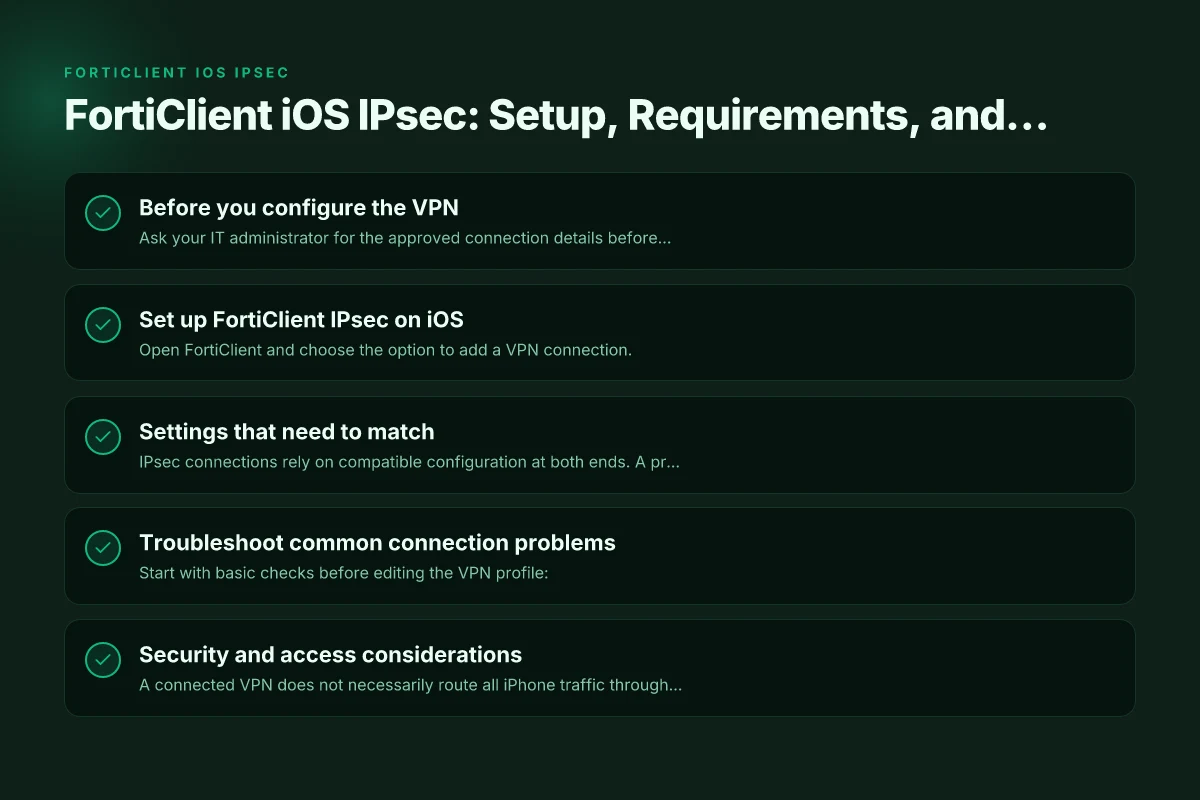
Set up FortiClient IPsec on iOS
- Open FortiClient and choose the option to add a VPN connection.
- Select IPsec as the VPN type, if the app offers a choice.
- Enter a recognizable profile name, such as “Work VPN.”
- Add the server address supplied by your administrator.
- Enter the authentication details and other required settings.
- Save the profile, select it, and tap Connect.
- Approve any iOS permission prompt and complete multifactor authentication if requested.
The app’s labels and profile fields can differ between versions. Some organizations distribute configuration through mobile device management rather than asking users to enter every value manually. If your administrator provides a managed setup, use that process instead of creating a separate profile. IPsec over TCP 443: How It Works and When to Use It
Do not send credentials or a pre-shared key through an insecure channel. If you are unsure which value belongs in a field, ask your administrator rather than changing security settings at random.
Compare settings that must match
| Setting | FortiClient value | Gateway value | If they differ |
|---|---|---|---|
| Remote gateway | VPN server address | Configured endpoint | Connection may fail |
| Authentication method | Selected method | Supported method | Authentication may be rejected |
| Credentials | User-provided details | Expected account details | Login may fail |
| Pre-shared key | Entered key, if used | Configured key | Tunnel may not establish |
| IKE version | Selected version | Accepted version | Negotiation may fail |
| Phase 1 proposals | Encryption and integrity choices | Accepted proposals | Phase 1 may fail |
| Phase 2 proposals | Encryption and integrity choices | Accepted proposals | Phase 2 may fail |
| Local and remote IDs | Configured identifiers, if used | Expected identifiers | Peer may be rejected |
Compiled November 2026; check the provider's site for current details.
Settings that need to match
IPsec connections rely on compatible configuration at both ends. A profile can appear correct but still fail if the FortiGate expects different authentication, encryption, or negotiation settings. VPN That Allows You to Choose Location for Free: What to Try
| Setting | What it means | What to do |
|---|---|---|
| Gateway | The FortiGate hostname or public IP | Confirm it is current and reachable |
| Authentication | How the user or device proves its identity | Follow the organization’s specified method |
| Pre-shared key or certificate | An additional VPN authentication element | Use only the value or certificate provided by IT |
| IPsec proposals | Encryption and integrity algorithms | Do not change without administrator guidance |
| User group or portal policy | Determines access and permissions | Confirm your account is assigned correctly |
| Tunnel routing | Controls which traffic uses the VPN | Ask whether split tunneling or full tunneling is intended |
The profile must also be supported by the FortiGate’s remote-access configuration and by the app version on the device. Your administrator can confirm those compatibility details.
Troubleshoot common connection problems
Start with basic checks before editing the VPN profile:
- Confirm that the iPhone or iPad has an internet connection without the VPN.
- Check the gateway address for typing errors and confirm that the VPN service is available.
- Verify the username, password, and any multifactor prompt.
- Confirm that the device’s date and time are set automatically, especially when certificates are involved.
- Try switching between Wi-Fi and cellular data. A network may block or interfere with VPN traffic.
- Update FortiClient and iOS if your organization permits it.
- Disconnect and reconnect, or restart the device, before testing again.
If the app reports an authentication error, the problem may be the account, password, group assignment, certificate, or second-factor process. If it times out, the gateway address, network path, or FortiGate availability may be involved. These clues are not conclusive, so have your administrator check the FortiGate event and VPN logs for the failed attempt.
Avoid repeatedly changing IPsec proposals or security options. Those values need to match the FortiGate, and an unsupported combination can make troubleshooting harder. If the profile was supplied by your organization, do not delete or replace it until IT confirms that it is safe to do so. Free Location Changer VPN: What It Can and Can’t Do
Security and access considerations
A connected VPN does not necessarily route all iPhone traffic through the organization. With split tunneling, only selected work traffic uses the tunnel. With full tunneling, broader traffic may pass through the company network. Ask your administrator which behavior applies and whether access is limited to particular work services.
Use a strong device passcode and keep iOS and FortiClient updated. If your device is lost, report it promptly so your organization can revoke access or remove managed VPN settings. Do not share your VPN profile, credentials, or authentication codes with others.
Diagnose common connection problems
| Symptom | Check first | Likely cause | Next step |
|---|---|---|---|
| VPN will not connect | Gateway address | Typo or unreachable endpoint | Confirm the address with the administrator |
| Login is rejected | Username and authentication | Incorrect credentials or method | Verify account access and authentication settings |
| Connection times out | Internet connection | Network blocks or unstable access | Try another network |
| Negotiation fails | IKE version and proposals | Settings do not match | Compare both sides with the administrator |
| Tunnel connects but resources fail | Routes and access policy | Missing permissions or routing | Ask the administrator to check policy and routes |
| Connection works on one network only | Network-specific behavior | Firewall or carrier restrictions | Test another network and report the difference |
| Repeated disconnects | Network stability and device settings | Unstable connectivity or policy | Reconnect, then request an administrator review |
Compiled November 2026; check the provider's site for current details. Best Free VPN That Lets You Pick Locations: Top Options and Limits
Recommendation
For reliable FortiClient iOS IPsec access, use the current app version approved by your organization and enter only the settings supplied by IT. If setup fails after you have confirmed your internet connection and credentials, ask the administrator to verify the FortiGate configuration and review its logs rather than experimenting with security parameters.