Edge VPN Extension: How to Choose and Use One Safely
Learn what an Edge VPN extension can do, how to install one, and when a full VPN app is the better choice.


An edge vpn extension is an add-on for Microsoft Edge that routes some or all of your browser traffic through a VPN provider. It can help protect browsing on public Wi-Fi, change the apparent location of your browser connection, or access services available in another region. Before installing one, check exactly what it covers: many browser extensions protect only traffic inside Edge, while a provider’s desktop VPN app can protect other apps on your device too.

Editor's pick: NordVPN — fast, secure VPN — Strong encryption, a no-logs policy and apps for every device. 30-day money-back guarantee. Get NordVPN →
Compare an Edge VPN extension with a full VPN app
| Factor | Edge VPN extension | Full VPN app |
|---|---|---|
| What it protects | Browser traffic | Device traffic |
| Coverage | Microsoft Edge | Apps across the device |
| Setup | Add to Edge | Install on the device |
| Browser use | Directly in Edge | Runs separately |
| Other apps | Not covered | Covered |
| Best suited for | Browser-only use | Broader device protection |
| Main limitation | Traffic outside Edge is not protected | Requires device-level installation |
Compiled November 2026; check the provider's site for current details.
| VPN | Obfuscation | From / month | Plan | Free plan | Refund | Alipay | UnionPay | Crypto | Website opens in China | Trustpilot | |
|---|---|---|---|---|---|---|---|---|---|---|---|
 ZoogVPN | Turn on manually Shadow | $2.49/mo | 27 months: $59.99 | Yes | 7 days | ✓ | ✓ | ✓ | ✓ | Official site blocked; our special link opens (4.4 s) | 4.2/5 (195 reviews) |
 NordVPN | Turn on manually Obfuscated Servers / NordWhisper | $3.49/mo | 27 months: $94.23 | No | 30 days | ? | ✗ | ✓ | ✓ | ✗ Blocked | 4.2/5 (51,628 reviews) |
 ExpressVPN | ✓ On by default all servers | $3.00/mo | 28 months: $84 | No | 30 days | ✗ | ✗ | ✓ | ✗ | ✗ Blocked | 4.4/5 (29,706 reviews) |
 Surfshark | ✓ On by default Camouflage, with OpenVPN | See site | See site | No | 30 days | ✗ | ✗ | ✗ | ✓ | ✗ Blocked | 4.3/5 (31,823 reviews) |
 Proton VPN | Turn on manually Stealth, free plan too | $2.99/mo | 12 months: $35.88 | Yes | 30 days | ✗ | ✗ | ✗ | ✓ | ✗ Blocked | 2.1/5 (1,040 reviews) |
 Astrill VPN | Turn on manually StealthVPN / OpenWeb | $12.50/mo | 24 months: $300 | No | See site | ✗ | ✗ | ✗ | ✓ | ✗ Blocked | 1.3/5 (110 reviews) |
 Private Internet Access | Turn on manually Shadowsocks, OpenVPN only | $2.03/mo | 40 months: $81.2 | No | 30 days | ✗ | ✗ | ✗ | ✗ | ✗ Blocked | 4.2/5 (11,033 reviews) |
 CyberGhost | Turn on manually selected servers | $2.19/mo | 28 months: $61.32 | No | 45 days | ✗ | ✗ | ✗ | ✓ | ✗ Blocked | 4.0/5 (24,178 reviews) |
 PureVPN | Turn on manually switch to OpenVPN | $1.69/mo | 60 months: $101.55 | No | 31 days | ? | ? | ✗ | ✓ | ✗ Blocked | 4.4/5 (17,994 reviews) |
 AdGuard VPN | ✓ On by default TrustTunnel | $2.99/mo | 24 months: $71.76 | Yes | 30 days | ✓ | ✗ | ✓ | ✓ | Official site blocked; our special link opens (3.7 s) | 4.3/5 (290 reviews) |
 Mullvad | Turn on manually QUIC / Shadowsocks / LWO | $5.61/mo | €5/mo | No | 14 days | ✗ | ✗ | ✗ | ✓ | ✗ Blocked | 3.2/5 (192 reviews) |
 Windscribe | Turn on manually Stealth / WStunnel | $5.75/mo | 12 months: $69 | Yes | See site | ✗ | ✗ | ✗ | ✓ | ✗ Blocked | 4.7/5 (13,355 reviews) |
 StrongVPN | Turn on manually Scramble, OpenVPN TCP | See site | See site | No | 30 days | ✓ | ✗ | ✗ | ✗ | ✗ Blocked | 4.4/5 (2,695 reviews) |
 LightXtreme 闪连 | Not listed | $7.08/mo | 12 months: $84.99 | Yes | 30 days | ✓ | ✓ | ✓ | ✓ | ✓ Yes (3.5 s) | No page |
Prices checked 2026-11-10 on each vendor's pricing page (cheapest long plan, USD). Check the vendor's checkout for the final price.
Obfuscation checked 2026-11-14 on each vendor's site and help center: "on by default" = nothing to set; "turn on manually" = switch protocol or mode in settings; "not listed" = the vendor describes no obfuscation.
Payment methods checked 2026-11-10 on each vendor's payment pages: all 14 take cards and PayPal; ✗ = not listed, ? = the vendor's own pages disagree.
China access: whether the official website opens from mainland China networks (tests the website only, not the VPN connection). Last checked 2026-11-18 01:02 Beijing time.
Trustpilot score and review count checked 2026-11-10.
What an Edge VPN extension does
A VPN extension connects your browser to a VPN provider’s server. Websites then see the server’s IP address instead of the IP address used by your regular connection. Depending on the provider, you may be able to select a server location, enable automatic connection, or block certain tracking elements.
The word “VPN” can describe different technologies in browser extensions. Some extensions act as a proxy for browser traffic rather than creating a full, system-wide VPN tunnel. That may be enough for changing your browser’s apparent IP address, but it is not the same as protecting every connection on your computer.
An extension may also leave some browser activity outside its protection if it is misconfigured or loses its connection. Look for information about DNS handling, WebRTC leak protection, and what happens if the connection drops. These details can vary from one product to another.
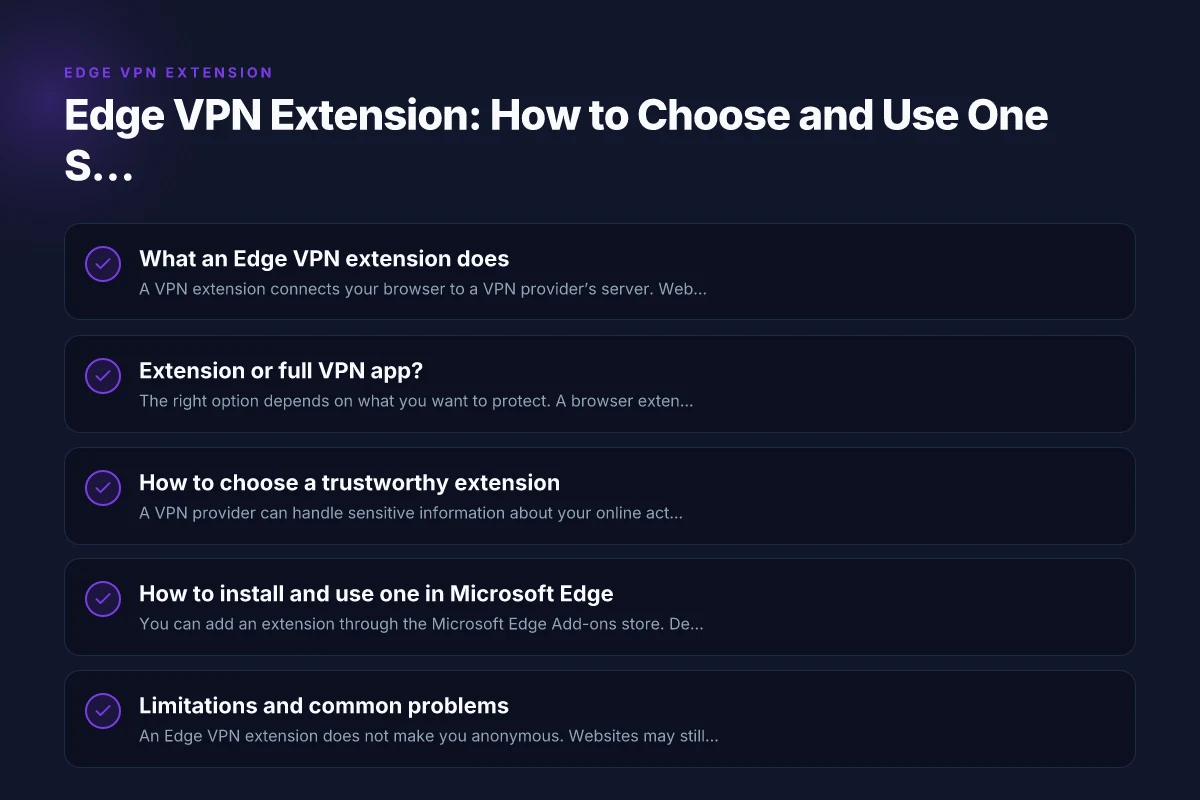
Extension or full VPN app?
The right option depends on what you want to protect. A browser extension is convenient when you mainly need coverage while browsing in Edge. A full VPN app is generally more suitable when you want to route traffic from multiple applications through a VPN. How to Enable VPN in Edge: Turn On Microsoft Edge Secure Network
| Feature | Edge VPN extension | Full VPN app |
|---|---|---|
| Typical coverage | Browser traffic, depending on the provider | Device traffic, depending on settings |
| Setup | Installed in Edge | Installed on the operating system |
| Best suited to | Browser-focused use | Browsing and other online apps |
| Common controls | Browser connection and server selection | System-wide connection, server selection, and network controls |
| Main limitation | May not cover other apps | Requires a separate app and system-level permissions |
Check the provider’s description rather than relying on the product name. Some extensions require an active subscription to a full VPN service, while others offer a separate browser-only plan. A browser extension may also use a different set of features or privacy terms from the provider’s desktop app.
How to choose a trustworthy extension
A VPN provider can handle sensitive information about your online activity, so reputation and transparency matter. Before installing an Edge VPN extension, review the provider’s privacy policy and the extension’s permissions.
Use these checks to narrow down your choices:
- Clear privacy policy: Look for specific explanations of what data is collected, why it is collected, and how long it is kept. Be cautious of vague claims such as “zero logs” without supporting details.
- A known provider: Research the company behind the extension, not just its name or logo. Check whether its website, support channels, and privacy documentation are consistent.
- Reasonable permissions: Review what the extension asks to access. Browser permissions can be broad because VPN extensions need to manage connections, but the provider should explain why they are needed.
- Security information: Look for details about encryption, connection handling, leak protection, and independent audits where available. No single claim guarantees that a service is secure.
- Transparent pricing: Check whether a free plan has data limits, speed restrictions, advertising, or other conditions. Avoid services that do not clearly explain how they support the product.
- Recent maintenance: An extension that is regularly updated is generally a better choice than one that appears abandoned.
Be especially careful with unfamiliar free VPN extensions. Some may collect or share data in ways users do not expect. Read the terms before connecting, and uninstall any extension you no longer use. Urban VPN Extension Chrome: Features, Setup, and Safety Tips
Trust checks for an Edge VPN extension
| Check | What to look for | Warning sign | Safer choice |
|---|---|---|---|
| Publisher | Identifiable provider | Unclear ownership | Known, verifiable provider |
| Permissions | Relevant to VPN features | Unexplained access requests | Request only needed access |
| Privacy policy | Clear data practices | Missing or vague policy | Readable, specific policy |
| Data collection | Disclosure of what is collected | No meaningful explanation | Minimize collected data |
| Reputation | Consistent user feedback | Repeated serious complaints | Check reviews and history |
| Updates | Maintained extension | Long-standing inactivity | Recently maintained listing |
| Pricing | Clear terms | Hidden fees or unclear limits | Understand costs before use |
Compiled November 2026; check the provider's site for current details.
How to install and use one in Microsoft Edge
You can add an extension through the Microsoft Edge Add-ons store. Depending on Edge settings and regional availability, you may also be able to install extensions from the Chrome Web Store. Prefer the official listing linked from the VPN provider’s own website, and confirm the developer name before adding it.
A typical setup looks like this: VPN Extension for Edge: How to Choose and Use One
- Open the official extension listing in Microsoft Edge.
- Review the developer, permissions, ratings, and privacy information.
- Select Get or the equivalent install option, then approve the requested permissions.
- Open the extension from the toolbar or the Extensions menu.
- Sign in or create an account if the provider requires one.
- Choose a server or location and connect.
- Visit the provider’s status page or use a reputable IP-checking service to confirm that the browser connection appears to use the VPN server.
If you want the extension to connect automatically, enable that option only after checking how it behaves when Edge starts or when the network changes. Also look for a kill switch or similar connection protection. Browser extensions do not always offer the same safeguards as full VPN apps.
Limitations and common problems
An Edge VPN extension does not make you anonymous. Websites may still identify you through account sign-ins, cookies, browser fingerprinting, or information you choose to share. A VPN also does not replace antivirus software, safe browsing habits, or multi-factor authentication.
If the extension will not connect, try these steps:
- Check your internet connection and the provider’s service status.
- Confirm that you are signed in and that your plan includes extension access.
- Update Edge and the extension.
- Temporarily disable other VPN, proxy, or privacy extensions that may conflict.
- Switch to another server location.
- Restart Edge, then contact the provider if the issue continues.
A VPN can also reduce browsing speed, particularly when the server is far away or busy. If a website blocks VPN connections, switching servers may help, but access is not guaranteed. Follow the website’s terms and any applicable local rules. VPN PES Download: How to Choose and Install a VPN for eFootball
Decide whether an Edge VPN extension fits your needs
| Need or situation | Extension fit | Consider instead | Key point |
|---|---|---|---|
| Protecting browser traffic | Suitable | — | Coverage is limited to Edge |
| Protecting other apps | Not sufficient | Full VPN app | An extension does not cover the whole device |
| Simple browser setup | Suitable | — | Install and manage it in Edge |
| Device-wide VPN use | Not suitable | Full VPN app | Use device-level protection |
| Connection problems | May need troubleshooting | Check settings or provider guidance | Extensions can have common issues |
| Unclear provider practices | Avoid until verified | A more transparent provider | Review permissions and privacy terms |
| Expecting complete anonymity | Not sufficient alone | Review broader privacy practices | A VPN does not guarantee anonymity |
Compiled November 2026; check the provider's site for current details.
Recommendation
For browser-only use, choose a well-documented Edge VPN extension from a reputable provider, verify its permissions, and test that the connection works as expected. If you need VPN coverage for messaging apps, games, or other software outside Edge, install the provider’s full VPN app instead. In either case, treat a VPN as one part of online privacy, not a substitute for careful account and security practices.