How to Enable VPN in Edge: Turn On Microsoft Edge Secure Network
Learn how to enable Edge Secure Network, check whether it is available, and understand when you may need a separate VPN.


To enable VPN in Edge, open the browser’s Settings, go to Privacy, search, and services, find Security, and switch on Microsoft Edge Secure Network. If the option is missing, check that Edge is up to date and that you’re signed in with a personal Microsoft account. Availability can vary. Edge Secure Network uses VPN technology to help protect browsing traffic, particularly on open Wi-Fi networks.

Editor's pick: NordVPN — fast, secure VPN — Strong encryption, a no-logs policy and apps for every device. 30-day money-back guarantee. Get NordVPN →
Edge Secure Network availability and setup options
| Option | Where to look | What to do | Expected result | Best for |
|---|---|---|---|---|
| Edge Secure Network setting | Edge Settings | Search for “Secure Network” | Setting appears if available | Finding the feature |
| Turn on protection | Secure Network settings | Switch it on | Protection enabled | Starting a session |
| Sign in to Edge | Edge profile | Sign in with a Microsoft account | May be required for access | Resolving setup prompts |
| Update Edge | Edge menu | Check for updates, then restart | Latest available features | Missing or outdated settings |
| Check managed settings | Browser settings | Ask your organization’s administrator | Availability may be restricted | Work or school devices |
| Check region availability | Secure Network settings | Look for an availability message | Feature may not be offered | Missing setting |
| Use another VPN | VPN app or service | Choose a separate VPN provider | VPN protection depends on provider | When Secure Network is unavailable |
Compiled November 2026; check the provider's site for current details.
| VPN | Obfuscation | From / month | Plan | Free plan | Refund | Alipay | UnionPay | Crypto | Website opens in China | Trustpilot | |
|---|---|---|---|---|---|---|---|---|---|---|---|
 ZoogVPN | Turn on manually Shadow | $2.49/mo | 27 months: $59.99 | Yes | 7 days | ✓ | ✓ | ✓ | ✓ | Official site blocked; our special link opens (4.4 s) | 4.2/5 (195 reviews) |
 NordVPN | Turn on manually Obfuscated Servers / NordWhisper | $3.49/mo | 27 months: $94.23 | No | 30 days | ? | ✗ | ✓ | ✓ | ✗ Blocked | 4.2/5 (51,628 reviews) |
 ExpressVPN | ✓ On by default all servers | $3.00/mo | 28 months: $84 | No | 30 days | ✗ | ✗ | ✓ | ✗ | ✗ Blocked | 4.4/5 (29,706 reviews) |
 Surfshark | ✓ On by default Camouflage, with OpenVPN | See site | See site | No | 30 days | ✗ | ✗ | ✗ | ✓ | ✗ Blocked | 4.3/5 (31,823 reviews) |
 Proton VPN | Turn on manually Stealth, free plan too | $2.99/mo | 12 months: $35.88 | Yes | 30 days | ✗ | ✗ | ✗ | ✓ | ✗ Blocked | 2.1/5 (1,040 reviews) |
 Astrill VPN | Turn on manually StealthVPN / OpenWeb | $12.50/mo | 24 months: $300 | No | See site | ✗ | ✗ | ✗ | ✓ | ✗ Blocked | 1.3/5 (110 reviews) |
 Private Internet Access | Turn on manually Shadowsocks, OpenVPN only | $2.03/mo | 40 months: $81.2 | No | 30 days | ✗ | ✗ | ✗ | ✗ | ✗ Blocked | 4.2/5 (11,033 reviews) |
 CyberGhost | Turn on manually selected servers | $2.19/mo | 28 months: $61.32 | No | 45 days | ✗ | ✗ | ✗ | ✓ | ✗ Blocked | 4.0/5 (24,178 reviews) |
 PureVPN | Turn on manually switch to OpenVPN | $1.69/mo | 60 months: $101.55 | No | 31 days | ? | ? | ✗ | ✓ | ✗ Blocked | 4.4/5 (17,994 reviews) |
 AdGuard VPN | ✓ On by default TrustTunnel | $2.99/mo | 24 months: $71.76 | Yes | 30 days | ✓ | ✗ | ✓ | ✓ | Official site blocked; our special link opens (3.7 s) | 4.3/5 (290 reviews) |
 Mullvad | Turn on manually QUIC / Shadowsocks / LWO | $5.61/mo | €5/mo | No | 14 days | ✗ | ✗ | ✗ | ✓ | ✗ Blocked | 3.2/5 (192 reviews) |
 Windscribe | Turn on manually Stealth / WStunnel | $5.75/mo | 12 months: $69 | Yes | See site | ✗ | ✗ | ✗ | ✓ | ✗ Blocked | 4.7/5 (13,355 reviews) |
 StrongVPN | Turn on manually Scramble, OpenVPN TCP | See site | See site | No | 30 days | ✓ | ✗ | ✗ | ✗ | ✗ Blocked | 4.4/5 (2,695 reviews) |
 LightXtreme 闪连 | Not listed | $7.08/mo | 12 months: $84.99 | Yes | 30 days | ✓ | ✓ | ✓ | ✓ | ✓ Yes (3.5 s) | No page |
Prices checked 2026-11-10 on each vendor's pricing page (cheapest long plan, USD). Check the vendor's checkout for the final price.
Obfuscation checked 2026-11-14 on each vendor's site and help center: "on by default" = nothing to set; "turn on manually" = switch protocol or mode in settings; "not listed" = the vendor describes no obfuscation.
Payment methods checked 2026-11-10 on each vendor's payment pages: all 14 take cards and PayPal; ✗ = not listed, ? = the vendor's own pages disagree.
China access: whether the official website opens from mainland China networks (tests the website only, not the VPN connection). Last checked 2026-11-18 01:02 Beijing time.
Trustpilot score and review count checked 2026-11-10.
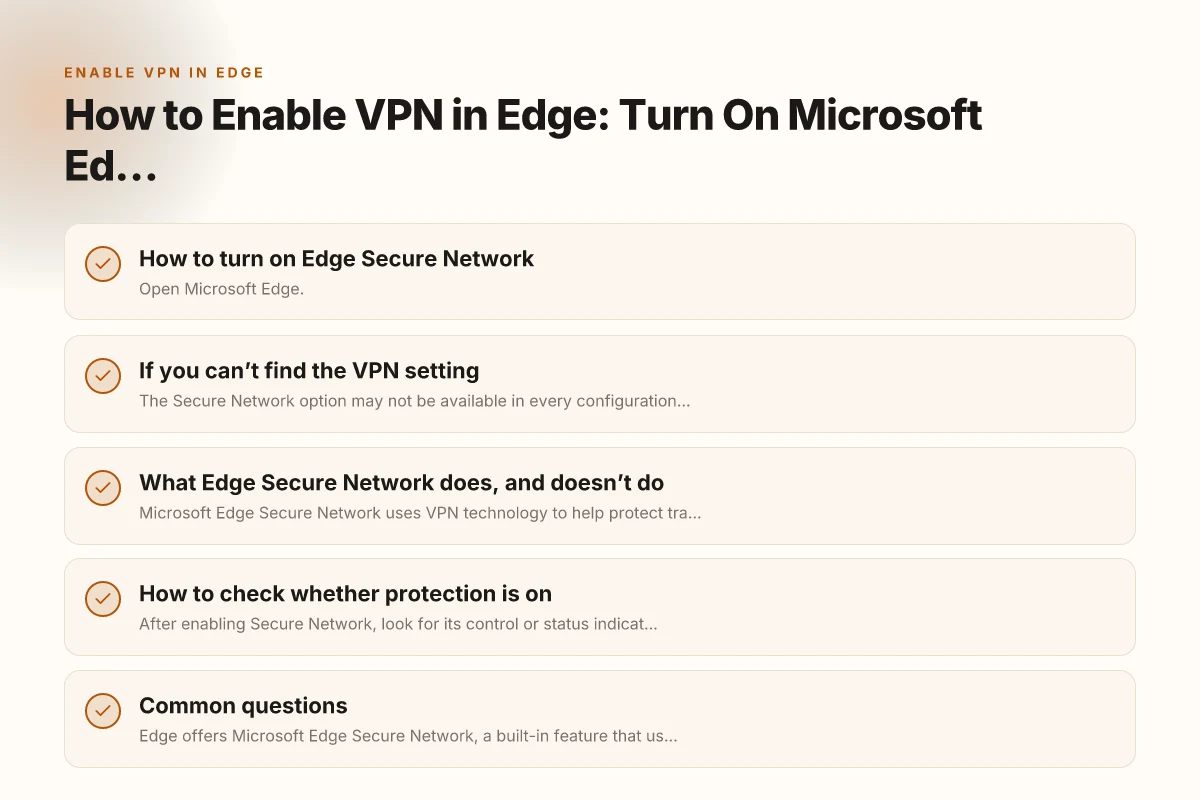
How to turn on Edge Secure Network
- Open Microsoft Edge.
- Select Settings and more (the three-dot menu) in the top-right corner, or press Alt+F.
- Select Settings.
- Open Privacy, search, and services.
- Scroll to the Security section.
- Find Microsoft Edge Secure Network and turn it on.
- Follow any prompts to sign in with a personal Microsoft account or complete setup.
Once enabled, check the Secure Network control in Edge to see whether protection is active. The exact wording and layout may differ slightly depending on your Edge version and account.
If you can’t find the VPN setting
The Secure Network option may not be available in every configuration. Try these checks:
- Sign in to Edge: The feature may require a personal Microsoft account. A work or school account might not meet the requirement.
- Update Edge: Open Settings and more > Help and feedback > About Microsoft Edge and install any available update.
- Check the right section: Look under Settings > Privacy, search, and services > Security.
- Restart the browser: Close and reopen Edge after signing in or updating.
- Consider account or regional availability: If the option still does not appear, it may not be available for your account, location, or managed device.
On a work-managed computer, an administrator may control browser features. If settings are restricted, contact your organization’s IT support rather than trying to bypass its policies.
What Edge Secure Network does, and doesn’t do
Microsoft Edge Secure Network uses VPN technology to help protect traffic while you browse in Edge. It can be useful on open Wi-Fi, where protecting the connection between your browser and the network is especially important. Urban VPN Extension Chrome: Features, Setup, and Safety Tips
However, a browser-based protection feature is different from a full-device VPN. Edge Secure Network is intended for browsing activity in Edge. It should not be assumed to route traffic from other browsers, apps, or services on your device. It also does not make you completely anonymous online or prevent every type of tracking.
| Feature | Edge Secure Network | Full-device VPN app |
|---|---|---|
| Protects browsing in Edge | Yes, when enabled and active | Usually |
| Covers other browsers and apps | Not generally | Usually, depending on app settings |
| Useful on open Wi-Fi | Yes | Yes |
| Replaces all privacy and security tools | No | No |
If you need VPN protection for apps outside Edge, or want to choose a particular provider or server location, look into a reputable full-device VPN service. Review its privacy practices and compatibility before installing it.
How to check whether protection is on
After enabling Secure Network, look for its control or status indicator in Edge. Use the browser’s Settings to revisit Privacy, search, and services > Security if you need to confirm that the feature remains enabled.
If it appears enabled but you’re unsure whether it is active for a particular browsing session, check the Secure Network interface for its current status. Avoid relying on a VPN indicator alone as proof of complete privacy: websites can still use cookies, account sign-ins, and other methods to recognize activity. VPN Extension for Edge: How to Choose and Use One
What Edge Secure Network protects—and what to check
| Situation | Secure Network status | What it can help with | What it does not guarantee | What to check |
|---|---|---|---|---|
| Feature is switched on | Enabled | Protecting eligible browsing traffic | Protection for every app or service | Edge’s status indicator |
| Feature is switched off | Disabled | No Secure Network protection | Privacy from network observers | Turn it on in settings |
| Setting is missing | Unavailable or not shown | No protection until available | Access in every region or account | Updates, sign-in, or restrictions |
| Public Wi-Fi browsing | Enabled for eligible traffic | Added protection on the network | Complete anonymity | Status before browsing |
| Using non-Edge apps | Edge feature does not cover them | Edge browsing only | Protection for other apps | Consider a separate VPN |
| Checking connection status | Status indicator available | Whether protection is active | That every site or app is covered | Edge toolbar or settings |
| Choosing a full VPN | Separate VPN service | Potentially broader device coverage | Identical features across providers | Provider’s coverage and terms |
Compiled November 2026; check the provider's site for current details.
Common questions
Does Microsoft Edge have a built-in VPN?
Edge offers Microsoft Edge Secure Network, a built-in feature that uses VPN technology to help protect browsing traffic. It is not the same as a conventional VPN app that protects traffic across the entire device.
Is Edge Secure Network free?
Check the current information shown in Edge and Microsoft’s official Secure Network details for availability and account requirements. Do not assume that the feature is available to every user or that its terms are identical in every region. VPN PES Download: How to Choose and Install a VPN for eFootball
What if I want to turn it off?
Return to Settings > Privacy, search, and services > Security and switch off Microsoft Edge Secure Network. You can also use the feature’s control in Edge if one is available in your version.
Recommendation
Enable Edge Secure Network if you want added protection for browsing in Edge, especially when using open Wi-Fi. If you need VPN coverage for your whole device, use a trusted full-device VPN instead, and remember that neither option replaces careful browsing and account security.