Urban VPN Extension Edge Download: A Safe Installation Guide
Learn how to find, install, and check the Urban VPN extension for Microsoft Edge safely.


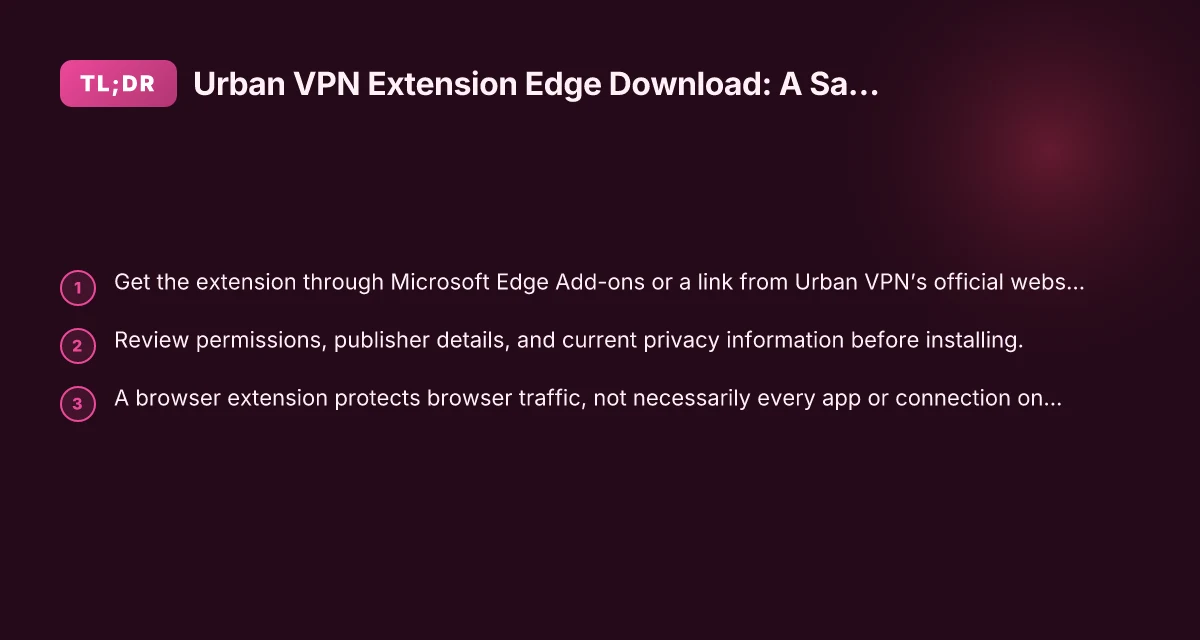
To download the Urban VPN extension for Edge, open the Microsoft Edge Add-ons store, search for “Urban VPN,” verify the publisher and listing, then select “Get” and confirm the installation. You can also start from Urban VPN’s official website and follow its link to the Edge store. Avoid third-party download sites, which may offer outdated or altered files.

Editor's pick: NordVPN — fast, secure VPN — Strong encryption, a no-logs policy and apps for every device. 30-day money-back guarantee. Get NordVPN →
Compare installation sources for the Urban VPN Edge extension
| Source | How to identify it | Edge compatibility | Safety check | Recommendation |
|---|---|---|---|---|
| Microsoft Edge Add-ons | Search the official add-ons store | Check the listing details | Verify the publisher and name | Preferred |
| Urban VPN official website | Follow its link to the Edge store | Confirm it opens the Edge listing | Check the domain carefully | Use as a starting point |
| Search engine result | Review the destination before opening | May lead to unrelated pages | Avoid lookalike domains | Use caution |
| Third-party download site | Offers an extension file or installer | Compatibility may be unclear | File may be modified or outdated | Avoid |
| Sponsored result | Marked as an advertisement | May not be the official listing | Check the destination independently | Do not assume it is official |
| Direct store listing | Shows extension details and permissions | Confirm Edge support on the page | Review publisher and requested access | Install only after review |
Compiled November 2026; check the provider's site for current details.
| VPN | Obfuscation | From / month | Plan | Free plan | Refund | Alipay | UnionPay | Crypto | Website opens in China | Trustpilot | |
|---|---|---|---|---|---|---|---|---|---|---|---|
 ZoogVPN | Turn on manually Shadow | $2.49/mo | 27 months: $59.99 | Yes | 7 days | ✓ | ✓ | ✓ | ✓ | Official site blocked; our special link opens (4.4 s) | 4.2/5 (195 reviews) |
 NordVPN | Turn on manually Obfuscated Servers / NordWhisper | $3.49/mo | 27 months: $94.23 | No | 30 days | ? | ✗ | ✓ | ✓ | ✗ Blocked | 4.2/5 (51,628 reviews) |
 ExpressVPN | ✓ On by default all servers | $3.00/mo | 28 months: $84 | No | 30 days | ✗ | ✗ | ✓ | ✗ | ✗ Blocked | 4.4/5 (29,706 reviews) |
 Surfshark | ✓ On by default Camouflage, with OpenVPN | See site | See site | No | 30 days | ✗ | ✗ | ✗ | ✓ | ✗ Blocked | 4.3/5 (31,823 reviews) |
 Proton VPN | Turn on manually Stealth, free plan too | $2.99/mo | 12 months: $35.88 | Yes | 30 days | ✗ | ✗ | ✗ | ✓ | ✗ Blocked | 2.1/5 (1,040 reviews) |
 Astrill VPN | Turn on manually StealthVPN / OpenWeb | $12.50/mo | 24 months: $300 | No | See site | ✗ | ✗ | ✗ | ✓ | ✗ Blocked | 1.3/5 (110 reviews) |
 Private Internet Access | Turn on manually Shadowsocks, OpenVPN only | $2.03/mo | 40 months: $81.2 | No | 30 days | ✗ | ✗ | ✗ | ✗ | ✗ Blocked | 4.2/5 (11,033 reviews) |
 CyberGhost | Turn on manually selected servers | $2.19/mo | 28 months: $61.32 | No | 45 days | ✗ | ✗ | ✗ | ✓ | ✗ Blocked | 4.0/5 (24,178 reviews) |
 PureVPN | Turn on manually switch to OpenVPN | $1.69/mo | 60 months: $101.55 | No | 31 days | ? | ? | ✗ | ✓ | ✗ Blocked | 4.4/5 (17,994 reviews) |
 AdGuard VPN | ✓ On by default TrustTunnel | $2.99/mo | 24 months: $71.76 | Yes | 30 days | ✓ | ✗ | ✓ | ✓ | Official site blocked; our special link opens (3.7 s) | 4.3/5 (290 reviews) |
 Mullvad | Turn on manually QUIC / Shadowsocks / LWO | $5.61/mo | €5/mo | No | 14 days | ✗ | ✗ | ✗ | ✓ | ✗ Blocked | 3.2/5 (192 reviews) |
 Windscribe | Turn on manually Stealth / WStunnel | $5.75/mo | 12 months: $69 | Yes | See site | ✗ | ✗ | ✗ | ✓ | ✗ Blocked | 4.7/5 (13,355 reviews) |
 StrongVPN | Turn on manually Scramble, OpenVPN TCP | See site | See site | No | 30 days | ✓ | ✗ | ✗ | ✗ | ✗ Blocked | 4.4/5 (2,695 reviews) |
 LightXtreme 闪连 | Not listed | $7.08/mo | 12 months: $84.99 | Yes | 30 days | ✓ | ✓ | ✓ | ✓ | ✓ Yes (3.5 s) | No page |
Prices checked 2026-11-10 on each vendor's pricing page (cheapest long plan, USD). Check the vendor's checkout for the final price.
Obfuscation checked 2026-11-14 on each vendor's site and help center: "on by default" = nothing to set; "turn on manually" = switch protocol or mode in settings; "not listed" = the vendor describes no obfuscation.
Payment methods checked 2026-11-10 on each vendor's payment pages: all 14 take cards and PayPal; ✗ = not listed, ? = the vendor's own pages disagree.
China access: whether the official website opens from mainland China networks (tests the website only, not the VPN connection). Last checked 2026-11-18 01:02 Beijing time.
Trustpilot score and review count checked 2026-11-10.
How to find the official Edge extension
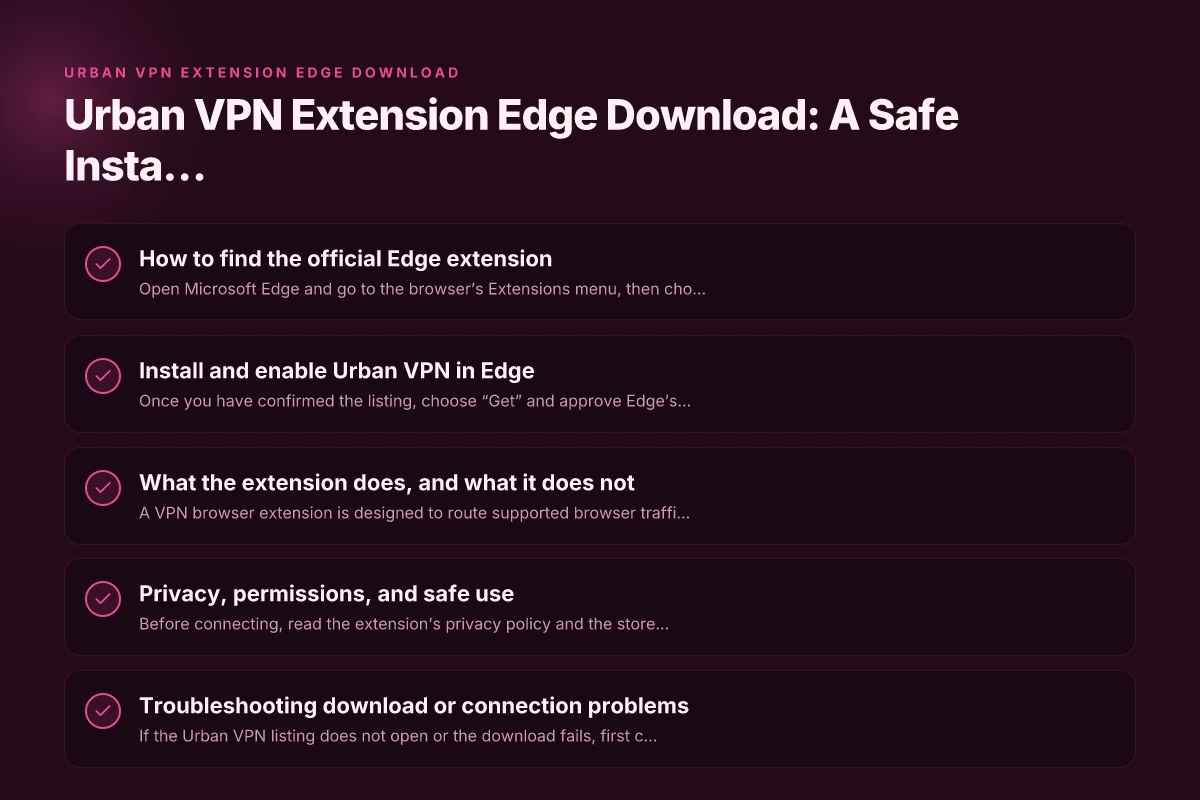
Open Microsoft Edge and go to the browser’s Extensions menu, then choose the option to visit the Microsoft Edge Add-ons store. Search for Urban VPN and check that the result is the intended product before downloading. The store listing is the best place to review the extension’s current description, permissions, publisher information, and user feedback.
If you reach the store from Urban VPN’s official website, make sure the link leads to a Microsoft-owned Edge Add-ons page. Do not install a file from an unfamiliar download portal or follow pop-ups that claim an extension is required to fix Edge or improve your internet connection.
Before selecting “Get,” check:
- The product name and publisher shown in the listing
- The permissions the extension requests
- The listing’s update history and recent reviews
- The provider’s privacy policy and terms
- Whether the extension is available in your region
Store details and availability can change. If the listing does not appear, do not assume a similarly named extension is the same product. Check Urban VPN’s official site for current guidance. VPN Microsoft Edge: How to Turn It On and Choose the Right Option
Install and enable Urban VPN in Edge
Once you have confirmed the listing, choose “Get” and approve Edge’s installation prompt. Edge will add the extension to the browser. Depending on your settings, you may see a notification or be asked whether to allow the extension to access information on websites you visit.
After installation, select the Extensions icon near the address bar. Find Urban VPN in the menu and open it. If you want quicker access, use Edge’s option to show or pin the extension on the toolbar. Follow the extension’s prompts to connect or configure it, and read any account, consent, or permissions screens before proceeding.
To check or change its status, open Edge’s Extensions page by entering edge://extensions in the address bar. From there, you can enable or disable the extension, review its permissions, or remove it. If Edge says an extension is disabled or blocked, use the browser’s displayed explanation rather than trying to bypass a security warning.
Compare what an Edge VPN extension can and cannot do iPhone VPN Keeps Turning On: Why It Happens and How to Stop It
| Task or feature | Extension role | What to expect | What it does not guarantee |
|---|---|---|---|
| Route browser traffic | Can provide VPN-style browser routing | Applies according to the extension’s settings | Protection for every device app |
| Change apparent location | May offer selectable locations | Websites may see a different IP location | A precise or permanent location |
| Protect public Wi-Fi use | Can help protect routed browser traffic | Keep the extension connected | Protection for traffic outside its scope |
| Choose a server location | Depends on available extension options | Check the locations shown in the interface | Every country or city is available |
| Hide activity from websites | Can change the IP they see | Sites may still identify users in other ways | Anonymity |
| Secure browser sessions | Depends on the service and connection | Use secure website connections when available | Safety from phishing or malware |
| Replace a full-device VPN | Usually limited to browser use | Check the product’s stated coverage | Device-wide VPN protection |
Compiled November 2026; check the provider's site for current details.
What the extension does, and what it does not
A VPN browser extension is designed to route supported browser traffic through a VPN service. This can be useful when you want to change the apparent location of browser requests or add a layer of protection when browsing on a network you do not control. The precise features depend on the current product and settings.
A browser extension should not automatically be treated as a full-device VPN. It may not route traffic from standalone apps, games, or other browsers. If you need coverage beyond Edge, check whether Urban VPN offers a separate app for your device and review how it works before installing it.
| Option | Typical coverage | Best for |
|---|---|---|
| Urban VPN browser extension | Traffic handled through the supported Edge extension | Using VPN features while browsing in Edge |
| A desktop VPN application | Potentially traffic from multiple apps on the device | Broader device-level VPN coverage |
| A proxy setting | Traffic configured for a particular app or connection | Specific network or application needs |
These are general distinctions, not a guarantee of how a particular configuration behaves. Check Urban VPN’s current documentation, and do not assume that a browser extension encrypts all device traffic or makes every online activity anonymous. IPsec VPN FortiGate: Setup, Configuration, and Troubleshooting
Privacy, permissions, and safe use
Before connecting, read the extension’s privacy policy and the store listing. Pay attention to what information may be collected, how browsing data is handled, whether data is shared, and how long it may be retained. VPN services differ in their policies, so avoid relying on broad labels such as “private” or “secure” without checking the details.
Permissions also matter. An extension may request access needed to operate across websites, but broad access can be consequential because it may allow interaction with pages you visit. Make sure the requested access fits the product’s stated function. If you are unsure, leave the extension disabled until you have reviewed the information.
A VPN does not replace basic account and browser security. Use strong, unique passwords and multi-factor authentication where available. Keep Edge and your operating system updated, and be cautious about entering payment details or sensitive information on unfamiliar websites. A VPN cannot make a fraudulent site trustworthy or prevent every form of tracking.
Troubleshooting download or connection problems
If the Urban VPN listing does not open or the download fails, first check that Edge is up to date and that your internet connection is working. Then revisit the Microsoft Edge Add-ons store directly rather than using a link from an advertisement or download site. Hkmc rndvpn hyundai net: Access, Login Help, and Safety Tips
If the extension installs but does not appear on the toolbar, open the Extensions menu and pin it. If it will not connect, check the extension’s status, review any sign-in or permission prompts, and try again after restarting Edge. A workplace or school device may have administrator policies that prevent installation or use of certain extensions. Contact the device administrator rather than attempting to override those controls.
If problems continue, remove the extension and reinstall it from the official store listing. Check Urban VPN’s official support information for known service issues and current troubleshooting steps. Do not install unofficial “fixed” versions or share account credentials with anyone offering technical help.
Decide how to install, use, and troubleshoot Urban VPN in Edge
| Situation | Recommended action | Check | Avoid |
|---|---|---|---|
| Finding the extension | Open the official Edge Add-ons listing | Publisher and listing details | Unverified download sites |
| Before installation | Review requested permissions | Whether access matches your intended use | Approving prompts without reading |
| Enabling the extension | Use Edge’s Extensions page | Extension is turned on | Installing duplicate extensions |
| Connecting | Open the extension and choose an available option | Connection status and selected location | Assuming installation means connection |
| Connection fails | Check internet access and reconnect | Whether other sites load | Sharing account details with strangers |
| Download or install fails | Retry from the official store | Edge updates and browser errors | Installing a file from an unknown source |
| Privacy concern | Review the privacy policy and settings | Data practices and permission scope | Treating a VPN as complete anonymity |
| Ongoing use | Keep Edge and the extension updated | Store listing and extension status | Ignoring unexpected permission changes |
| Final decision | Use it only if its scope fits your needs | Browser-only versus device-wide coverage | Relying on it for protections it does not provide |
Compiled November 2026; check the provider's site for current details. FortiClient VPN for Windows 11: Download, Install, and Connect
Recommendation
For an Urban VPN extension Edge download, use the Microsoft Edge Add-ons store or the direct store link on Urban VPN’s official website. Verify the listing and read its current permissions and privacy policy before installing. Use the extension only for the browser coverage it provides, and choose a reputable device-level VPN application if you need protection for traffic beyond Edge.