Surfshark Won’t Connect? Try These Fixes
Fix Surfshark connection problems with quick checks, app settings, protocol changes, and device-specific troubleshooting.
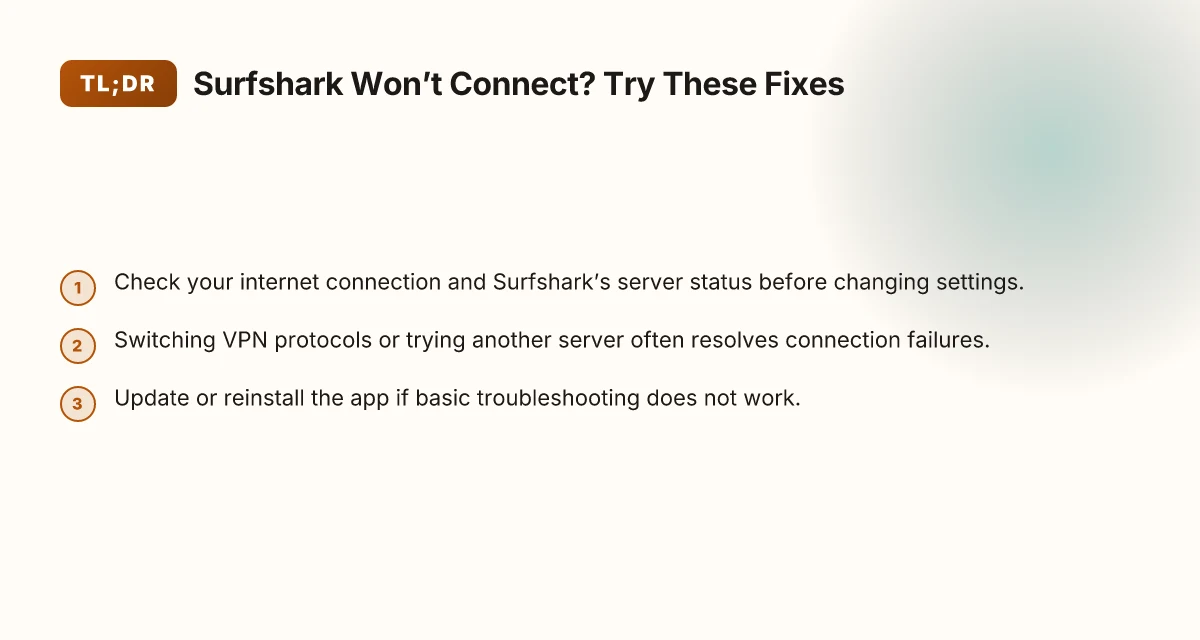
If Surfshark won’t connect, first make sure your internet works without the VPN, then try a different Surfshark server and VPN protocol. These steps resolve many connection problems. If they do not, restart the app and device, check for conflicting network settings, and update Surfshark before moving on to more advanced fixes.

Editor's pick: NordVPN — fast, secure VPN — Strong encryption, a no-logs policy and apps for every device. 30-day money-back guarantee. Get NordVPN →
Match the connection problem to a first fix
| What you notice | First option to try | Why it may help | Next step |
|---|---|---|---|
| No internet access | Check your internet connection | Surfshark needs an active connection | Restore internet access |
| One server won’t connect | Try another Surfshark server | The selected server may be unavailable | Test the original server again later |
| App is unresponsive | Restart Surfshark | Clears a temporary app issue | Change the protocol |
| Connection fails on one protocol | Switch protocol in settings | Another protocol may work on your network | Try a different server |
| Connection drops unexpectedly | Check for conflicting software | Other network or security tools may interfere | Temporarily test without the conflict |
| Surfshark features seem outdated | Update the app | An update may address app issues | Retry the connection |
| Account access is in doubt | Check your account status | The account may need attention | Resolve account issues |
| Earlier fixes did not work | Reset the connection or reinstall | Refreshes the app’s connection setup | Sign in and test again |
Compiled November 2026; check the provider's site for current details.
1. Check your internet and the Surfshark server
Disconnect Surfshark and open a few websites or apps. If they still do not work, the problem is likely your Wi-Fi, mobile data, router, or internet provider, not the VPN.
Try restarting your router, reconnecting to Wi-Fi, or switching between Wi-Fi and mobile data. If your internet works normally without Surfshark, continue with the VPN checks below.
The selected VPN server may also be temporarily unavailable or overloaded. Open Surfshark and choose a different location, preferably one close to you. If a specific country is essential, test another server in that country before choosing a distant location.
You can also check Surfshark’s official service-status information for a known outage. If the service is experiencing problems, wait and try again later. Find My VPN Location: Check the IP Address Your VPN Shows
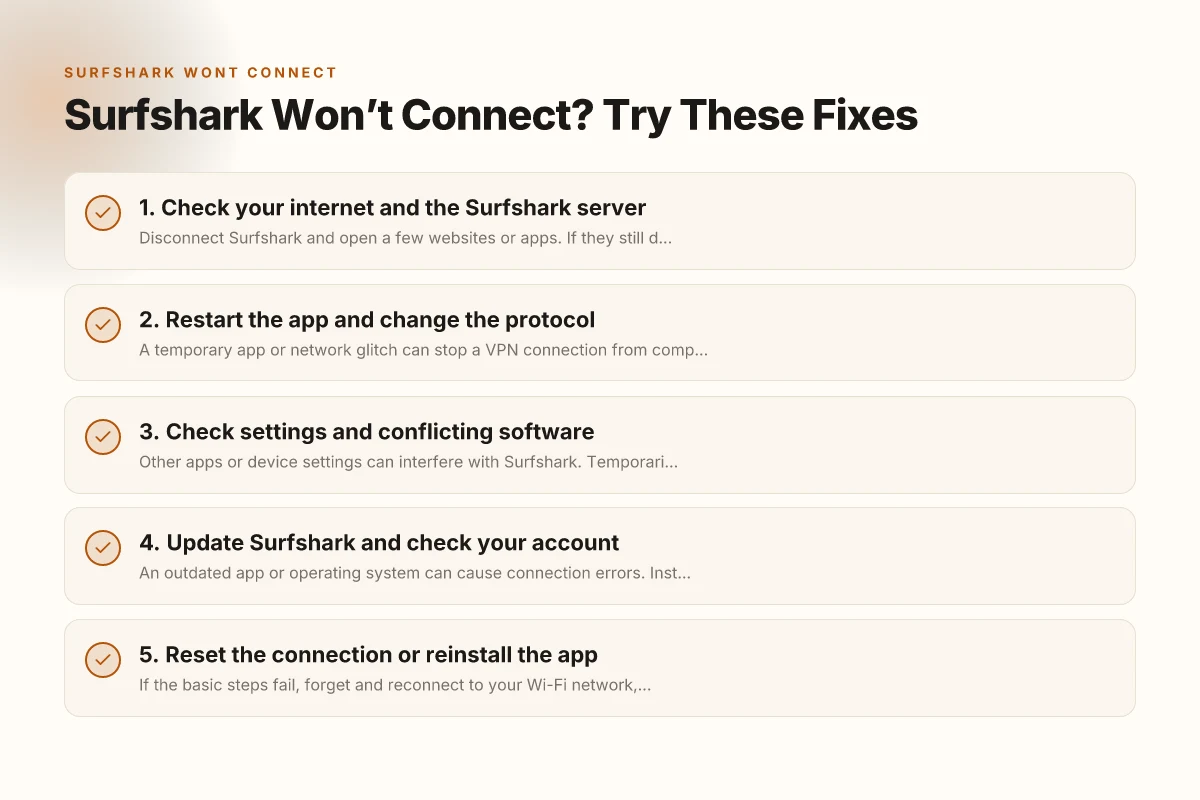
2. Restart the app and change the protocol
A temporary app or network glitch can stop a VPN connection from completing. Fully close Surfshark, reopen it, and try connecting again. If that does not help, restart your device. On a phone, closing the app from the recent-apps screen is more effective than simply returning to the home screen.
Next, try another VPN protocol. A protocol controls how the VPN establishes its connection, and some networks block or interfere with particular protocols. In Surfshark’s settings, look for the VPN protocol option and select a different available choice. The names and options can vary by device and app version.
| What to try | When it may help |
|---|---|
| Select another server | The current server is unavailable or congested |
| Change the VPN protocol | A network or firewall is blocking the current protocol |
| Switch Wi-Fi or mobile data | The problem is limited to one network |
| Restart the app or device | Surfshark or the device has a temporary glitch |
After changing the protocol, try a nearby server again. If the connection works on mobile data but not on Wi-Fi, your home, workplace, school, or public network may be restricting VPN traffic. Network administrators can confirm whether VPN use is allowed.
3. Check settings and conflicting software
Other apps or device settings can interfere with Surfshark. Temporarily pause another VPN, proxy, or firewall and test the connection. Do not leave security software disabled. Turn it back on after testing. If the VPN connects only while a particular security tool is paused, review that tool’s settings or contact its support team. FortiClient VPN 7.2: Download, Install, and Connect Securely
Also check your device’s date and time. Set them to update automatically, since an incorrect clock can cause secure connections to fail.
On a phone or computer, inspect the network settings for a manually configured proxy. If you do not need one, turn it off and try connecting again. On a router, parental controls or custom DNS settings may also affect VPN traffic.
If Surfshark connects but websites still do not load, disconnect and reconnect, then test more than one site. You can also try a different server. Avoid changing several advanced settings at once. Make one change, test the connection, and note what you changed.
Compare Surfshark troubleshooting options Clash for Window: How to Play Clash Royale on a Windows PC
| Option | Best used when | What to do | Possible drawback | If it doesn’t help |
|---|---|---|---|---|
| Check internet | Other online services also fail | Confirm your internet works | Does not fix a Surfshark-specific issue | Check a Surfshark server |
| Change server | A particular server won’t connect | Select another server | The new server may also fail | Restart the app |
| Restart app | Surfshark is stuck or unresponsive | Close and reopen Surfshark | May not address settings or account issues | Change protocol |
| Change protocol | Connection fails with current settings | Select another available protocol | Results can vary by network | Check conflicting software |
| Check settings and software | A setting or other app may affect the connection | Review settings and possible conflicts | Requires identifying the conflict | Update Surfshark |
| Update app | The installed app may be outdated | Install an available update | Won’t resolve every connection issue | Check your account |
| Reset connection | Basic troubleshooting has failed | Reset Surfshark’s connection setup | May require reconnecting | Reinstall the app |
| Reinstall app | Other fixes have not worked | Remove and reinstall Surfshark | Requires setting up the app again | Contact Surfshark support |
Compiled November 2026; check the provider's site for current details.
4. Update Surfshark and check your account
An outdated app or operating system can cause connection errors. Install available Surfshark updates through the official app store or Surfshark’s website, depending on your device. Also install pending system updates if practical, then restart and test the VPN.
Confirm that you are signed in to the correct Surfshark account and that your subscription is active. If the app displays an account, login, or subscription message, follow the prompt to sign in again or check your account details.
If Surfshark works on one device but not another, compare their app versions and connection settings. This can help determine whether the issue comes from the account, the network, or a particular device. Change My VPN Location Free: Safe and Simple Options
5. Reset the connection or reinstall the app
If the basic steps fail, forget and reconnect to your Wi-Fi network, or reset the device’s network settings if you are comfortable restoring saved networks and related settings afterward. The location of network-reset options varies by device, so use the instructions for your operating system.
You can also reinstall Surfshark:
- Sign out if the app allows it.
- Uninstall Surfshark from your device.
- Restart the device.
- Download the latest version from an official source.
- Sign in and test a nearby server.
Reinstalling can clear corrupted app files, but it usually will not fix a network that blocks VPN connections. If you are using a work or school network, ask its administrator about VPN restrictions before making network changes.
Choose the next step based on what you have tried VPN That Allows You to Choose Location: How to Pick the Right One
| Tried so far | Still not connecting? | Next option | Check before retrying | Continue with |
|---|---|---|---|---|
| Checked internet | Yes | Try another Surfshark server | Confirm internet is working | Restart the app |
| Tried another server | Yes | Restart Surfshark | Confirm the app is closed before reopening | Change protocol |
| Restarted the app | Yes | Change protocol | Check the protocol setting | Review settings and conflicts |
| Changed protocol | Yes | Check settings and conflicting software | Look for other tools that may interfere | Update Surfshark |
| Reviewed settings and conflicts | Yes | Update Surfshark | Confirm the update is installed | Check your account |
| Updated Surfshark | Yes | Check account status | Confirm you can access your account | Reset the connection |
| Checked account status | Yes | Reset the connection | Follow the app’s reset options | Reinstall Surfshark |
| Reset the connection | Yes | Reinstall Surfshark | Be ready to set up the app again | Contact Surfshark support |
Compiled November 2026; check the provider's site for current details.
Recommendation
Start with the fastest checks: confirm your internet works without Surfshark, choose another server, and switch protocols. Then restart and update the app. If Surfshark still won’t connect, reinstall it and contact Surfshark Support with your device model, app version, network type, and any error message.