
Surfshark Is Making My Connection So Slow: Causes and Fixes
Find out why Surfshark may slow your internet and how to improve speed without giving up privacy.


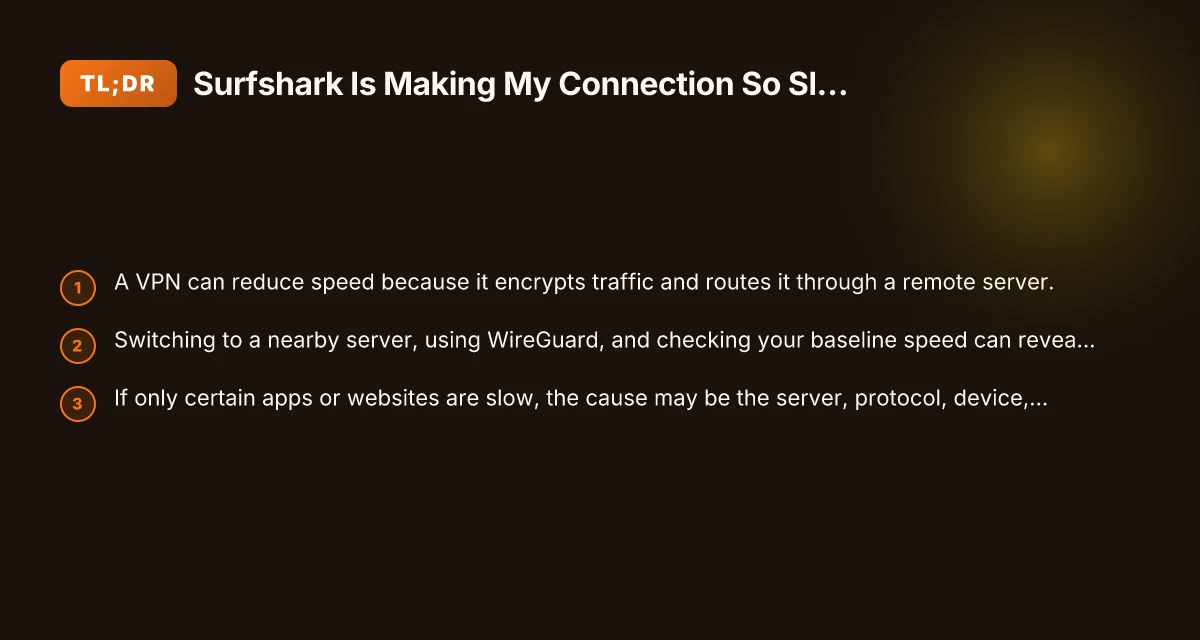
If Surfshark is making your connection so slow, first compare your internet speed with the VPN turned off and on, then connect to a nearby server using the WireGuard protocol. VPN encryption and the extra distance your data travels can reduce speed, but a large or sudden slowdown may point to a crowded server, a weaker protocol, Wi-Fi trouble, or another app using your connection.
A VPN does not automatically make every connection slow, and the best fix depends on what changed. Work through the checks below in order so you can identify the cause without weakening your privacy unnecessarily.

Editor's pick: NordVPN — fast, secure VPN — Strong encryption, a no-logs policy and apps for every device. 30-day money-back guarantee. Get NordVPN →
Common causes of Surfshark slowdowns
| Cause | How it can affect speed | Quick check | Practical response |
|---|---|---|---|
| Distant VPN server | Longer route can add latency | Try a nearby server | Choose a closer location |
| Busy server | Congestion can reduce throughput | Switch servers | Try another nearby server |
| VPN encryption | Processing and tunneling add overhead | Compare VPN on and off | Use a faster protocol |
| Wi-Fi problems | Weak signal or interference slows traffic | Test near the router | Improve the Wi-Fi connection |
| ISP or network congestion | The connection may be slow without a VPN | Run a VPN-off test | Retest at a quieter time |
| Device limitations | Older hardware may struggle with VPN processing | Compare another device | Close demanding apps |
| Background downloads | Other traffic uses available bandwidth | Check active downloads | Pause nonessential transfers |
| VPN protocol choice | Some protocols may perform better on a given network | Try another protocol | Keep the fastest stable option |
Compiled November 2026; check the provider's site for current details.
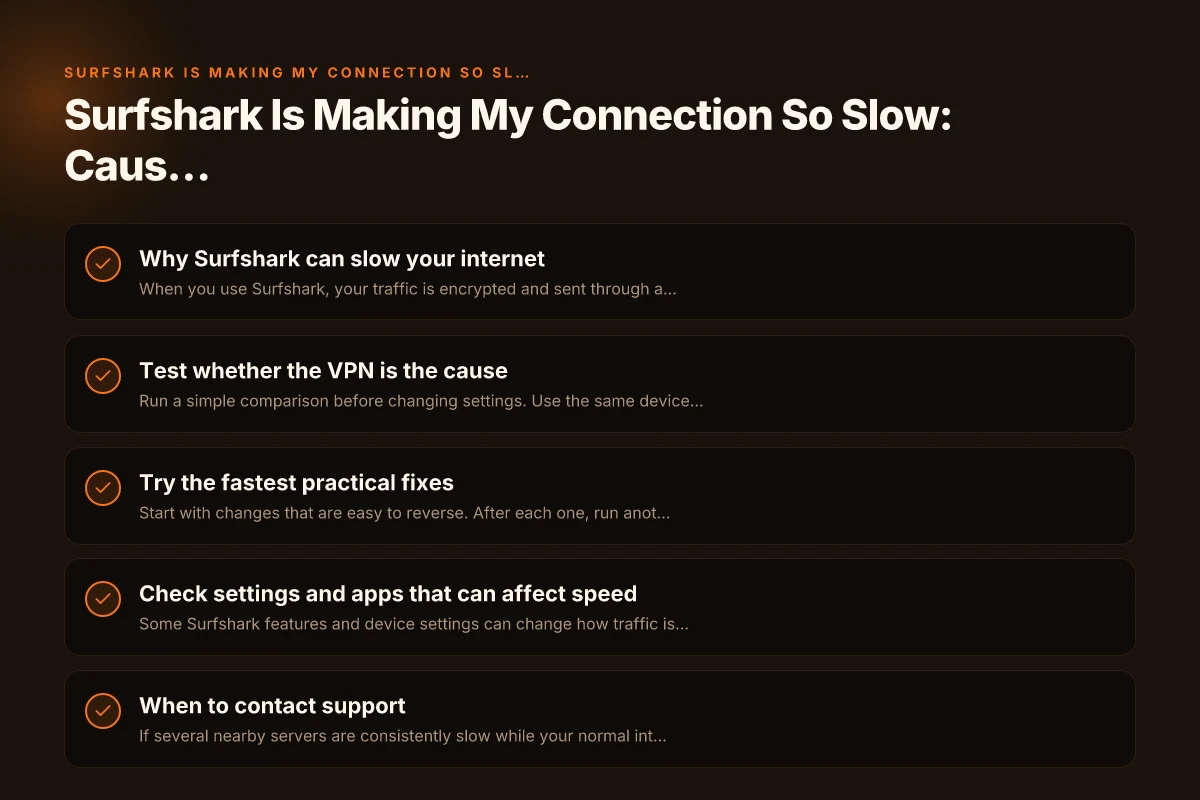
Why Surfshark can slow your internet
When you use Surfshark, your traffic is encrypted and sent through a VPN server before reaching its destination. That extra processing and routing can add latency and reduce download or upload speed. The impact varies with your starting internet speed, device, connection quality, server load, and chosen VPN protocol.
Distance is one of the most common factors. A server in another country may add more delay than one close to you. A distant server can still be useful for accessing a particular region, but it may not be the best choice for everyday browsing or video calls.
Other possible causes include:
- Server congestion: Many users sharing a server can affect performance.
- Protocol choice: Some protocols may perform better than others on your device or network.
- Wi-Fi interference: A weak wireless signal can make a VPN connection feel even slower.
- Device limits: Older devices may handle encryption less efficiently.
- Background traffic: Cloud backups, streaming, game downloads, or updates can use available bandwidth.
- Network restrictions: A workplace, school, hotel, or public Wi-Fi network may interfere with VPN traffic.
Test whether the VPN is the cause
Run a simple comparison before changing settings. Use the same device, Wi-Fi or wired connection, and speed-test service for both checks. Pause downloads and streaming so they do not skew the results. NordVPN Login: How to Sign In and Manage Your Account
- Disconnect from Surfshark and run a speed test.
- Connect to Surfshark and choose a nearby server.
- Run the same test again.
- Repeat the VPN test with a second nearby server.
Compare download speed, upload speed, and latency. A modest change may be a normal trade-off for encryption and routing. A severe or inconsistent drop is more useful as a troubleshooting clue than as proof of a single cause.
| Test result | What it may indicate | What to try |
|---|---|---|
| Speed is slow with and without Surfshark | Your internet, router, or device may be the issue | Restart the router and check other devices |
| Only one Surfshark server is slow | That server may be distant or busy | Try a different nearby server |
| Nearby servers are slow, but other internet use is fast | The protocol or app settings may be affecting performance | Try WireGuard and update the app |
| Speed varies widely over Wi-Fi | Signal strength or interference may be involved | Move closer to the router or test with Ethernet |
Tests to identify what is slowing your connection
| Test | What to do | What to compare | What the result suggests |
|---|---|---|---|
| Baseline speed | Disconnect Surfshark and run a speed test | VPN off versus VPN on | Slow in both cases points beyond the VPN |
| Same-server retest | Repeat the test using the same server | Results across several runs | Large variation may indicate congestion |
| Nearby-server test | Connect to a closer location | Nearby versus distant server | Better nearby results suggest routing distance |
| Protocol test | Change protocol and repeat the test | Each protocol under similar conditions | A consistent improvement favors that protocol |
| Wi-Fi versus wired | Test on Ethernet if available | Wired versus Wi-Fi results | Better wired speed suggests a Wi-Fi issue |
| Second-device test | Run the same checks on another device | Device-to-device results | One slow device may have a local limitation |
| Background-traffic check | Pause downloads and streaming, then retest | Results before and after pausing | Improvement suggests competing traffic |
| Different-network test | Try another trusted network | Current versus alternate network | Better results elsewhere point to the original network |
Compiled November 2026; check the provider's site for current details.
Try the fastest practical fixes
Start with changes that are easy to reverse. After each one, run another speed test so you can see whether it helped. Microsoft Edge Menu > Settings > Show Advanced Settings > Change Proxy Settings > LAN Settings
Choose a closer server
Connect to a server in your country or a nearby region. If the app offers multiple locations, test a few rather than assuming the first option is fastest. For regular browsing, a nearby server is usually a good starting point. Choose a farther location only when you need it.
Change the VPN protocol
In Surfshark’s settings, try WireGuard if it is available on your device. It is designed for efficient connections and can be faster on some networks. If it does not help, test another protocol offered in the app. The best option can vary by operating system, network, and local restrictions.
Restart and update
Disconnect from the VPN, close and reopen the app, and reconnect. Check that both Surfshark and your device’s operating system are up to date. If performance remains poor, restart your router and device. These steps can clear temporary connection problems without changing your long-term settings.
Improve the local connection
If possible, test over Ethernet or move closer to your Wi-Fi router. Pause large downloads and cloud backups, and check whether other people or devices are using most of the connection. If the internet is slow even when Surfshark is off, contact your internet provider or investigate the router before focusing on VPN settings. Free VPN That Changes Location: What to Know Before You Connect
Check settings and apps that can affect speed
Some Surfshark features and device settings can change how traffic is handled. Temporarily test one setting at a time, and turn it back on if it does not improve performance. Avoid disabling security features permanently just to chase a speed-test result.
- MultiHop: Routing traffic through more than one VPN server can add distance and processing. Use a standard connection when speed matters more than the additional routing.
- CleanWeb or other filtering features: Filtering may affect how certain sites load. If only specific pages are slow, test whether the feature is involved.
- Split tunneling: If available on your device, this can route selected apps outside the VPN. Use it only for apps that do not need VPN protection, and check the feature’s settings carefully.
- Firewall or security software: Another security tool may conflict with the VPN. Check its settings rather than turning off protection broadly.
- DNS or network configuration: Custom settings can affect how quickly sites begin loading. If the problem started after a change, restore the previous configuration and test again.
If only one website or app is slow, test a few unrelated services. A single site may be having its own issues, or it may respond differently to the VPN’s location. If all internet activity slows only while connected, focus on server choice, protocol, and the device’s connection.
Practical fixes and when to escalate
| Option | Best for | What to try | Contact support if |
|---|---|---|---|
| Switch server | Congestion or a distant location | Pick a nearby server and retest | Several servers remain unusually slow |
| Change protocol | Protocol-related slowdown | Test available protocols one at a time | No available protocol works reliably |
| Improve Wi-Fi | Weak or unstable wireless connection | Move closer to the router or use Ethernet | Other devices also have persistent connection trouble |
| Pause background traffic | Downloads or apps using bandwidth | Stop nonessential transfers and retest | Speed stays poor with traffic paused |
| Restart the connection | A temporary network or app issue | Reconnect Surfshark and retest | Problems return repeatedly |
| Check app settings | Features or configuration may affect performance | Review settings and test changes individually | The app behaves unexpectedly after changes |
| Update the app | An outdated app may cause problems | Install the latest available version | The issue continues on the current version |
| Send diagnostic details | Persistent slowdown with no clear cause | Note test results, device, network, and settings | Ask Surfshark support to investigate |
Compiled November 2026; check the provider's site for current details. Clash iPhone: How to Play Clash Games on Your iPhone
When to contact support
If several nearby servers are consistently slow while your normal internet speed is good, note the details before contacting Surfshark support. Include your device and operating system, app version, selected server location, protocol, and speed-test results with and without the VPN. Mention when the slowdown began and whether it affects every app or only particular services.
Do not share passwords, payment details, or other sensitive information in a public post. If the issue began after installing another VPN, firewall, or network tool, mention that too, since conflicting software can interfere with connections.
Recommendation
Start with a side-by-side speed test, then try a nearby Surfshark server and WireGuard. If that does not help, check your Wi-Fi, background traffic, and app settings one at a time. A VPN may cause some speed loss, but persistent, dramatic slowdowns across multiple nearby servers are worth documenting and reporting to Surfshark support.