Proton VPN Windows Download: Safe Download and Setup Guide
Download Proton VPN for Windows from the official source, install it safely, and connect with the right settings.
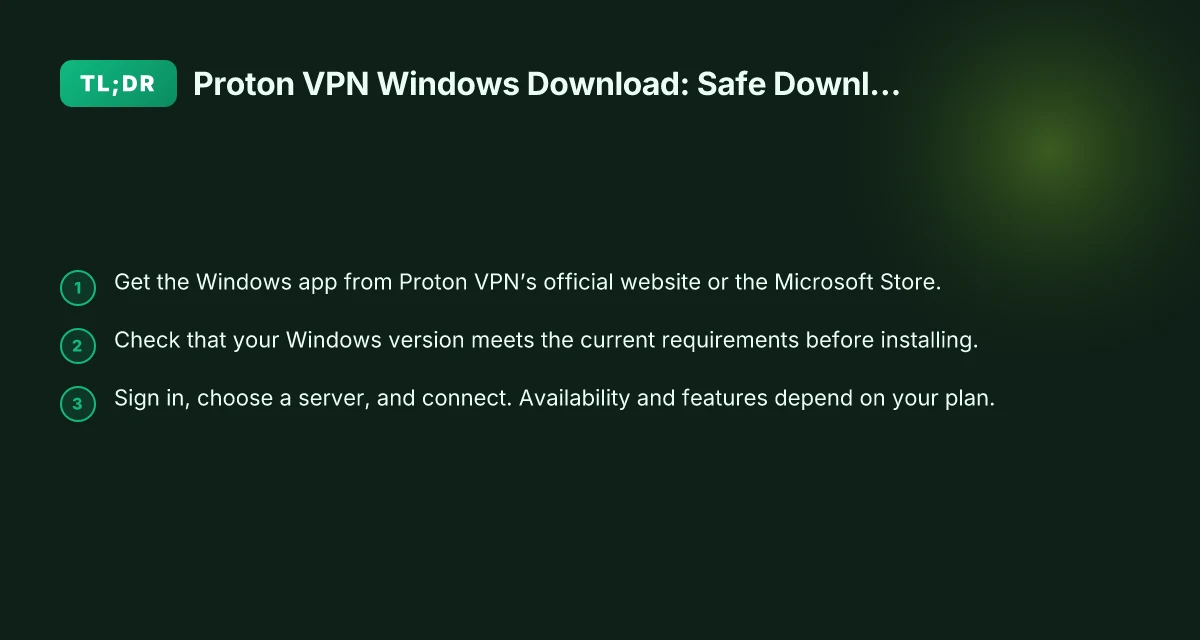
To complete a Proton VPN Windows download, use the download page on Proton VPN’s official website or find the app in the Microsoft Store. Then install it, sign in to your Proton account, and select a server to connect. Using an official source helps you avoid unofficial installers that may be outdated or unsafe. The steps below explain how to download, install, and check the app on a Windows PC.

Editor's pick: NordVPN — fast, secure VPN — Strong encryption, a no-logs policy and apps for every device. 30-day money-back guarantee. Get NordVPN →
Compare trusted Proton VPN download options
| Option | What to check | Best for | Main caution |
|---|---|---|---|
| Official Proton VPN website | Confirm the protonvpn.com domain | Getting the Windows installer | Avoid lookalike sites |
| Proton VPN account page | Sign in through the official site | Accessing available downloads | Keep account details private |
| Microsoft Store | Verify the publisher is Proton AG | Installing through the Store | Check the listing carefully |
| Search engine result | Check the destination domain before downloading | Finding the official download page | Ads may lead to unrelated sites |
| Third-party download site | Prefer an official source instead | None recommended | Installer may be outdated or altered |
| Email or message link | Open the official site directly instead | None recommended | Unexpected links can be unsafe |
Compiled November 2026; check the provider's site for current details.
| VPN | Obfuscation | From / month | Plan | Free plan | Refund | Alipay | UnionPay | Crypto | Website opens in China | Trustpilot | |
|---|---|---|---|---|---|---|---|---|---|---|---|
 Proton VPN | Turn on manually Stealth, free plan too | $2.99/mo | 12 months: $35.88 | Yes | 30 days | ✗ | ✗ | ✗ | ✓ | ✗ Blocked | 2.1/5 (1,040 reviews) |
 ZoogVPN | Turn on manually Shadow | $2.49/mo | 27 months: $59.99 | Yes | 7 days | ✓ | ✓ | ✓ | ✓ | Official site blocked; our special link opens (4.4 s) | 4.2/5 (195 reviews) |
 NordVPN | Turn on manually Obfuscated Servers / NordWhisper | $3.49/mo | 27 months: $94.23 | No | 30 days | ? | ✗ | ✓ | ✓ | ✗ Blocked | 4.2/5 (51,628 reviews) |
 ExpressVPN | ✓ On by default all servers | $3.00/mo | 28 months: $84 | No | 30 days | ✗ | ✗ | ✓ | ✗ | ✗ Blocked | 4.4/5 (29,706 reviews) |
 Surfshark | ✓ On by default Camouflage, with OpenVPN | See site | See site | No | 30 days | ✗ | ✗ | ✗ | ✓ | ✗ Blocked | 4.3/5 (31,823 reviews) |
 Astrill VPN | Turn on manually StealthVPN / OpenWeb | $12.50/mo | 24 months: $300 | No | See site | ✗ | ✗ | ✗ | ✓ | ✗ Blocked | 1.3/5 (110 reviews) |
 Private Internet Access | Turn on manually Shadowsocks, OpenVPN only | $2.03/mo | 40 months: $81.2 | No | 30 days | ✗ | ✗ | ✗ | ✗ | ✗ Blocked | 4.2/5 (11,033 reviews) |
 CyberGhost | Turn on manually selected servers | $2.19/mo | 28 months: $61.32 | No | 45 days | ✗ | ✗ | ✗ | ✓ | ✗ Blocked | 4.0/5 (24,178 reviews) |
 PureVPN | Turn on manually switch to OpenVPN | $1.69/mo | 60 months: $101.55 | No | 31 days | ? | ? | ✗ | ✓ | ✗ Blocked | 4.4/5 (17,994 reviews) |
 AdGuard VPN | ✓ On by default TrustTunnel | $2.99/mo | 24 months: $71.76 | Yes | 30 days | ✓ | ✗ | ✓ | ✓ | Official site blocked; our special link opens (3.7 s) | 4.3/5 (290 reviews) |
 Mullvad | Turn on manually QUIC / Shadowsocks / LWO | $5.61/mo | €5/mo | No | 14 days | ✗ | ✗ | ✗ | ✓ | ✗ Blocked | 3.2/5 (192 reviews) |
 Windscribe | Turn on manually Stealth / WStunnel | $5.75/mo | 12 months: $69 | Yes | See site | ✗ | ✗ | ✗ | ✓ | ✗ Blocked | 4.7/5 (13,355 reviews) |
 StrongVPN | Turn on manually Scramble, OpenVPN TCP | See site | See site | No | 30 days | ✓ | ✗ | ✗ | ✗ | ✗ Blocked | 4.4/5 (2,695 reviews) |
 LightXtreme 闪连 | Not listed | $7.08/mo | 12 months: $84.99 | Yes | 30 days | ✓ | ✓ | ✓ | ✓ | ✓ Yes (3.5 s) | No page |
Prices checked 2026-11-10 on each vendor's pricing page (cheapest long plan, USD). Check the vendor's checkout for the final price.
Obfuscation checked 2026-11-14 on each vendor's site and help center: "on by default" = nothing to set; "turn on manually" = switch protocol or mode in settings; "not listed" = the vendor describes no obfuscation.
Payment methods checked 2026-11-10 on each vendor's payment pages: all 14 take cards and PayPal; ✗ = not listed, ? = the vendor's own pages disagree.
China access: whether the official website opens from mainland China networks (tests the website only, not the VPN connection). Last checked 2026-11-18 01:02 Beijing time.
Trustpilot score and review count checked 2026-11-10.
Where to download Proton VPN for Windows
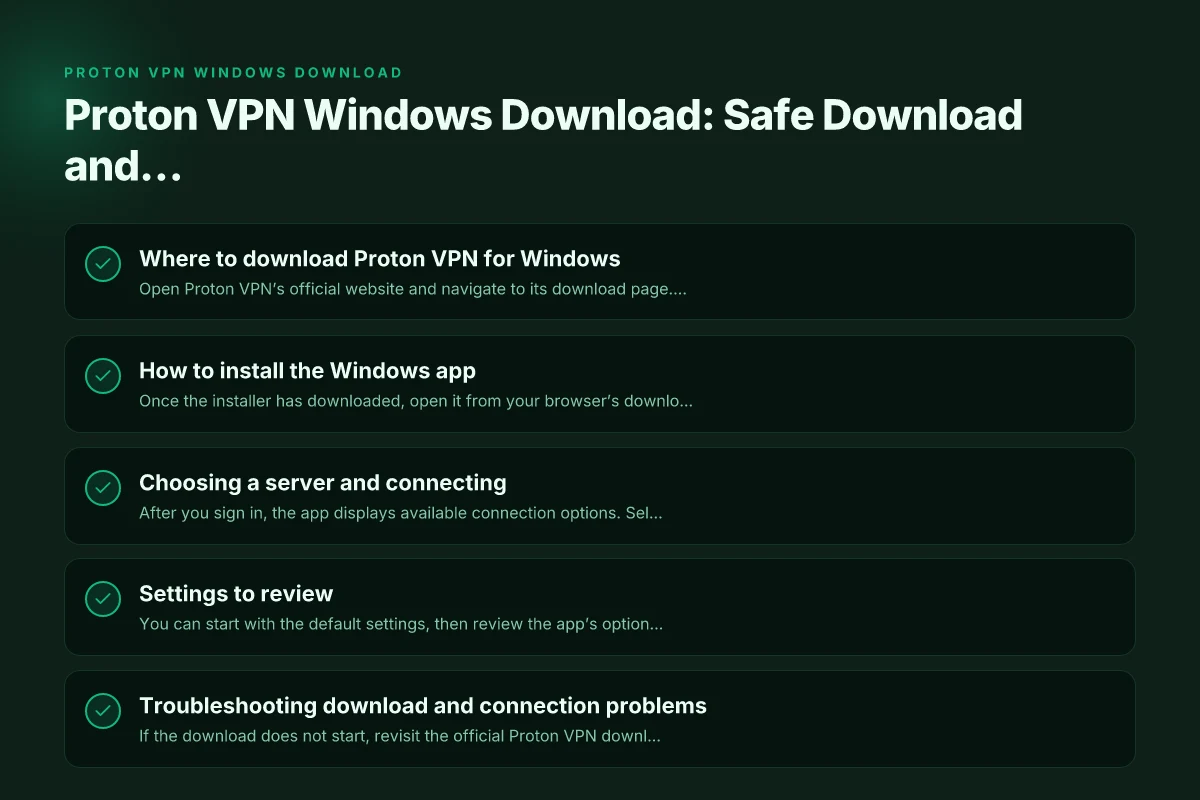
Open Proton VPN’s official website and navigate to its download page. Select the Windows app and follow the on-screen instructions to download the installer. Alternatively, search for Proton VPN in the Microsoft Store and confirm that the publisher is Proton AG before installing.
Avoid third-party download sites, file-sharing links, and ads that imitate the official page. These sources may offer modified or outdated software. If you are unsure whether a page is genuine, access the download page by typing Proton VPN’s web address into your browser rather than following an unfamiliar link.
Proton VPN updates its apps and system requirements over time. Check the current Windows compatibility information on the official download page before proceeding, especially if your PC uses an older version of Windows.
How to install the Windows app
Once the installer has downloaded, open it from your browser’s downloads list or the folder where you saved it. If Windows asks whether to allow the installer to make changes, check that the app is from Proton AG before approving. 1. Proton VPN free: What You Get and Whether It’s Worth Using
Follow the setup prompts. Depending on the installer and your system, you may be asked to choose installation preferences or approve a network component needed to create VPN connections. Keep the default settings unless you have a specific reason to change them.
After installation:
- Launch Proton VPN from the Start menu or desktop shortcut.
- Sign in with your Proton account. If you do not have an account, follow the signup options shown in the app or on Proton’s official website.
- Review any introductory prompts and permissions.
- Choose a server or use the app’s quick-connect option.
Download and installation are separate from account access: the app may be free to install, while available servers, locations, and features can depend on your account plan.
Compare Windows connection choices Brawl Stars Bot Lobby VPN Free PC: What to Know Before You Try
| Choice | Setup effort | Useful when | Consider |
|---|---|---|---|
| Quick Connect | Low | You want the app to choose a server | The selected location may not be your preference |
| Country selection | Low | You want an exit location in a specific country | Available servers can vary |
| Individual server | Moderate | You want to choose a particular server | Server availability can change |
| Nearby location | Low | You want a convenient location | It may not meet location-specific needs |
| Specialty server | Moderate | You need a particular server category | Availability depends on your plan and location |
| Disconnect | Low | You no longer need a VPN connection | Internet traffic will no longer use the VPN |
Compiled November 2026; check the provider's site for current details.
Choosing a server and connecting
After you sign in, the app displays available connection options. Select a location or server that suits your needs, then click the connect button. The app should indicate when the VPN connection is active. To disconnect, use the disconnect control in the app.
A nearby server is often a sensible starting point for everyday browsing because distance can affect connection speed. If you need a particular country, select an available server there. Access to locations and server options may vary by plan and current service availability.
| What you want to do | A practical starting point |
|---|---|
| Browse through a VPN connection | Connect to a nearby available server |
| Use a location in a particular country | Choose an available server in that country |
| Get connected quickly | Use the app’s quick-connect option |
| Change or end a session | Switch servers or disconnect in the app |
A VPN routes your internet traffic through a VPN server, but it does not make you completely anonymous or protect you from every online risk. Continue to use strong passwords, keep Windows and your apps updated, and be cautious with suspicious links and downloads. FortiClient VPN Connection Failed. Please Check Your Configuration: How to Fix It
Settings to review
You can start with the default settings, then review the app’s options if you want to adjust how it behaves. Names and availability of features can change between app versions and subscription plans, so check the current in-app descriptions and Proton VPN documentation.
Useful settings may include:
- Auto-connect: Connects automatically under conditions you choose, if supported by your app version.
- Kill switch: Helps prevent internet traffic from leaving your device outside the VPN connection if the connection drops. Review the app’s explanation before enabling it.
- Protocol options: Let you choose how the VPN connection is established. Automatic selection is a reasonable starting point for most users.
- Startup preferences: Control whether Proton VPN opens when you sign in to Windows.
Check that the VPN is connected before relying on it for a session. If you switch networks, wake the PC from sleep, or change settings, look at the app’s connection status again.
Windows setup and troubleshooting decision guide Connect VPN Without Download: A Complete Guide
| Situation | First check | Next step | If the issue continues |
|---|---|---|---|
| Download does not start | Confirm you are on the official Proton VPN site | Try another browser or network | Contact Proton VPN support |
| Installer will not open | Check that the download completed | Download a fresh installer from the official site | Review Windows security prompts |
| App will not install | Check Windows compatibility and permissions | Restart Windows and try again | Contact support with the error details |
| App will not sign in | Check your credentials and internet connection | Restart the app and retry | Reset account access through official channels |
| Server will not connect | Try another server or location | Restart the app and retry | Check Proton VPN service status |
| Connection drops | Check your internet connection | Try a different server | Review connection settings |
| VPN connects but a site will not load | Try reloading the site | Test another server or browser | Check the app’s settings |
Compiled November 2026; check the provider's site for current details.
Troubleshooting download and connection problems
If the download does not start, revisit the official Proton VPN download page or use the Microsoft Store. Check your browser’s download list and make sure there is enough space on your drive. A browser or security tool may also block a download. Review its warning carefully and only allow the file if you have confirmed that it came from an official source.
If the installer will not run, restart Windows and try again. Make sure you have permission to install software on the PC and that your version of Windows is supported. On a work or school computer, an administrator may restrict installations or VPN connections.
If the app installs but will not connect: Norton VPN APK for Firestick: How to Install It Safely
- Confirm that your internet connection works without the VPN.
- Try another available server or reconnect.
- Close and reopen Proton VPN, then restart your PC if needed.
- Check whether a firewall, security product, or managed network is blocking VPN traffic.
- Update the app using Proton VPN’s official source.
For persistent problems, consult Proton VPN’s current support articles. Do not download a replacement installer from an unofficial website as a workaround.
Recommendation
For a safe Proton VPN Windows download, use the official Proton VPN website or the Microsoft Store, verify the publisher, and follow the installer prompts. Sign in, connect to a suitable server, and review the app’s settings only as needed. Check Proton VPN’s official guidance for the latest Windows requirements, features, and troubleshooting steps.