iPhone Clash: What It Means and How to Fix Common iPhone Conflicts
Understand what “iPhone clash” can mean, from app conflicts to device and accessory issues, and find practical troubleshooting steps.
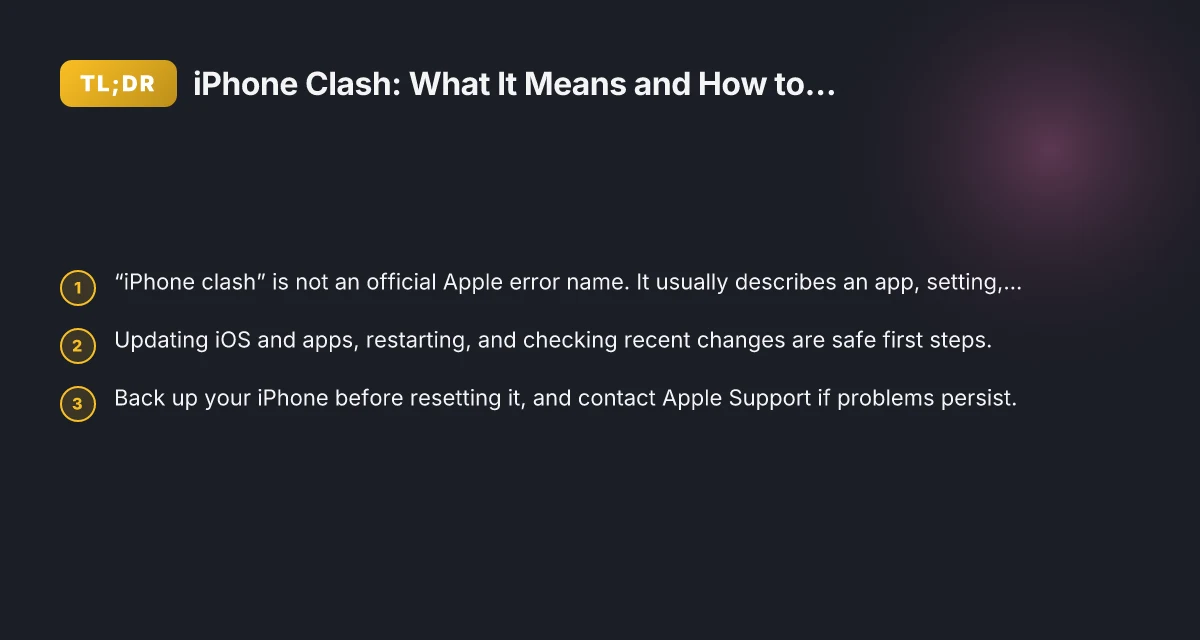
An “iPhone clash” usually means two apps, settings, accessories, or services are interfering with each other. It is not a specific Apple feature or official error message, so the right fix depends on what is happening: an app may crash, Bluetooth devices may compete for a connection, notifications may conflict, or a new update may cause unexpected behavior. Start by identifying what changed and when the problem occurs, then try the least disruptive troubleshooting steps first.

Common iPhone conflicts and what to check first
| Conflict | Typical clue | First safe check | Possible next step |
|---|---|---|---|
| App conflict | App freezes or closes | Update the app and iOS | Restart the iPhone |
| Notification conflict | Alerts are missing or duplicated | Review notification settings | Check Focus settings |
| Account conflict | Repeated sign-in prompts | Confirm the account used | Review account settings |
| Bluetooth conflict | Accessory will not connect | Check Bluetooth is on | Disconnect and reconnect |
| Accessory conflict | Device works inconsistently | Check compatibility and power | Try another accessory |
| iCloud sync conflict | Content does not stay in sync | Check account and connection | Review iCloud settings |
Compiled November 2026; check the provider's site for current details.
What “iPhone Clash” usually refers to
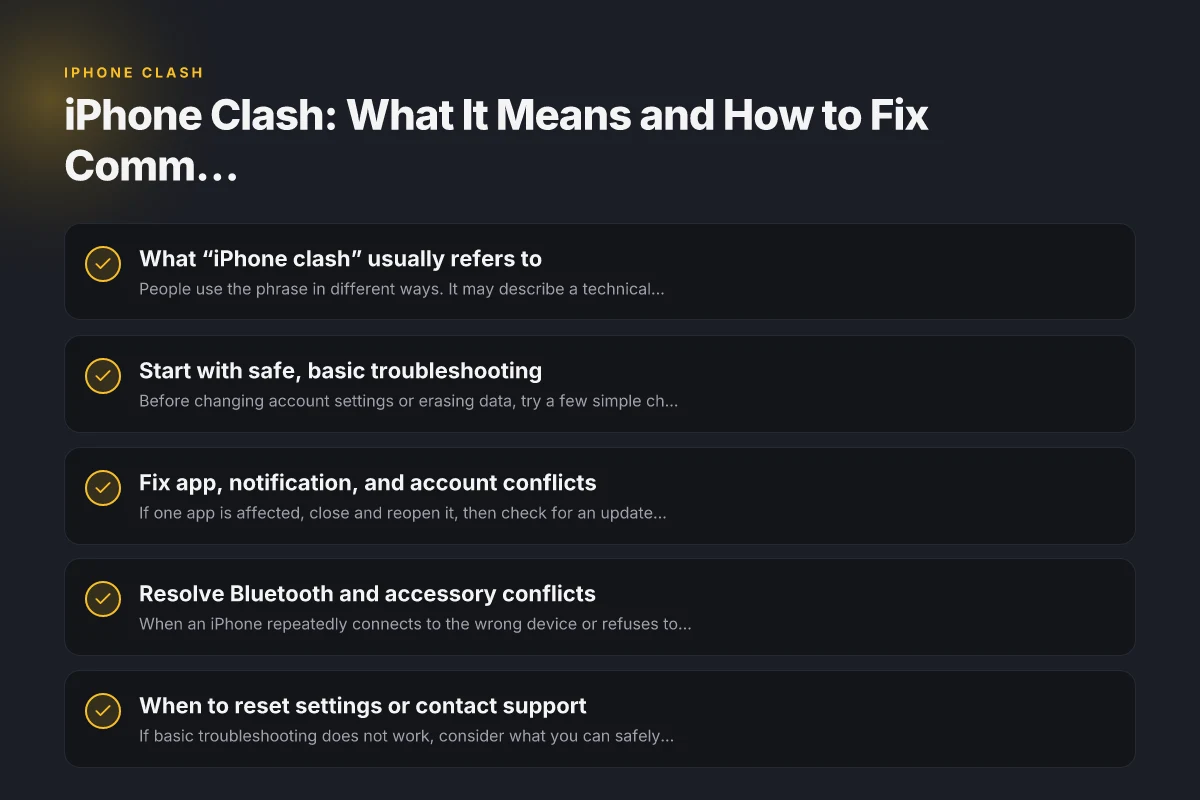
People use the phrase in different ways. It may describe a technical problem, but it can also mean an argument over who gets to use an iPhone. If you are troubleshooting a device, common interpretations include:
- App conflict: An app freezes, closes unexpectedly, or behaves differently after another app or update is installed.
- Bluetooth or accessory conflict: An iPhone connects to the wrong headphones, car system, watch, or speaker.
- Account or sync conflict: Contacts, calendars, photos, or messages appear differently across devices or accounts.
- Settings conflict: Focus modes, notification permissions, Screen Time, or location settings produce an unexpected result.
- Update-related issue: A recent iOS or app update changes compatibility or exposes a temporary software bug.
The clue is often the symptom. A problem limited to one app points toward that app. A problem affecting several features may involve iOS, storage, connectivity, or a system setting.
Start with safe, basic troubleshooting
Before changing account settings or erasing data, try a few simple checks. These steps resolve many temporary glitches without removing your information.
- Restart your iPhone. A restart can clear temporary software issues. Use the normal shutdown and startup process for your model.
- Check for updates. Go to Settings > General > Software Update. Update the affected app through the App Store as well.
- Check your connection. If the issue involves syncing or online services, test Wi-Fi and cellular data. You can also toggle Airplane Mode on briefly, then turn it off.
- Review available storage. Open Settings > General > iPhone Storage. Very low storage can interfere with downloads, updates, and app performance.
- Reproduce the problem. Note which app or accessory is involved, what you were doing, and whether the issue happens every time.
If the issue began immediately after installing an app, connecting an accessory, or changing a setting, temporarily undo that change if it is safe to do so. This helps identify the cause without making several changes at once. VPN Extension for Edge Browser: How to Choose and Use One
Safe troubleshooting options, from simplest to more disruptive
| Option | What it changes | Risk to personal data | Try when |
|---|---|---|---|
| Check settings | Affected feature settings | Low | A feature behaves unexpectedly |
| Update app | App software | Low | One app has a problem |
| Update iOS | System software | Low | Basic checks do not help |
| Restart iPhone | Temporary system state | Low | Problems are intermittent |
| Reconnect accessory | Pairing connection | Low | Bluetooth device will not connect |
| Sign out and back in | Account session | May require credentials | Account prompts persist |
| Reset settings | System preferences | Settings may need reconfiguration | Other steps have failed |
| Contact Apple Support | No device changes unless advised | Low | Issue persists or data may be at risk |
Compiled November 2026; check the provider's site for current details.
Fix app, notification, and account conflicts
If one app is affected, close and reopen it, then check for an update. If the problem continues, restart the iPhone and confirm that the app is compatible with your iOS version. Reinstalling may help, but first check whether the app stores important data locally or requires a separate backup.
For notification or Focus problems, review Settings > Notifications and Settings > Focus. A Focus mode can silence selected apps or contacts, while an app’s own notification settings may add another layer of control. Check both before assuming notifications are broken. Urban VPN Add On: What It Does and Whether You Should Use It
For contact, calendar, or photo mismatches, check which account is being used. In Settings, review the relevant account and sync options. Avoid signing out or deleting an account until you understand whether its data is stored in iCloud, another service, or only on the device. Removing an account can remove synced information from the iPhone, even when the data remains available online.
Resolve Bluetooth and accessory conflicts
When an iPhone repeatedly connects to the wrong device or refuses to pair, check the accessory first. Make sure it is charged, nearby, powered on, and in pairing mode. If it is already connected to another phone, tablet, or computer, disconnect it there.
You can also forget and pair the accessory again:
- Go to Settings > Bluetooth.
- Tap the information button beside the accessory.
- Choose Forget This Device.
- Put the accessory back into pairing mode and connect it again.
For car systems, remove the iPhone from the car’s paired-device list as well as removing the car from the iPhone, then pair them again. Keep in mind that accessories may have different pairing instructions, so follow the manufacturer’s guidance. FortiClient IPsec Over TCP: What It Supports and How to Connect
| Symptom | Likely area to check | First step |
|---|---|---|
| One app crashes or freezes | App or app update | Update, then reopen the app |
| Notifications go quiet | Focus or notification settings | Review Focus and app permissions |
| Accessory connects inconsistently | Bluetooth pairing or competing device | Disconnect elsewhere and pair again |
| Photos or contacts do not match | Account and sync settings | Confirm the account and sync status |
| Several features fail at once | iOS, storage, or connectivity | Restart, update, and check storage |
Choose a next step by the kind of conflict
| Situation | Start here | If it continues | Avoid starting with |
|---|---|---|---|
| One app is affected | Update the app | Restart, then review app settings | Resetting all settings |
| Notifications are wrong | Check app and Focus settings | Review notification permissions | Removing the account |
| Sign-in prompts repeat | Verify account details | Review account settings | Sharing account credentials |
| Bluetooth accessory will not pair | Check power and Bluetooth | Reconnect or test another accessory | Resetting the iPhone |
| Several features misbehave | Restart and check for updates | Consider resetting settings | Erasing the device |
| Problem threatens access or data | Stop repeated changes | Contact Apple Support | Unverified fixes |
Compiled November 2026; check the provider's site for current details.
When to reset settings or contact support
If basic troubleshooting does not work, consider what you can safely reverse. A reset should not be the first step, especially if the issue affects only one app or accessory.
Reset All Settings can help with broader settings problems, but it does not erase personal media or apps. It does reset preferences such as network, privacy, and other system settings, so you may need to configure them again. Before using it, review the description in Settings > General > Transfer or Reset iPhone > Reset. V2Ray for iOS: How to Choose an App and Set It Up
A factory reset erases the iPhone. Use it only after making and verifying a backup, and consider contacting Apple Support first if the phone has a hardware symptom, repeated restarts, charging trouble, or persistent problems after an iOS update. Do not erase the device merely because one app is misbehaving.
Recommendation
Treat “iPhone clash” as a description, not a diagnosis. Identify the exact symptom, check the app, setting, account, or accessory most closely connected to it, and begin with a restart and updates. Back up before any reset, and contact Apple Support when the problem affects multiple features or continues after the basic checks.