
How to Change Proxy Settings in Edge: A Complete Guide
Learn how to change, verify, and troubleshoot proxy settings in Microsoft Edge on Windows and macOS.


To change proxy settings in Edge, open the browser’s Settings, search for “proxy,” and select the option to open your computer’s proxy settings. Microsoft Edge typically follows the proxy configuration set in Windows or macOS, so changes made there apply to Edge and may also affect other apps. The exact steps depend on your operating system and whether the connection uses an automatic setup script or a manually entered proxy.

Editor's pick: NordVPN — fast, secure VPN — Strong encryption, a no-logs policy and apps for every device. 30-day money-back guarantee. Get NordVPN →
Compare the ways to open proxy settings from Microsoft Edge
| Method | Where to start | What it opens | Best for |
|---|---|---|---|
| Edge Settings | Edge menu → Settings | System proxy settings | Finding the option in Edge |
| Edge address bar | Enter `edge://settings/system` | System settings section | Quick access |
| Windows Settings | Open Windows Settings | Network & Internet proxy options | Changing Windows proxy details |
| macOS System Settings | Open System Settings | Network proxy options | Changing Mac proxy details |
| Edge menu search | Search Edge Settings for “proxy” | Related system settings link | Discovering the setting |
| Settings search | Search Windows or macOS Settings for “proxy” | Matching proxy controls | Finding controls by name |
Compiled November 2026; check the provider's site for current details.
Open proxy settings from Microsoft Edge
The quickest route starts in Edge:
- Open Microsoft Edge.
- Select the three-dot menu in the top-right corner.
- Select Settings.
- Search for proxy in the Settings search box.
- Select Open your computer’s proxy settings or the matching result.
Edge then opens the proxy controls for your operating system. The wording and screen layout can vary by operating system version.
You can also enter edge://settings/system in Edge’s address bar to open its system settings area. From there, select the option to open your computer’s proxy settings.
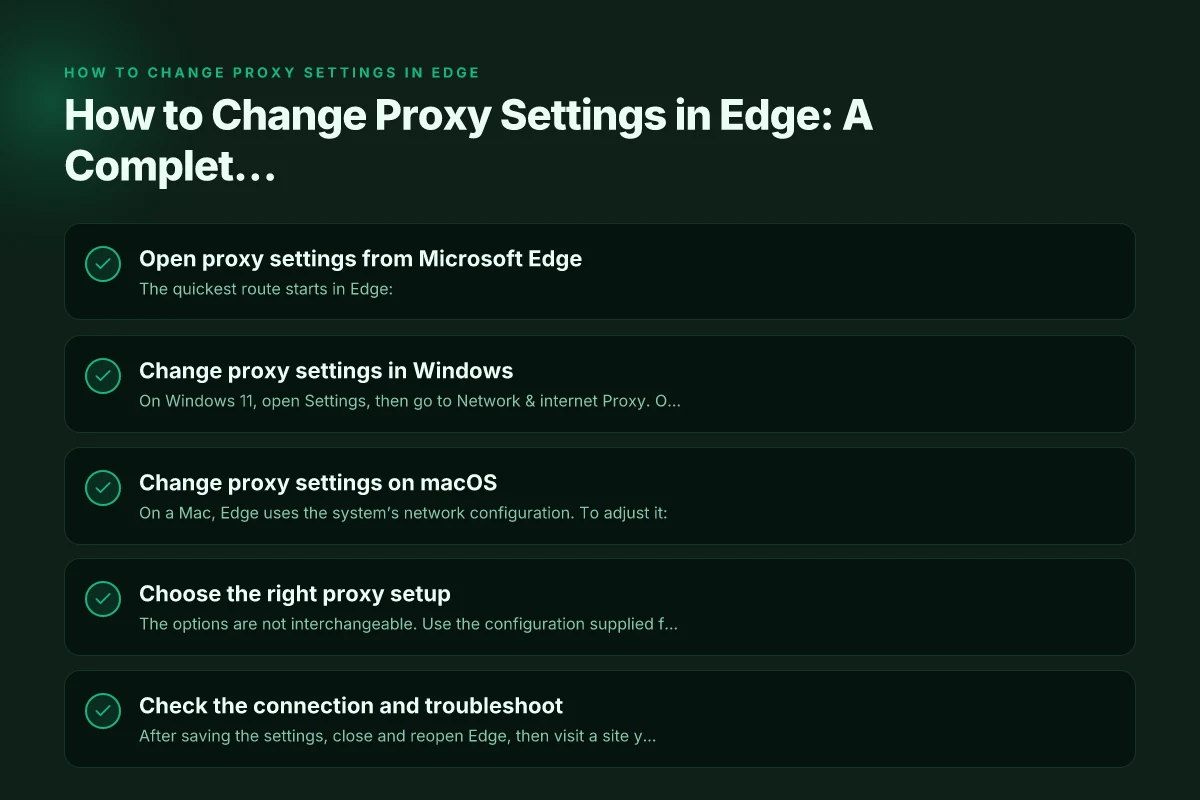
Change proxy settings in Windows
On Windows 11, open Settings, then go to Network & internet > Proxy. On Windows 10, open Settings > Network & Internet > Proxy. You can also reach the same page from Edge using the steps above. Why Does VPN Keep Turning On iPhone? Common Causes and Fixes
Windows usually presents automatic configuration and manual proxy options.
Use automatic setup
Under Automatic proxy setup, you may see options such as:
- Automatically detect settings: Lets Windows detect proxy settings on the network.
- Use setup script: Applies configuration from a script address, sometimes called a PAC URL.
Turn on the option your organization or network administrator specifies. If you need a setup script, enter the exact address provided to you and save the change. Do not guess the address or use one from an untrusted source.
Enter a manual proxy
Under Manual proxy setup, select Set up or turn on Use a proxy server, depending on your Windows version. Enter the details provided by your network administrator or proxy provider: My VPN Is Blocking Websites: Causes and Fixes
- Address: The proxy server’s hostname or IP address.
- Port: The port number assigned to the service.
- Exceptions: Addresses that should connect directly rather than through the proxy, if applicable.
Save the settings, then revisit the Proxy page to confirm they remain enabled. If Windows displays an option to bypass the proxy for local addresses, enable it only if your network instructions call for it.
Change proxy settings on macOS
On a Mac, Edge uses the system’s network configuration. To adjust it:
- Open the Apple menu and select System Settings.
- Select Network.
- Choose the active connection, such as Wi-Fi or Ethernet.
- Select Details, then open Proxies.
- Select the proxy type your administrator or provider specifies.
- Enter the required server address, port, and other details.
- Select OK or Done to save.
Available proxy types can include web proxies, secure web proxies, SOCKS proxies, and automatic proxy configuration. The choices shown depend on your macOS version and network. Enable only the type you were instructed to use, and enter the matching credentials if prompted.
If you use different networks, check the settings for the connection that is currently active. A proxy configured for one network service may not apply to another. Free VPN for Changing Location: What Works and What to Know
Choose a proxy setup
| Setup | Configuration source | Address and port | Automatic configuration | Suitable when |
|---|---|---|---|---|
| No proxy | No proxy server | Not needed | Off | Connecting directly |
| Automatically detect | Network detection | Not entered manually | On | Network provides proxy discovery |
| Setup script | Script URL | Script address required | On | Administrator provides a script |
| Manual proxy | Proxy server details | Address and port required | Off or separately configured | You have server details |
| Organization-managed | Organization settings | Set by administrator | May be enabled | Work or school device |
| VPN connection | VPN app or system settings | Managed by VPN | Varies | Proxy-like routing is not required |
Compiled November 2026; check the provider's site for current details.
Choose the right proxy setup
The options are not interchangeable. Use the configuration supplied for your specific network or service.
| Setup type | What you provide | Common use |
|---|---|---|
| Automatic detection | Usually nothing; the system checks the network | Networks that advertise proxy settings |
| Setup script | A script URL | Organizations that route different sites in different ways |
| Manual proxy | Server address and port | A specified proxy server or managed network |
| No proxy | No proxy configuration | Direct connections or networks that do not require a proxy |
A proxy can route some or all web traffic through another server. It may be required for work or school access, but it does not automatically encrypt every connection or guarantee privacy. For a company-managed device, follow your organization’s instructions instead of changing settings on your own. VPN Free Change Location: How to Switch Your Virtual Location Safely
Check the connection and troubleshoot
After saving the settings, close and reopen Edge, then visit a site you normally use. If the connection fails, return to the proxy page and check these items:
- Confirm the server address and port are typed correctly.
- Make sure the correct proxy type, script, or automatic-detection option is enabled.
- Check whether the proxy requires a username, password, or organizational sign-in.
- Confirm you are connected to the network for which the proxy was configured.
- Review any bypass or exception list for an accidental entry.
- Temporarily turn off a proxy you no longer need, then test the connection again.
If Edge reports that it cannot connect, the proxy server may be unavailable or your account may lack access. Contact the provider or network administrator to confirm the settings. Avoid disabling security software or changing unrelated network options as a troubleshooting shortcut.
Why Edge may not have a separate proxy switch
Edge is based on Chromium, but its normal proxy configuration is managed through the operating system. As a result, you usually cannot set an independent proxy just for Edge through the standard browser settings. Extensions or specialized tools may offer additional routing features, but they are separate from the system proxy and should be used only when trusted and appropriate.
Check the connection and troubleshoot proxy issues Free VPN That Can Change Location: What Works and What to Check
| Symptom | What to check | Possible action | If it continues |
|---|---|---|---|
| Pages do not load | Proxy address and port | Verify the values | Contact the proxy provider |
| Proxy connection error | Server availability | Confirm the server is online | Ask the administrator |
| Some sites fail | Proxy rules or exclusions | Review bypass settings | Test with the provider |
| Settings appear unchanged | Windows or macOS settings | Reopen system proxy controls | Restart Edge |
| Proxy works in one app only | App-specific proxy behavior | Check that app’s settings | Ask the app administrator |
| Unexpected proxy settings | Device management | Check work or school policies | Contact IT |
| Connection returns after disabling | Automatic detection or script | Review automatic settings | Ask the network administrator |
Compiled November 2026; check the provider's site for current details.
Recommendation
Use Edge’s Settings search to open your device’s proxy controls, then enter only the configuration supplied by a trusted administrator or provider. Once the settings are saved, test a website and keep a note of the original configuration so you can restore it if the proxy is no longer needed.