
How to Change Proxy Settings in Edge: A Complete Guide
Learn how to open proxy settings from Microsoft Edge, configure a proxy, troubleshoot connection problems, and restore automatic settings.


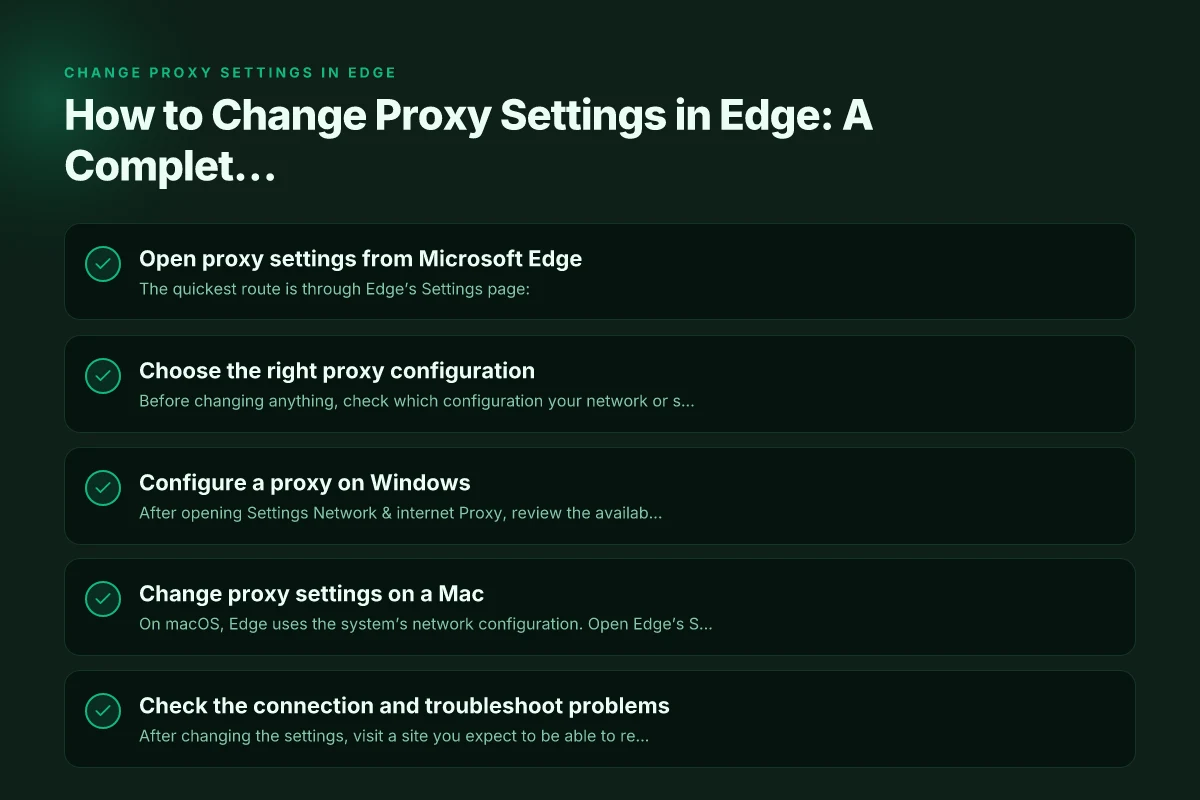
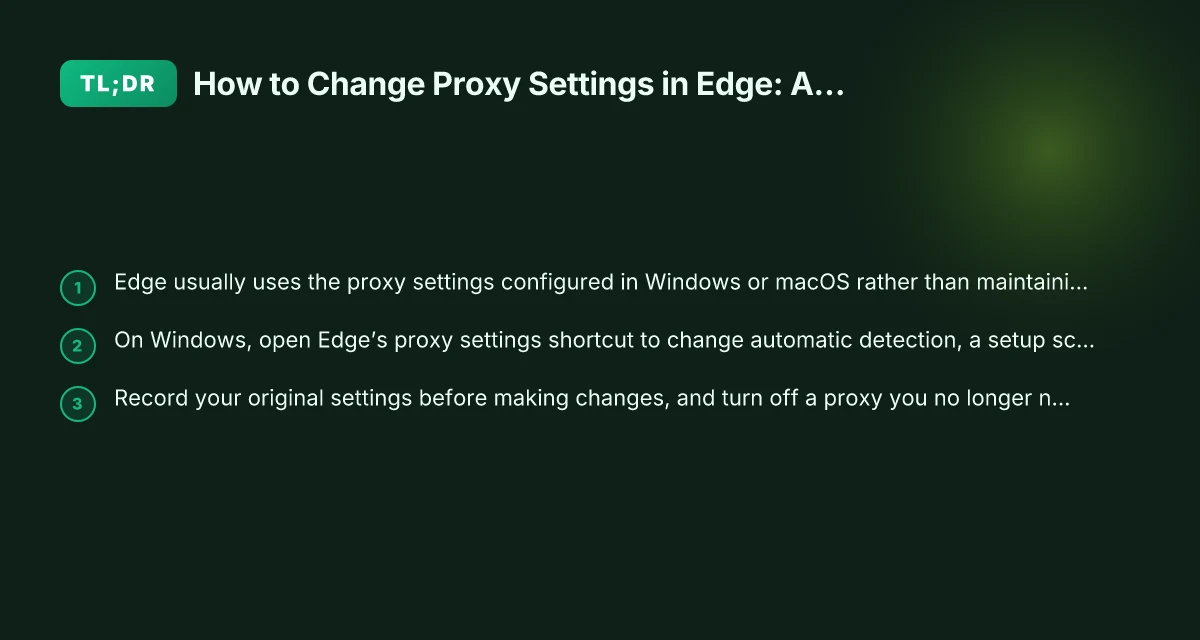
To change proxy settings in Edge, open Microsoft Edge, select the three-dot menu, and choose Settings. Search Settings for “proxy,” then select Open your computer’s proxy settings. Edge will take you to the network proxy controls for your operating system, where you can configure automatic detection, a setup script, or a manual proxy server. The exact options and labels vary by device and operating-system version.
A proxy routes web traffic through another server. Organizations may require one to access internal resources or apply network policies, while individuals may use a proxy provided by a trusted service. If you do not have proxy details from an administrator or provider, avoid entering random server addresses: an incorrect configuration can prevent websites from loading.

Editor's pick: NordVPN — fast, secure VPN — Strong encryption, a no-logs policy and apps for every device. 30-day money-back guarantee. Get NordVPN →
Compare proxy configuration options
| Option | Where to configure | Scope | Best for | Main consideration |
|---|---|---|---|---|
| Automatic detection | Windows proxy settings | Device-wide | Networks that provide proxy details automatically | Depends on network detection |
| Setup script | Windows proxy settings | Device-wide | Organizations providing a proxy script | Requires the script address |
| Manual proxy | Windows proxy settings | Device-wide | A known proxy server and port | Details must be entered correctly |
| macOS proxy | Mac network settings | Network service | Configuring a proxy on a Mac | Settings are tied to the selected service |
| No proxy | Windows or Mac settings | Device or service | Direct connections without a proxy | May not work on managed networks |
| Edge settings shortcut | Microsoft Edge settings | Opens system settings | Finding proxy controls from Edge | Configuration is handled by the operating system |
Compiled November 2026; check the provider's site for current details.
Open proxy settings from Microsoft Edge
The quickest route is through Edge’s Settings page:
- Open Microsoft Edge.
- Select the three-dot menu in the upper-right corner.
- Select Settings.
- Search for “proxy” in the Settings search box.
- Select Open your computer’s proxy settings.
On Windows, Edge normally opens the Windows proxy page. You can also reach it directly by opening Windows Settings and selecting Network & internet > Proxy. The wording or layout may differ slightly across Windows versions.
Edge does not generally have a separate built-in proxy configuration for ordinary browsing. Changing the operating system’s proxy settings may therefore affect other apps as well as Edge. If your computer is managed by work or school, some controls may be locked or set by your administrator.
Choose the right proxy configuration
Before changing anything, check which configuration your network or service requires. You may need a proxy address and port, a configuration-script URL, or simply automatic detection. Use details supplied by your organization or a proxy provider you trust. Free VPN That Lets You Choose Location: What to Know
| Setting | What it does | When to use it |
|---|---|---|
| Automatically detect settings | Lets Windows look for proxy settings on the network | When your network administrator recommends automatic detection |
| Use setup script | Loads proxy instructions from a supplied URL | When your organization provides a configuration-script address |
| Manual proxy setup | Sends traffic through a specific server and port | When you have a proxy server address and port |
These modes are not interchangeable. A setup script can specify rules for which connections use a proxy, while a manual server setting is more direct. Follow the instructions for your network rather than enabling multiple options just to test them.
Choose a configuration method
| Situation | Suggested method | Information needed | Applies to | Check afterward |
|---|---|---|---|---|
| Network provides proxy details | Automatic detection | Network availability | Windows | Open a website |
| Organization supplies a script | Setup script | Script address | Windows | Confirm the script is enabled |
| You know the proxy server | Manual proxy | Server address and port | Windows | Check the entered details |
| You use a Mac | macOS proxy settings | Proxy details or network instructions | Mac | Test the connection |
| You need to diagnose a problem | Review current settings | Existing configuration | Windows or Mac | Compare with network instructions |
| You want to undo a change | Restore previous or default settings | Previous values, if available | Windows or Mac | Test access again |
Compiled November 2026; check the provider's site for current details.
Configure a proxy on Windows
After opening Settings > Network & internet > Proxy, review the available options. If you need automatic detection, turn on Automatically detect settings. If your administrator has provided a setup script, turn on Use setup script, enter its address, and save the change. NordVPN Edge: What It Is and How to Use NordVPN with Microsoft Edge
To enter a manual proxy:
- Find Manual proxy setup and select Set up or Edit.
- Turn on the option to use a proxy server.
- Enter the server address and port provided to you.
- If specific websites should bypass the proxy, add only the required exceptions.
- Save the settings.
Windows may offer an option to bypass the proxy for local addresses. Enable it only if your network instructions call for it. When finished, close and reopen Edge or refresh the affected page. Some changes take effect immediately, but restarting the browser can help ensure the new configuration is being used.
If Windows does not show the expected controls, check whether the device is managed by an organization. Contact the administrator before changing settings that are controlled by policy.
Change proxy settings on a Mac
On macOS, Edge uses the system’s network configuration. Open Edge’s Settings, search for “proxy,” and select the option to open your computer’s proxy settings. You can also open System Settings and go to Network, select your active connection, and look for Details or Advanced > Proxies. The precise labels depend on your macOS version. Mac VPN: How to Choose and Set Up the Right VPN for Your Mac
Select the proxy type specified by your administrator or provider, then enter the required server information. Save or apply the changes before testing Edge. To stop using a proxy, return to the same screen and turn off the relevant proxy option. If your Mac is managed by work or school, ask the administrator before editing a managed configuration.
Troubleshoot and restore proxy settings
| Symptom or goal | What to review | Possible action | Verify by | If the issue remains |
|---|---|---|---|---|
| Websites do not load | Proxy address and port | Correct them using trusted details | Reload a website | Check network instructions |
| Connection changed after editing | Recent proxy changes | Restore the previous values | Test the connection | Review the active network service |
| Proxy is no longer needed | Current configuration | Turn off or remove the proxy setting | Open a website | Confirm with your network administrator |
| Automatic setup does not work | Detection or script setting | Check network access or script address | Retry a connection | Ask the network administrator |
| Mac connection fails | Selected network service and proxy details | Review settings for that service | Visit a website | Check the service’s network instructions |
| You need a clean starting point | Current system settings | Restore defaults where available | Reconnect and test | Re-enter only required settings |
Compiled November 2026; check the provider's site for current details.
Check the connection and troubleshoot problems
After changing the settings, visit a site you expect to be able to reach. If Edge shows a proxy-related error or pages do not load, check the following: NordVPN Windows 10 VPN: How to Install and Use It
- Confirm that the proxy address and port are typed correctly.
- Check that the proxy server is online and that your network can reach it.
- Make sure you selected the correct configuration type: automatic detection, setup script, or manual proxy.
- Verify any required exceptions or bypass rules with your administrator.
- Temporarily turn off a manually configured proxy if you are authorized to do so, then test whether the connection returns.
- Check whether a VPN, security app, or organization policy is also changing network traffic.
If a proxy requires authentication, follow the instructions provided by the network administrator or service. Do not share passwords or access tokens in public troubleshooting posts. Clearing browser history or cookies usually does not fix a system-level proxy configuration error.
Restore the previous or default settings
If the change causes problems, return to the operating system’s proxy page and undo the setting you added. Turn off the manual proxy or setup script, or restore the previous configuration as appropriate. Do not disable a proxy required by your employer, school, or network provider without checking first.
Before making changes, it is useful to note which options were enabled and copy any existing address, port, or script URL. This makes it easier to restore the original configuration if needed. If settings keep changing back, the device may be managed by an organization or by network software. Contact the administrator rather than repeatedly overriding the controls.
Recommendation
Use Edge’s Settings search to open your system proxy controls, then change only the option specified by a trusted administrator or provider. Keep a record of the original configuration, test the connection afterward, and restore the previous settings if the proxy is no longer needed. IPsec MTU: How to Choose the Right Size and Fix Fragmentation